

Assignments
Assignment One - Greg Miles article answers
1. Risk is the combined effect of threats, vulnerabilities, and impact to an organization. Threats could be characterized by hackers, trojans, DoS attacks, rootkits and exploits. Vulnerabilities could be found in software and operating systems security holes, firewall misconfiguration, not hardening new systems. Risk is the probability that a threat could exploit a vulnerability in reach an organizations valuable assets.
2. An organization has most control over vulnerabilities. Threats are external factors to an organization and can't be managed.
3. Management controls define what the management of the organization expects from the security program. Management Controls may include: policies and procedures of the organization, well defined security roles and responsibilities, contingency planning and configuration management.
Operational controls help run the day to day security program of the organization. They require a great deal of involvement from the people of the organization and may include: media Controls, data Classification and Labeling, physical Security, personnel security, security education, training, and awareness
Technical controls provide a means to electronically implement and monitor security on a network or computer. Technical Controls may include: identification and authentication, account management, session controls, auditing, malicious code protection, system maintenance, firewalls, router security, operating system security, wireless networking security, communications security and encryption.
4. This class will focus on the technical controls category.
Assignment One - Klaus Knopper article answers
1. Knoppix is a one CD live file system that can be customized as rescue system, security scanner or platform for presentations and demos, or as full-featured portable production platform with tools like KOffice or Open Office.
2. Three security and auditing tools available on Knoppix are nmap, nessus, and dsniff.
3. The Knoppix CD currently contains the base linux system software plus utilities for a rescue system, current security scanners, demos and some of the KDE and Gnome games.
4. The Knoppix base system (excluding vendor-specific add-ons which are separate products) is an Open Source project and covered by the GNU General Public License Version 2.Assignment Two - Ethereal
1. Ethereal is a network packet analyzer. A network packet analyzer will try to capture network packets and tries to display that packet data as detailed as possible.
2. Ethereal is available for these major platforms: Mac OS X, BeOS, Debian GNU/Linux, FreeBSD, Gentoo Linux, HP-UX, AIX, Mandriva Linux, Windows (Intel, 32-bit), NetBSD, OpenBSD, PLD Linux, Red Hat Linux, ROCK Linux, UnixWare/OpenUnix, Irix, Slackware Linux, Solaris/Intel, Solaris/SPARC, and SuSE Linux.
3. Ethereal can be downloaded at http://www.ethereal.com/download.html.
4. Ethereal is an open source software project, and is released under the GNU General Public License (GPL). All source code is freely available under the GPL.
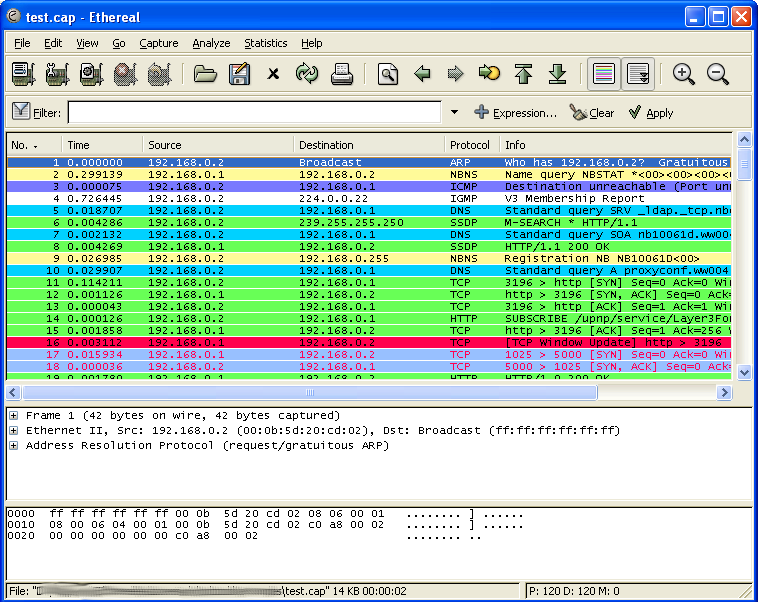
5. The main menu contains the following items: File to open and merge capture files, save / print / export capture files in whole or in part, and to quit from Ethereal. Edit to find a packet, time reference or mark one or more packets, set your preferences, (cut, copy, and paste are not presently implemented). View which controls the display of the captured data, including the colorization of packets, zooming the font, show a packet in a separate window, expand and collapse trees in packet details. Go to go to a specific packet. Capture to start and stop captures and to edit capture filters. Analyze to manipulate display filters, enable or disable the dissection of protocols, configure user specified decodes and follow a TCP stream. Statistics display various statistic windows, including a summary of the packets that have been captured, display protocol hierarchy statistics and much more. Help to help the user, like access to some basic help, a list of the supported protocols, manual pages, online access to some of the webpage's, and the usual about dialog.
The main toolbar provides quick access to frequently used items from the menu. This toolbar cannot be customized by the user, but it can be hidden using the View menu, if the space on the screen is needed to show even more packet data. They include the following items: Toolbar Item, Interfaces, Options, Start, Stop, Restart, Open, Save As, Close, Reload, Print, Find Packet, Go Back, Go Forward, Go to Packet, Go To First Packet, Go To Last Packet, Colorize, Auto Scroll in Live Capture, Zoom In, Zoom Out, Normal Size, Resize Columns, Capture Filters, Display Filters, Coloring Rules, Preferences, and Help.
The filter toolbar lets you quickly edit and apply display filters. The leftmost button labeled "Filter:" can be clicked to bring up the filter construction dialog. The left middle text box provides an area to enter or edit display filter strings. The middle button labeled "Add Expression..." opens a dialog box that lets you edit a display filter from a list of protocol fields. The right middle button labeled "Clear" resets the current display filter and clears the edit area. The rightmost button labeled "Apply" applies the current value in the edit area as the new display filter.
The packet list pane displays all the packets in the current capture file. Each line in the packet list corresponds to one packet in the capture file. While dissecting a packet, Ethereal will place information from the protocol dissectors into the columns. As higher level protocols might overwrite information from lower levels, you will typically see the information from the highest possible level only. For example, let's look at a packet containing TCP inside IP inside an Ethernet packet. The Ethernet dissector will write its data (such as the Ethernet addresses), the IP dissector will overwrite this by its own (such as the IP addresses), and the TCP dissector will overwrite the IP information, and so on. The default columns will show: No. the number of the packet in the capture file. This number won't change, even if a display filter is used. Time is the timestamp of the packet. The presentation format of this timestamp can be changed. Source is the address where this packet is coming from. Destination is the address where this packet is going to. Protocol is for the protocol name in a short (perhaps abbreviated) version. Info is for additional information about the packet content.
The packet details pane shows the current packet (selected in the "Packet List" pane) in a more detailed form. The protocols and fields of the packet are displayed using a tree, which can be expanded and collapsed. Some protocol fields are specially displayed. Ethereal will generate additional protocol fields which are surrounded by brackets. The information in these fields is derived from the known context to other packets in the capture file. For example, Ethereal is doing a sequence/acknowledge analysis of each TCP stream, which is displayed in the [SEQ/ACK analysis] fields of the TCP protocol. If Ethereal detected a relationship to another packet in the capture file, it will generate a link to that packet. Links are underlined and displayed in blue. If double-clicked, Ethereal jumps to the corresponding packet.
The packet bytes pane shows the data of the current packet (selected in the "Packet List" pane) in a hexdump style. As usual for a hexdump, the left side shows the offset in the packet data, in the middle the packet data is shown in a hexadecimal representation and on the right the corresponding ASCII characters (or . if not appropriate) are displayed.
The status bar displays informational messages. In general, the left side will show context related information, while the right side will show the current number of packets. When a ethereal has a loaded capture file the left side shows information about the capture file, its name, its size and the elapsed time while it was being captured. The right side shows the current number of packets in the capture file. The following values are displayed: P is the number of captured packets, D is the number of packets currently being displayed, and M is the number of marked packets.6. The purpose of the Capture Info dialog box is to inform you about the number of captured packets and the time since the capture was started. It also has a stop button which allows you to stop then save or restart the capture. The selection which protocols are counted cannot be changed.
Optional: This guide will ease you through ethereal it in a short amount of time. http://www.portforward.com/networking/ethereal.htm
Assignment Three - Ethereal Part Two
1. Malware can be detected with Ethereal if the malware's information is already known. Such information could consist of the behavior it characterizes, the port number(s) and the protocol it uses and perhaps even a range of IP or MAC addresses. It is difficult to pinpoint malware without having some information about the malware beforehand but suspicious activity can be analyzed further to discover a culprit.
2. You can define filters with Ethereal and give them labels for later use. This can save time in remembering and retyping some of the more complex filters you use. A display filter narrows down the available packets being displayed to your preference. For example, you could filter a certain protocol like HTTP to view packets generated from access to websites. You could also filter for SMTP to view all packets generated by outgoing email. You can also filter by IP address by using this for example: ip.addr==129.7.236.68.
3. There will be occasions when you would like to see the data from a TCP session in the order that the application layer sees it. Perhaps you are looking for passwords in a Telnet stream, or you are trying to make sense of a data stream. If so, Ethereal's ability to follow a TCP stream will be useful to you. After following a TCP stream you could save the output to an html file and see the output in a browser.
4. In the options dialog box you have the option of allowing or not Ethereal to translate network addresses into names. You need to allow this option otherwise you won't be able to tell who is who when you analyze the packets. You might not want to allow network address resolution if your name server is down as it will slow down the process.
5. The Ethereal menu sits on top of the Ethereal window. The main toolbar provides quick access to frequently used items from the menu. This toolbar cannot be customized by the user, but it can be hidden using the View menu, if the space on the screen is needed to show even more packet data. The filter toolbar lets you quickly edit and apply display filters. The packet list pane displays all the packets in the current capture file. The packet details pane shows the current packet (selected in the "Packet List" pane) in a more detailed form. The packet bytes pane shows the data of the current packet (selected in the "Packet List" pane) in a hexdump style. The statusbar displays informational messages. In general, the left side will show context related information, while the right side will show the current number of packets.
Assignment Four - TCP/IP
1. When was TCP/IP created? What were is chief design goal? In 1969, the Defense Advanced Research Projects Agency (DARPA) commissioned development of a network over which its research centers might communicate. Its chief concern was this network's capability to withstand a nuclear attack. In short, if the Soviet Union launched a nuclear attack, it was imperative that the network remain intact to facilitate communication. The design of this network had several other requisites, the most important of which was this: It had to operate independently of any centralized control. Thus, if 1 machine was destroyed (or 10, or 100), the network would remain impervious.
2. What is a network sniffer? Why would it be considered a security threat? A sniffer is a device--either hardware or software--that can read every packet sent across a network. Sniffers are commonly used to isolate network problems that, while invisible to the user, are degrading network performance. As such, sniffers can read all activity occurring between network-level protocols. Sniffers are considered a security threat when a hacker purposely uses it for the intent to capture clear text data such as unencrypted emails, passwords, and instant messages. Security testers should double check policy generated by operational controls before running sniffers to avoid job termination or even the possibility of litigation.
3. What does the Address Resolution Protocol do? What is the ARP cache? The Address Resolution Protocol (ARP) serves the critical purpose of mapping Internet addresses into physical addresses. We send data to MAC addresses not IP addresses. This is why ARP is critical, once your packets are bundled up and ready to go the packet must first broadcast its intended IP to the subnet. The router or host with that IP will then send its MAC address back to your computer which will enable you to initiate a session to transfers data to each others MAC addresses not IP's.
Every host has an ARP cache which stores recently resolved IP addresses paired with their MAC addresses. This is done to prevent broadcasts which increase the time it takes to resolve an IP to a MAC. The security risk involved with ARP cache is that a hacker could modify it via ARP poisoning which would make your system vulnerable to man in the middle attacks. If a hacker gains access to your system he can modify your ARP cache by replacing your banks IP address for example with his IP. He would then use a program to spoof his network interface card's MAC address to match the one in your ARP cache. The next time you access your banks website your ARP cache will direct your packets to the hackers IP because there is no authentication.
4. What is a daemon? A daemon is a program that runs unattended in the background (possibly hidden) to perform continuous or periodic system wide functions, such as network control.
5. What are the well known ports? File Transfer Protocol (FTP) 21 Telnet 23 Simple Mail Transfer Protocol (SMTP) 25 Gopher 70 Finger 79 Hypertext Transfer Protocol (HTTP) 80 Network News Transfer Protocol (NNTP) 119