
To associate a remote server with an existing local site:
1 In Dreamweaver 4, choose Site > Define Sites.
A dialog box appears listing currently defined sites.
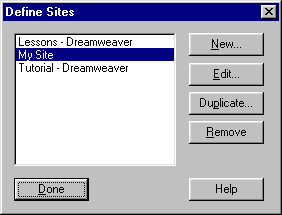
2 Select an existing site and click Edit.
If you have no currently defined sites, create a local site before proceeding.
3 In the Category list at the left, choose Remote Info.

4 Choose one of the following Access options:
Use FTP if you connect to your Web server using FTP. Then skip to the next
procedure.

Note: FTP is the most commonly used server access option. If you aren't sure
what to choose here, FTP is likely to be the right choice (but check with
your ISP or system administrator to be sure).
Choose Local/Network if your Web server is on the local network, or if you
are running a Web server on your local machine. Click the folder icon to browse
to and select the folder where your site files are stored on the server. Click
OK and then click Done in the Define Sites dialog box.

To connect to a Web server using FTP:
1 In the FTP Host field, enter the host name of the server to which you intend to upload files for your Web site.

The specific information required to make an FTP connection is unique to each
server. If you aren't sure about some of this information, ask your ISP or
your system administrator.
Your FTP host name is the full Internet name of a computer system, such as
ftp.mindspring.com. Enter the full host name without any additional text (such
as the protocol name http://) in front of the host name. For example:
Right: ftp.mindspring.com
Wrong: ftp://ftp.mindspring.com
Wrong: mindspring.com
Note: Not all FTP host names start with FTP.
2 In the Host Directory field, enter the name of the folder on the remote site where you want to store the documents to make them visible to the public. (This folder or directory on the server corresponds to the local root folder on your local disk.) See Determining the remote site's host directory (FTP only).

Note: In some cases, a server may be configured to automatically route you
to the correct directory by default. In that case you may leave the Host Directory
field blank. If your server isn't set up like that, though, you have to enter
a host directory.
3 In the Login and Password fields, enter the login name and password that
you use to connect to the FTP server.
4 Select appropriate firewall options for your site (if you don't have a firewall,
don't select either of these options.):
If your firewall configuration requires use of passive FTP (which lets your
local software set up the FTP connection rather than requesting the remote
server to set it up), select Use Passive FTP. If you're not sure, check with
your system administrator.
Select the Use Firewall option if you are connecting to the remote server
from behind a firewall.
5 Click OK.
The Define Sites dialog box reappears.
6 Click Done.
[HOME] [PAGE 2-Path Types] [PAGE 3-Local & Remote Sites] [PAGE 4- Troubleshooting]
Author: Emily Ricketts
Emily Ricketts is a technical writer in the Dreamweaver documentation team.
