
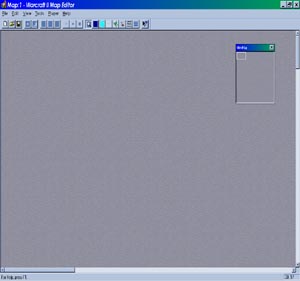
| Using Warcraft Map Editor Version 1.0.26 | 1995 |
 |
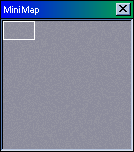 The minimap allows for fast scroll in the map editor. This is much like the one in the game. |
|
| For additional help press F1 in the editor | ||
| This button will allow you to create light terrain with snow, ice and water. |  |
|
| This button will allow you to create dark terrain with snow, ice and water. |  |
|
| The first button here allows for plain terrain. |  |
|
| This second one will provide a filler with you terrain such as rocks, pebbles, or weeds. |  |
|
| This third one includes the first two in a random order. |  |
|
| This is the smallest brush size for creating terrain. |  |
|
| This one will create medium size terrain. |  |
|
| This one is the largest allowing for max distribution. |  |
|
| This is the unit select button, allowinf you to select units and edit or delete them. (If you right click with this on a unit or goldmine/oilpatch you can edit there stats.) |  |
|
| This is a shortcut to the water brush. |  |
|
| This is a shortcut to the ice brush. |  |
|
| This is a shortcut to the snow dune brush. |  |
|
| This is a shortcut to the forest brush. |  |
|
| This is a shortcut to the rock brush. |  |
|
| There are one of these bottuns for each orc and human walls on the tool bar. |  |
| Under Properties: | |
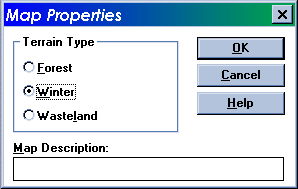 |
This window will allow you to give a description that will show up in the game and pick the climate. |
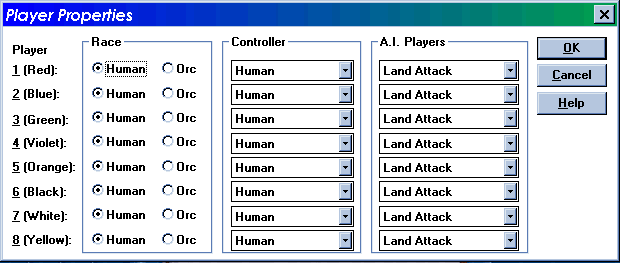 |
This window will allow you to choose the human and computer players. Also allowing you to choose computer players attack strategies (Air- Water-Land) and if certain players are rescuable. |
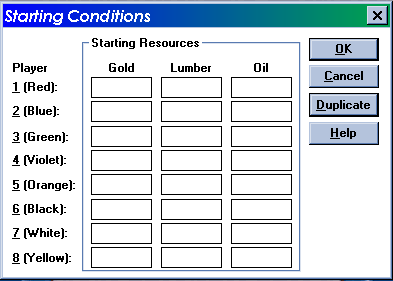 |
This window will allow you to insert the resources a player starts with. If you wish them to be the same then type it in on the first row and hit Duplicate. |
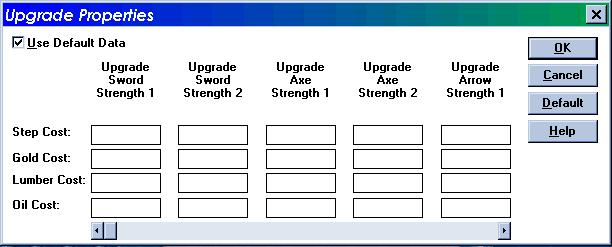 |
This window will allow you to set the upgrade costs for you custom map. (Be sure to unclick the Use Default data box if you wish to change.) |
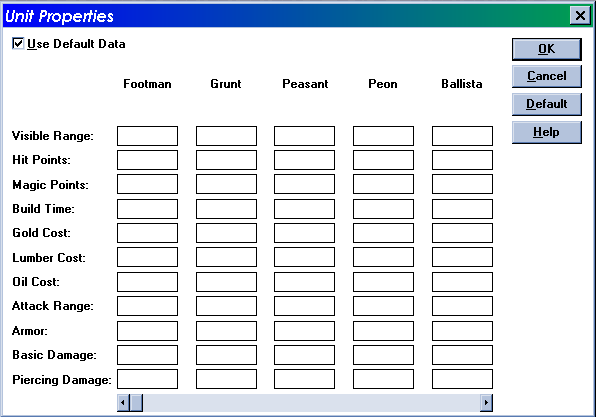 |
This window will allow you to set the stats for the units and buildings in the game. (Be sure to unclick the Use Default data box if you wish to change.) |
