.

How many times have you
developed a roll of film or taken a picture using a digital
camera only to find the flash didn't work on some of the
pictures? Your pictures are dark and seem worthless? Wouldn't be
nice if you could lighten those photos using PSP? Well, you can!! And it
is a pretty easy task. Just a few short steps and you should
have a nicely lightened picture.
Open up your PSP and
let's get started!

Open the image you want
to lighten.
( This is my daughter.... isn't she pretty?)
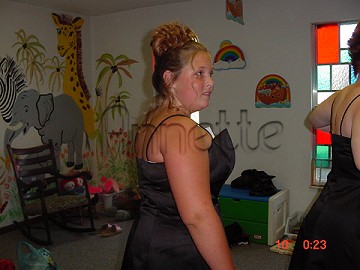
Shift + D to duplicate.
Close the original.
Open your layer palette.
Duplicate the Background Layer by right clicking on Background /
Duplicate.
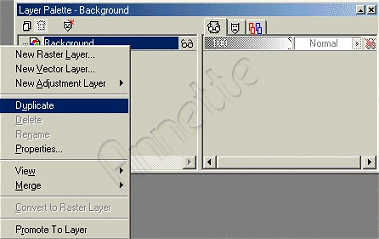
Highlight the "Copy of
Background" layer on the Layer Palette.
Go to Colors / Negative
Image
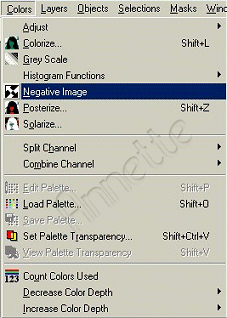
On the Layer Palette
change the Blend Mode to Dodge.
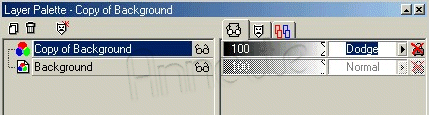 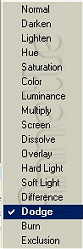
You should have something similar to this.
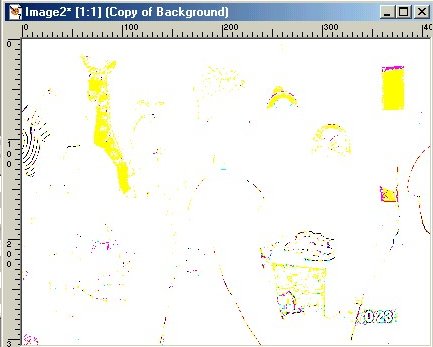
Slide the Opacity slider
down until you reach the desired look. When you get the image to
the lightness you want, right click on the layer and Merge All.
Save your new image.
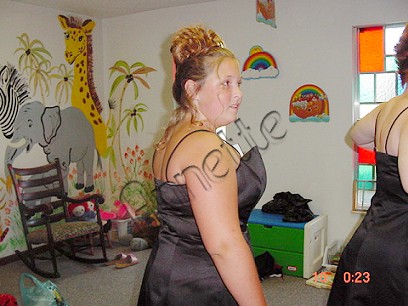
That's it!! That's all
there is to it! You did it!! Now wasn't that easy?
Please take the time to sign my guestbook.
I
like to see what my visitors have to say about my site.
Thanks, Annette
Sign Guestbook ||
View Guestbook
Back
to Tutorials
~~~~
Main
PSP Page
~~~~
Galleries
Frames 1
- 2
- 3
- 4
- 5
Trinket
Boxes || Shelves
|| Misc. 1 - 2
~~~~ |

