Getting Windows to record from the microphone on your PC
There are really 2 audio controls under Windows - one for play back and one
for record. The 2 controls are independent of each other.
When you hear noise being picked up and played back through the speakers, that's
the setting for Microphone volume in your playback set
to ON position, i.e, Windows plays back everything the mic picks up - very good
for karaoke, but not very useful to your recording or chat software since they
rely on the Record Control for audio inputs.
Before proceeding, make sure your microphone is plugged into the mic jack of your sound card and that it is in working order.
To make use of your microphone in Windows, follow this setup:
1. Double-click the speaker icon in Windows' System Tray to open volume control panel (Play Control).
2. Set the Microphone volume control to Mute.
Note:
3. Click Options -> Properties.
4. Switch to Recording and make sure Microphone is selected.
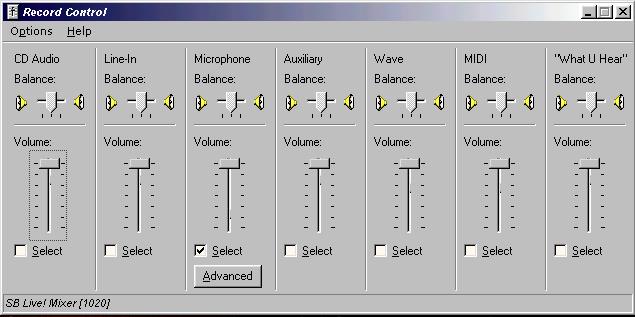
5. Click OK to exit. Record Control will appear. Select Microphone and adjust its volume as desired.
Note: This assumes the microphone is the recording sound source. If you want to record from other audio sources, then you'll need to select your recording source accordingly.