
The grid is the area of EFR where you will do most of your work.
It has a range of settings from 1 - 7. (the number keys)

Depending on the setting you can adjust things on a very fine or very coarse level.
Most mappers recommend changing the colors on the grid for better visibility.
The most recommended settings are black background, green grid.
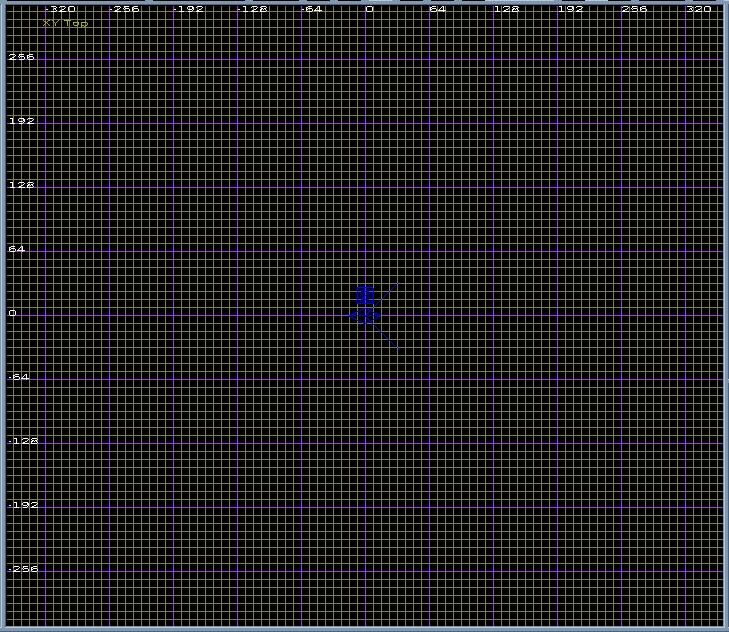
Mine, as you can see, sets the major and minor grid colors slightly different from one another so I can tell the major grid lines more easily.
A Brush is a structure consisting of one block or shape. These shapes maintain a solid form such as a circle, triangle, or square. Brushes are the building blocks of any map in radiant.
To create a brush simply left click and drag your cursor till you have a shape that meets your needs.
Lets make a brush. Open EFR if you haven't already. Left click any where on the grid, and drag your cursor in any direction you wish. Now let go. Viola- you have a brush. Press shift and right click in the brush on your grid. It should now be DE-selected.
This section was taken in whole from TicknSwisted's EFRadiant tutorial.
A Brush is a structure consisting of one block or shape. These
shapes maintain a solid form such as a circle, triangle, or square.
These basic shapes have no points that go toward the center of the shape and
then return outward (also known as doubling back in on itself).
However, as you might have guessed, you can have a brush that simulates the
doubling back effect by using multiple brushes.
Making a brush is easy: In the larger grid view Left mouse button and drag until you see something similar to the Red box below in figure 3.1.
Figure 3.1

DESELECT THE BRUSH(ES) by pressing the Escape
button.
SELECT THE BRUSH(ES) by holding down the Shift button
and Left Clicking on the brush that you want to select.
Deselect the brush. Reselect the brush, now position the mouse near the side of the brush and drag it until it looks something like what Figure 3.2 (below).
Press the Space Bar once to copy your selected brush. This tool quickly copies any brush(es) you might have selected and moves them away one grid unit by one grid unit and selects it for you. You should also notice that this deselects anything that you might of had selected before it.
| Note: |
|
Selecting a brush is the
same way you would select an entity; de-selecting |
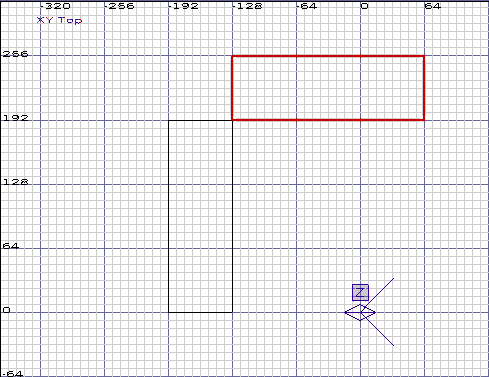
Now press escape to deselect the brush and create another brush by dragging from one point to another and position it so that the above screen is similar to your EFRadiant's view
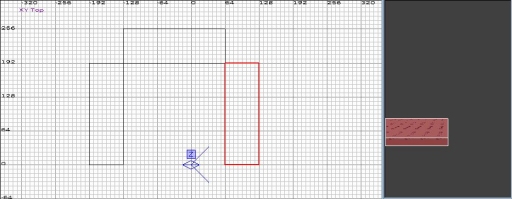
You might want to experiment with the:
| Directional Rotations: |
|
Selection »
Rotate » Rotate X - Which will rotate your brush
along the X axis. |
| Warning: |
|
Do NOT attempt to use the above
rotation method on your entities. |
As you experiment with rotations you might notice an option called 'Arbitrary
Rotation'. Hold off on using the arbitrary rotation because that process
often morphs your brushes into different shapes than you want. It also adds a
possibility of leaks if you are doing the rotation with walls.
Select any of the brushes you just made and press the Backspace
button to delete it.
It should just poof away into oblivion.
