Using Microsoft Word
Opening Microsoft Word
Saving Work that Has
Not Been Saved Before
Saving
Work that Has Been Saved Already
Getting
a Screen Shot

Opening Microsoft Word
- Click on the Start button on your
taskbar.
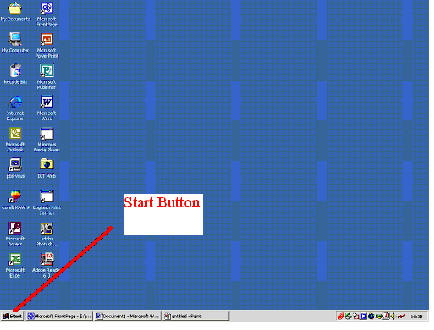
- Open the programs menu.

- Click on Microsoft Word.

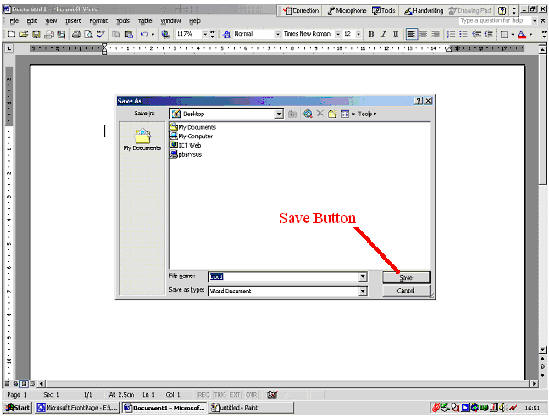
Saving Work That Hasn't Been Saved
Before
When it comes time to save your work
follow these instructions:
- Open the File Menu and click on "Save
As".

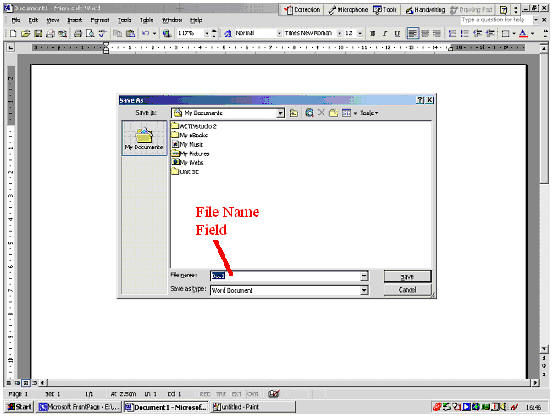
- Click on the "File Name" field and
type a meaningful name.
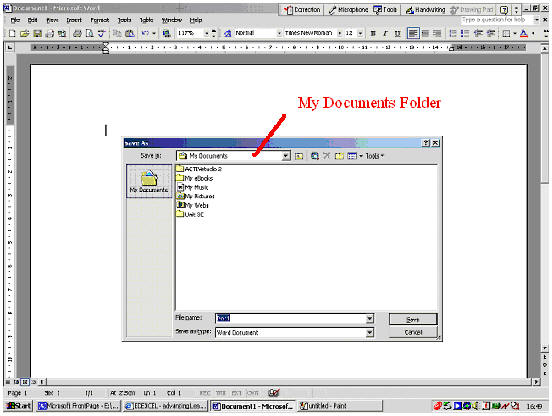
- Save your work into your my documents
folder.
- Click on Save.
Saving Work that Has Been
Saved Already
If you are saving work that has been
saved once before then do this:
- Click on the Save icon on the Standard
Toolbar.

Getting
a Screen Shot
In some cases you will have to get a screen shot a.k.a. a
screen dump of your work. To do this follow these instructions:
- Press the "Print Screen" key on your
keyboard. The key may say Prt Sc.
- Open a Microsoft Word
document.
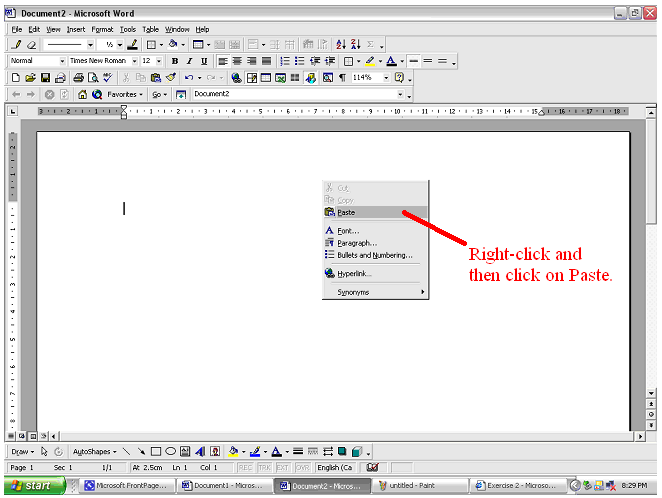
- Right-click on your Microsoft Word document and click on
Paste.