Introduction to Excel
Changing the Name of a Worksheet

Worksheet: The series of rows and columns you see when you open Excel.
Workbook: Several worksheets together.
Columns: Columns run vertically (up and down) and are given a letter for a name.
Rows: Rows run horizontally (side to side) and a give a number for a name.
Cells: Cells are the intersection of a column and a row. They are named by given the letter column and then the number of the row, this is call the cell reference. Eg. the first cell is named A1.
Formula Bar: Allows you to enter data into the active cell or to use formulas.
Active Cell Selector: Tells you which cell is active or to choose which cell you want to be active.
Column Heading/Selector: Shows you the heading of a column or allows you to select an entire column by clicking on it.
Row Heading/ Selector: Tells you the name of each row and allows you to select an entire row by clicking on it.
Select All: Allows you to select the entire sheet by clicking on it.
Sheet Scrolling Buttons: Allows you to scroll from one sheet to the next, from one sheet to the last in a workbook, or from one sheet to the beginning of your workbook.
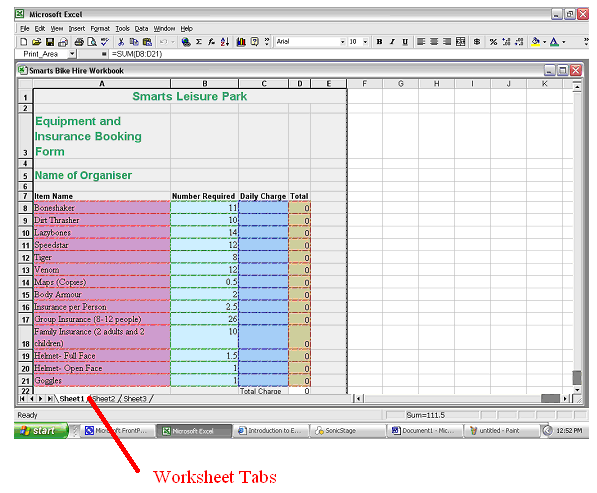
Sheet Tabs: Excel starts with three sheets in each workbook. You can select each sheet by clicking on the tab. If you have more than three sheets you will need to use the Sheet Scrolling Buttons.

You can enter different types of data into Excel; the two main types are:
Labels- these are text entries and are used to describe the numbers you will enter into you worksheet.
Values- these are entries that have numerical value, i.e. calculations can be performed on them. Symbols used in calculations such as +, -, *, / are also considered to be values.
Changing the Name of a Worksheet
When you open up Excel what you are doing
is opening a workbook. You need to imagine it as a book with several
spreadsheets in it and you can tell which sheet you are on by the names on the
tabs at the bottom of the
workbook.
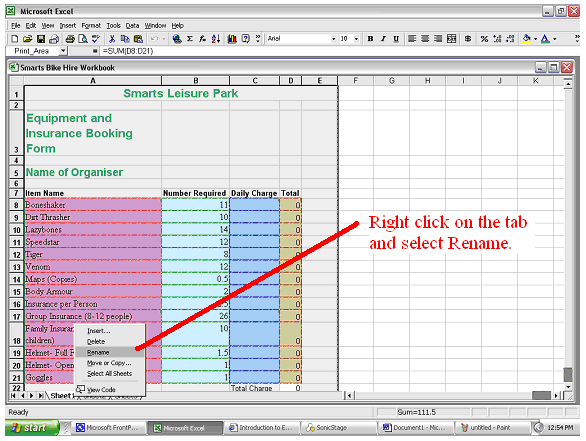
To change the names of the worksheets do this.
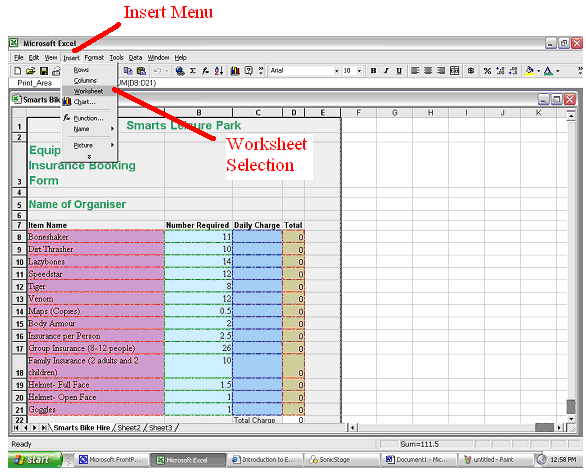
If you want to add a new worksheet to your workbook follow these instructions: