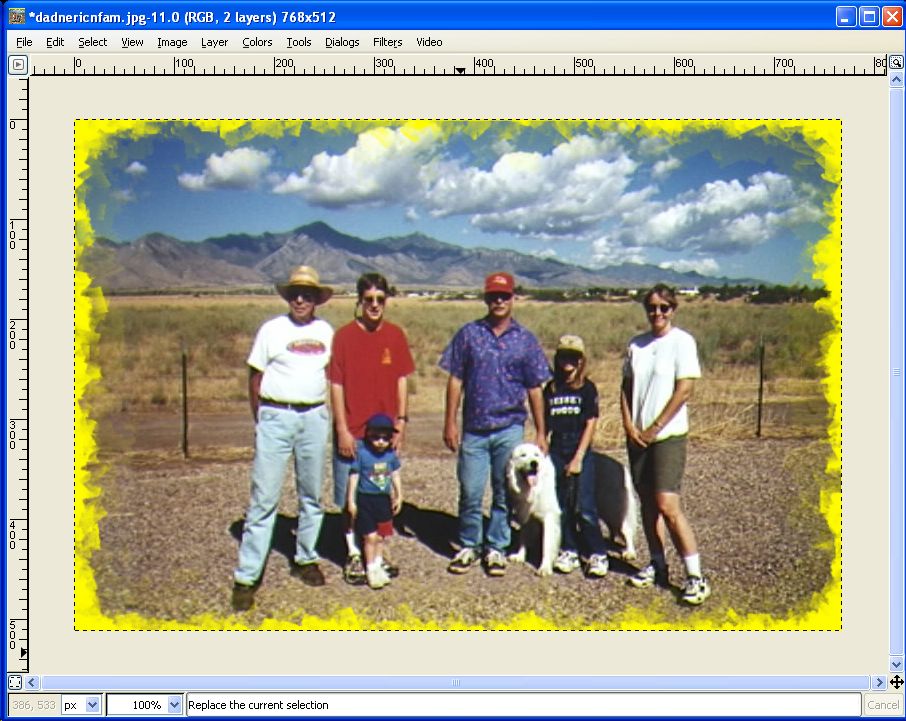
Adding an edge effect to an image in GIMP
1. open your image, and complete all work on it that's planned, then merge all the desired layers. Merging must be done to appropriately apply the edge affect to the image.
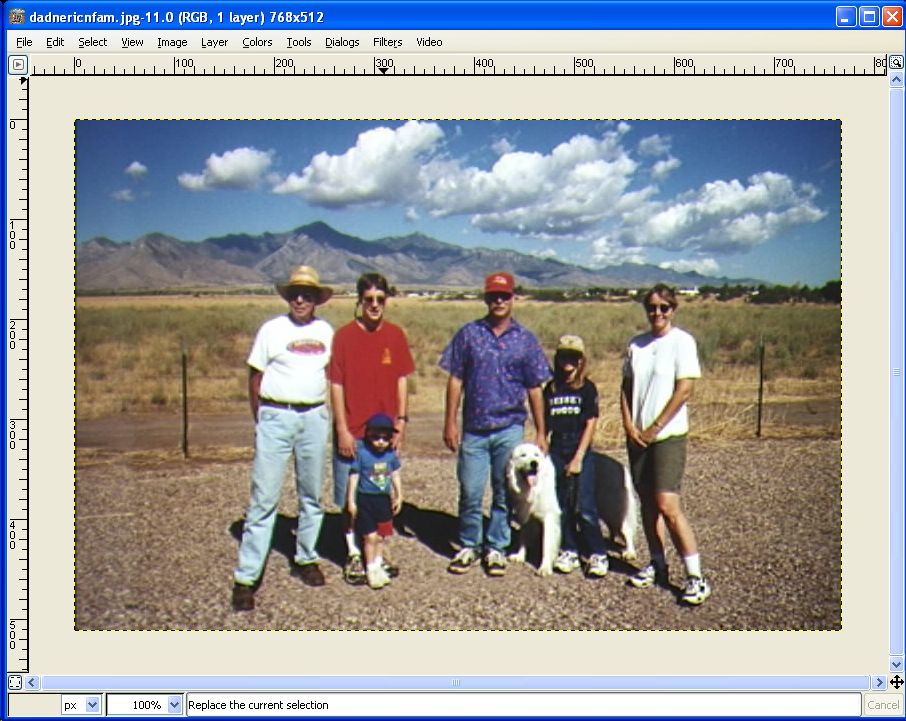 |
Here's an image of my dad, brother, and his family in Arizona. I've done all the repairs and enhancing that I want, and merged all my service layers, so I'm ready to add the edge effect frame. |
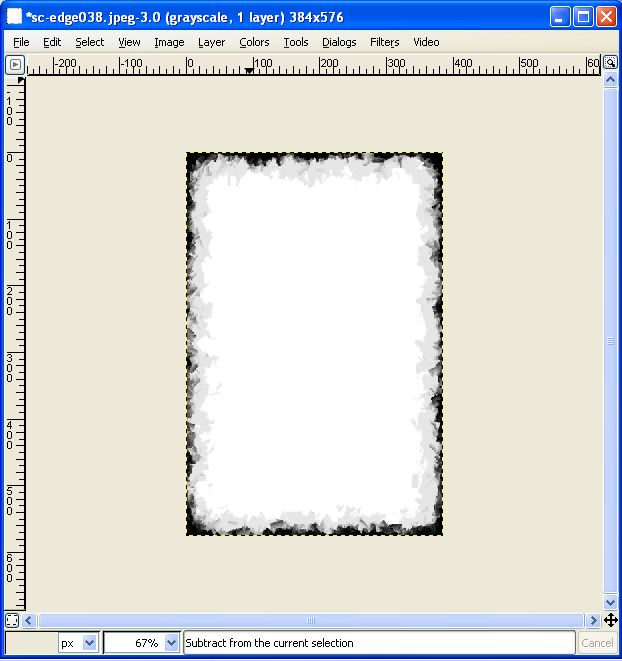 |
2. I've selected a grayscale frame that
I want to use. The white area is what will be left of my picture once
I'm done. But, I have to manipulate the frame first. My picture is
landscape, while the frame is portrait. Plus, the frame is smaller than
my picture.
3. I'll have to rotate the frame, and then resize it. To rotate the frame, click the right mouse button (RMB), and select "Image," then "transform," and finally "Rotate 90 degrees CW" from the selection menu. Open the selection menu again, select "Image," then "Scale Image." Click on the chain link next to the size boxes to break their association, and enter a width of 768px, and a height of 512px. Then click the "scale" button. |
 |
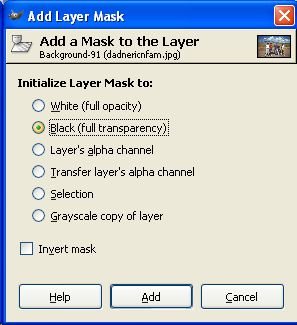 |
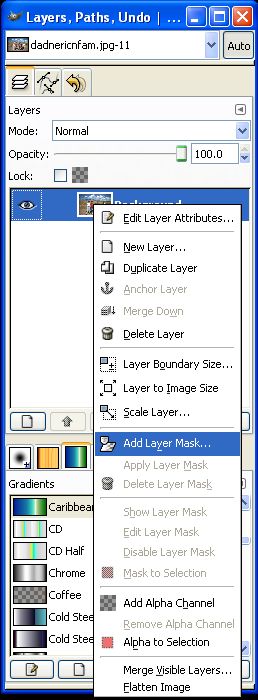
4. Returning to my original picture, I need to add a mask with it's transparency set to black. In the Layers window, select the picture layer (there should only be one layer at this point), and RMB to open a selection menu. Click on "Add Layer Mask." A new option window will open, to allow for mask settings. Select "Black (Full Transparency)." |
5. Now it's time to select my frame for copying. In the frame window, RMB on the image, click on "Select," then "All." This selects everything in the window. RMB again, and click on "Edit," and then "Copy." Now the frame is copied into memory, and ready to be pasted.
 |
6. Back in my picture, I need to make sure the mask is selected, I have to click on the mask icon, so a white border appears. Now I'm ready to paste the frame into my mask. |
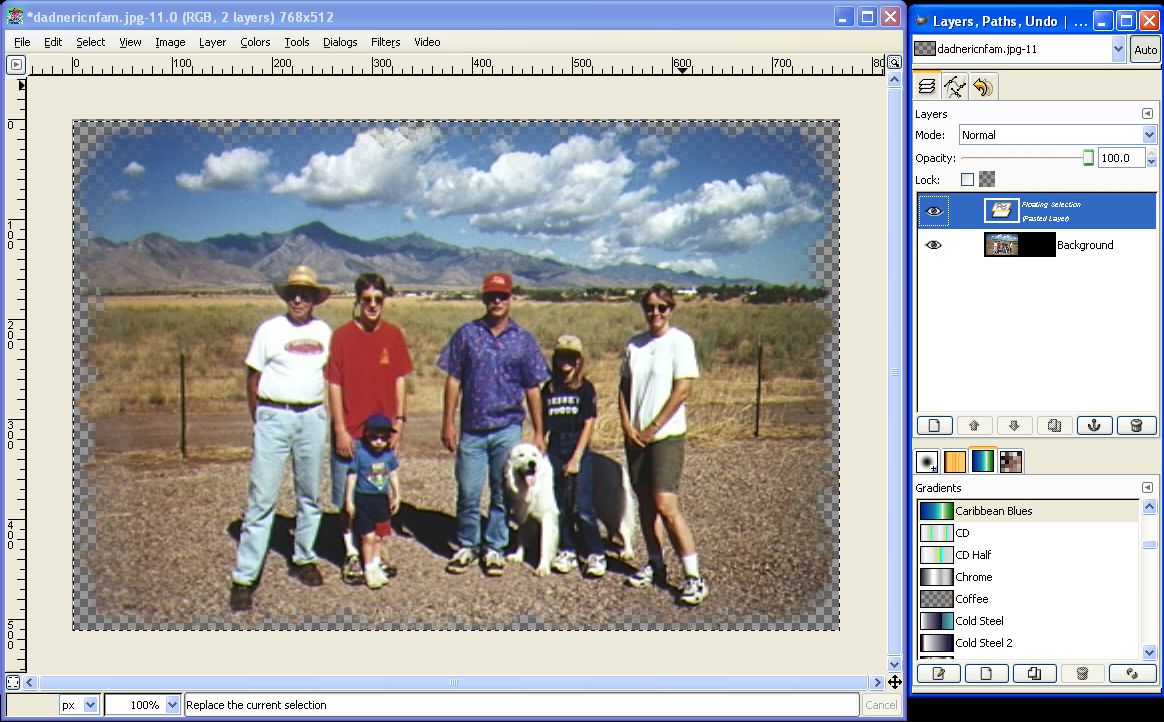 |
7. With the frame pasted into the image, but still not anchored, the result can already be seen. Because I don't have another layer underneath my picture, all that's noticeable around the edges are the transparency checks. The pasted frame still needs to be anchored. |
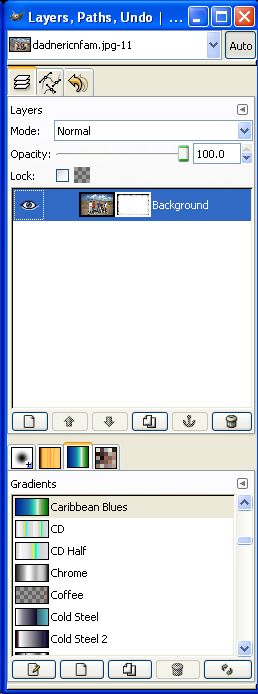 |
8. The pasted frame has now been anchored into the picture's mask, so the black areas of the frame provide transparency to the image. Now I need to add some kind of background so the frame effect can be seen. But, If I wanted to keep the edging for a print, I could go ahead and print it off. |
|