Site hosted by Angelfire.com: Build your free website today!

The Site
Home
Downloads
Chat
Visual Basic Tutor
Games Hints And Tips
Work In Progress

Extras
Online Shop
Games

Links
Yahoo UK
Yahoo International
Runescape Online RPG
Runescape Tips

Misc.
(Awaiting items)

First Program

In this part of my tutorial I'm going to show you how to code a little program that will display some text in a text box.

But first I'm going to show you the little bits of Visual Basic that you will need to know in order to do what's coming next.


This here is the Control Box. It is where all the controls (Text Boxes, Buttons, etc) are placed for easy access. You can even add your own groups to it but what you currently see is perfect for what we will be doing.

Take a good look at it because you will be using it for virtually every program in Visual Basic (VB).

This window you'll be using more than anything is the code window.

Almost all the coding for the program goes in here.

Why "Almost"?. That's because there are things called Modules and Class files. Those you need not worry about because in this tutorial I am keeping well away from them till we know what we are doing.

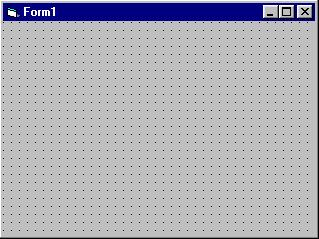
Last but not least. The Form.

The form is what an artist calls a canvas. You draw your program out on this and then add the fine touches to get it how you like it.

Keep in mind though, that you'll also have to think how the end user is going to use it. That I'll come to later on.

Now for the good bit.


Hello World

Place a text box on the form. It can be found in the control box, 2nd icon down the right side, white box with "AB|" in it.

To do this click on it and then click and drag on the form.

Now Place a command button below it in the same way.

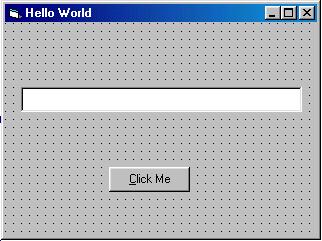
Now you should have a form the look something like the one opposite. If not don't worry.

Now double click on the button to bring up the code window and type this

Text1.text = "Hello World!"

It should Look something Like this
Private sub Command1_Click()
Text1.Text = "Hello World!"
End Sub

Now press F5 to run it and click the button. You should see the words "Hello World" appear in the box.

Here's my version of it

Back To List

Created by
Dark Lord Software