Site hosted by Angelfire.com: Build your free website today!
lesson 1 [introduction, basic html]
lesson 2 [formatting text, colouring text and background]
lesson 3 [images
lesson 4 [lists]
lesson 5 [tables]
lesson 6 [links, imagemaps]
lesson 7 [frames]
lesson 8 [microsoftisms, netscapisms]
lesson 9 [forms]

lesson 4 - let's make a list - [6- lists]
homecommentmore downloadsdownload this

This lesson/chapter is about inserting lists in your documents. HTML lists can be numbered or bulleted in a number of different styles, they can also be in the form of definition lists. They are a very effective way of displaying information and can also be used effectively as menus. In fact after this lesson you will be adding a menu in the form of a list to the top of you HTML builder.


<!--6 Lists-->

A list is a common way of presenting data on a web page and once you know how to use them they are very easy to use and they are very effective. There are five different types of lists. I will discuss three in detail and give a quick overview of the other two. These two are not as important because they both appear the same as one of the other three.

please comment when you're finished

creating ordered lists

Ordered or numbered lists start with the <ol> tag and end with the </ol> tag. The <li> tag must precede each piece of data on the list but no end tag is necessary. To put a title on your list simply use the <lh> tag. No end tag is necessary but I recommend that you add a <br> tag afterwards otherwise older versions of Internet Explorer will have the first list item on the same line as the heading. This is all you need to know to begin.

please comment when you're finished

Notepad Viewer 6.1

<html>
<head>
<title> Ordered lists </title><br>
</head>
<body>
<ol>
<lh><i>My Family</i>
<li>Me
<li>My Sister
<li>My Brother
<li>My Mother
<li>My Father
</ol>
</body>
</html>

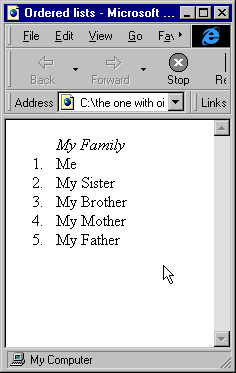
That is the most basic example of a list and it is displayed in Internet Explorer 4 as:

Explorer View 6.1 - click on the image to see a bigger and clearer version

"type=?"

You can customise your ordered lists by using the type attribute of the <ol> tag. There are five options for this attribute. They are

Type=1 Result=1, 2, 3, 4, 5 (this is the default)

Type=i Result=i, ii, iii, iv, v

Type=I Result=I, II, III, IV, V

Type=a Result=a, b, c, d, e

Type=A Result=A, B, C, D, E

the start attribute

It is possible to interrupt your list with text and return to it later by using the start tag. To use it, simply set its value to the value you want the list to start at. If you are not using the default type setting then you must specify the type in the <ol> tag too.

The following Notepad viewer and resulting Explorer view will hopefully help those who are still kind of confused about the type and start attributes.

/font>

Notepad Viewer 6.2

<html>
<head>
<title> Ordered lists </title>
</head>
<body>
<ol type=I>
<lh><i>Junior Cert Subjects in which I got an A</i>
<li>Science
<li>History
<li>T.G.
</ol>
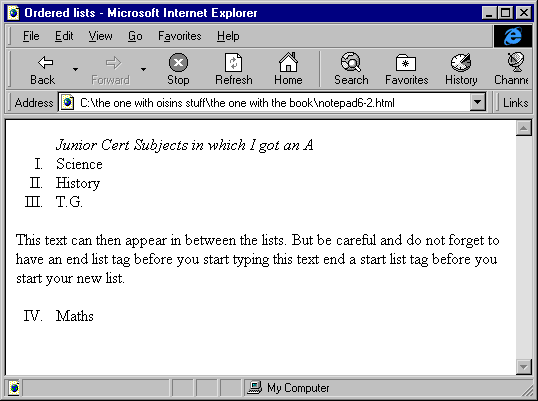
This text can then appear in between the lists. But be careful and do not forget to have an end list tag before you start typing this text and a start list tag before you start your new list.
<ol type=I start=4>
<li>Maths
</ol>
</body>
</html>

please comment when you're finished

Explorer View 6.2 - click on the image to see a bigger and clearer version

creating unordered Lists

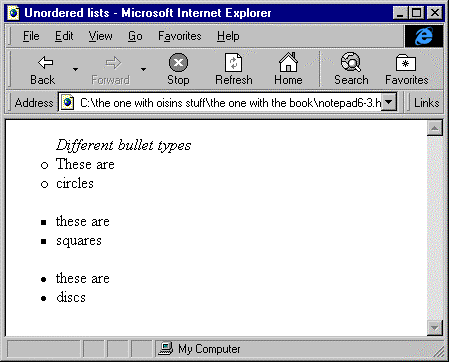
Unordered lists or bulleted lists are started with the <ul> tag and ended using the </ul> tag. Once again the <lh> and <li> tags are used to enter data. Type is the only attribute of the <ul> tag and there are three options for this. They are square, circle and disc. The following Notepad Viewer and corresponding Explorer View show you how to use the <ul> tag and display all the types of bullets.

Notepad Viewer 6.3

<html>
<head>
<title> Unordered lists </title>
</head>
<body>
<ul type=circle>
<lh><i>Different bullet types</i>
<li>These are
<li>circles
</ul>
<ul type=square>
<li>these are
<li>squares
</ul>
<ul type=disc>
<li>these are
<li>discs
</ul>
</body>
</html>

please comment when you're finished

Obviously there is no need for a "start=" attribute of the <ul> tag because each of the bullets is the same regardless it’s order, hence unordered list.

The default type on Internet Explorer 4 is disc. I am not certain about other browsers. As far as I can remember the default on Internet Explorer 3 is square, but I would not swear on it. If it is important to you that your list appears a certain way then make sure to define it.

Explorer View 6.3 - click on the image to see a bigger and clearer version

creating menus

Menus are enclosed within the <menu> and </menu> tags and use the <lh> and <li> tags for data input. Menus are identical to unordered lists except that there is only one type and that is disc.

please comment when you're finished

creating directory lists

Directory lists are enclosed within the <dir> and </dir> tags and use the <lh> and <li> tags for data. Directory lists are exactly identical to menu lists. Browsers do not yet interpret a difference between them and unordered lists but their intended purpose is to provide a list that looks like a DOS list with the /w parameter.

creating definition lists

Definition lists or glossary lists are enclosed within the <dl> and </dl> tags. They are different from the other list types in that each entry has two parts. They are <dt> and <dd>. I am not certain but I think these terms mean definition term and definition description or data. The description appears indented from the term, kind of like a dictionary or thesaurus. The only attribute of the <dl> tag is "compact" this supposedly presents the list in a smaller font or something else but it does not seem to make any difference on Internet Explorer 4.

please comment when you're finished

Notepad Viewer 6.4

<html>
<head>
<title> Definition Lists </title>
</head>
<body>
<dl>
<dt><i>Start tag</i>
<dd>Term used to signal the start of a piece of HTML that must be enclosed within two tags.
<dt><i>End tag</i>
<dd>Term used to signal the end of a piece of HTML that must be enclosed within two tags.
<dt><i>Attribute</i>
<dd>Term used for the different options that can be used to customise a piece of HTML within the start tag.
</dl>
</body>
</html>

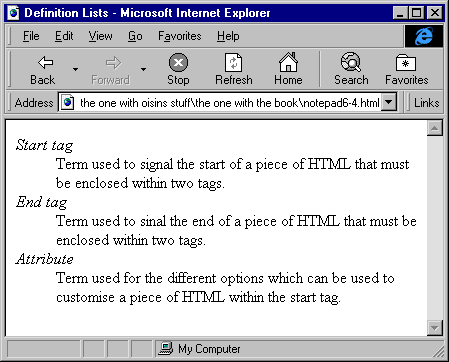
The above HTML listing is presented in Internet Explorer 4 like this:

Explorer View 6.4 - click on the image for a bigger and clearer version


text formatting within a list

As you probably noticed in the listings so far I have been using the <i> and </i> tags to format some of the text. I would like you to know that all of the other types of text formatting such as bold or strikethrough can also be used. Although headings seem to present well on Internet Explorer 4 but I am informed that they can mess up the presentation on earlier versions. Therefore I would advise to using headings i.e.<h1>heading size 1</h1> only for the list heading and not in list items.

compact

This attribute can be used for <ol>’s <ul>’s and <menu>’s but it does not make a visual difference in Explorer 4 although in theory it should make it smaller.

combining list types

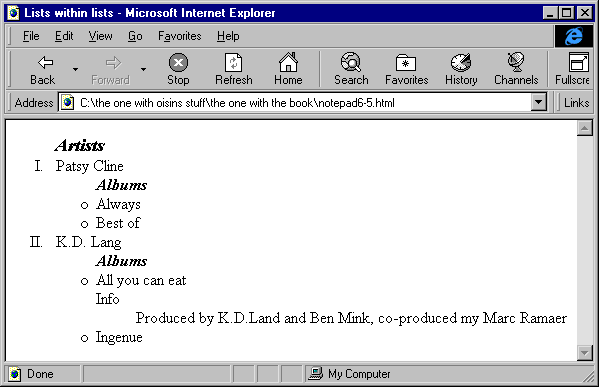
It is possible to add lists within lists whether they are the same type or not. All you have to do is enclose the list start and end tags within the start and end tags of the list within which you want it to be enclosed. Sound complicated? It really isn’t. It might be easier to understand if I show you. Just pay attention to Notepad viewer 6.5 and observe its result in Explorer View 6.5.

please comment when you're finished

Notepad Viewer 6.5

<html>
<head>
<title>Lists within lists</title>
</head>
<body>
<ol type=I>
<lh><i><big><b>Artists</b></big></i><br>
<li>Patsy Cline
<ul type=circle>
<lh><i><b>Albums</b></i>
<li>Always
<li>Best of
</ul>
<li>K.D. Lang
<ul type=circle>
<lh><i><b>Albums</b></i>
<li>All you can eat
<dl>
<dt>Info
<dd>Produced by K.D.Lang and Ben Mink, co-
produced my Marc Ramaer
</dl>
<li>Ingenue
</ul>
</ol>
</body>
</html>

As you can see, I started off with an ordered list that contained 2 items. Each of these items then had an unordered list containing 2 items. One of these items then had a definition list.

On the next page you will see how these lists are presented in Internet Explorer 4.

please comment when you're finished

Explorer View 6.5 - click on the image for a bigger and clearer version

Notice that I also used some of the physical formatting tags that you learned about earlier on.

personalising your lists

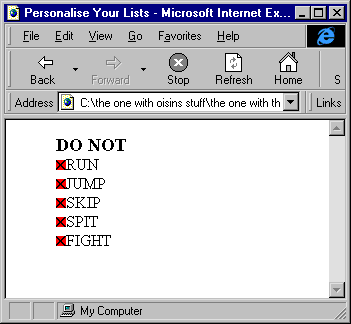
When using unordered lists you can choose an image to use as your bullet simply by removing the <li> tag and replacing it with:

<img src= "image.gif">

Make sure that the image is not too big or it might take time to download.

Remember too that you now must include the <br> tag at the end of each item.

In fact all you are doing is using the <ul> tag to indent the list. It serves no other purpose. The list would look exactly the same if you didn't use it except that it wouldn't be indented.

lesson 1 [introduction, basic html]
lesson 2 [formatting text, colouring text and background]
lesson 3 [images
lesson 4 [lists]
lesson 5 [tables]
lesson 6 [links, imagemaps]
lesson 7 [frames]
lesson 8 [microsoftisms, netscapisms]
lesson 9 [forms]

Notepad Viewer6.6

<html>
<head>
<title>Personalise Your Lists</title>
</head>
<body>
<ul>
<lh><b><big>DO NOT</b></big><br>
<img src="x.bmp">RUN<br>
<img src="x.bmp">JUMP<br>
<img src="x.bmp">SKIP<br>
<img src="x.bmp">SPIT<br>
<img src="x.bmp">FIGHT<br>
</ul>
</body>
</html>

Explorer View 6.6 - click on the image for a bigger and clearer version

indenting

To indent your list more simply include more than one start tag, but remember to have the same amount of end tags.

<ul><ul> ~~~~~~~~~~~~~~ </ul></ul>

conclusion

I am confident now that you will be able to create attractive easy to read lists on your web page. Don’t forget that when you learn how to insert hyperlinks into your documents, your lists will function excellently as menus so as viewers can navigate around your site with greater ease.


next lesson    home    comment    more downloads    download this
lesson 1 [introduction, basic html]
lesson 2 [formatting text, colouring text and background]
lesson 3 [images
lesson 4 [lists]
lesson 5 [tables]
lesson 6 [links, imagemaps]
lesson 7 [frames]
lesson 8 [microsoftisms, netscapisms]
lesson 9 [forms]


HTML Builder- End of Lesson 4

Notepad Viewer- HTML Builder 4

<html>

<head>

<meta name=keywords content="practice, web, page, html">

<meta name=description content="this is the site I will use to practice writing HTML">

<title>

I have now completed Lesson

4

</title>

</head>

<body topmargin=20 leftmargin=15 text=fuchsia link=navy vlink=blue alink=green background="nonexistent.jpg" bgcolor=aqua bgproperties=fixed>

<basefont face="lucida casual","arial" size=3 color=fuchsia>

<h1 align=center>

HTML BUILDER
</h1>

<hr size=3 color=lime width=75% align=center>

<OL type=I>

<lh><big><b>What I learned from....</big><b><br>

<li>Lesson 1

<ul type=circle>

<li>start and end HTML tags

<li>head tag

<li>meta tag

<li>title tag

<li>body tag

<li>margins

<li>hidden text

</ul>

<li>Lesson 2

<ul type=circle>

<li>blockquote

<li>background colour or image

<li>all attributes of the body tag

<li>basefont and font tags

<li>paragraphs and line breaks

<li>physical formatting

<li>preformatted text

</ul>

<li>Lesson 3

<ul type=circle>

<li>inserting images

<li>aligning text with images

<li>all attributes of the img tag

</ul>

<li>Lesson 4

<ul type=circle>

<li>ordered lists

<li>unordered lists

<li>definition lists

<li>all attributes of these lists

<li>lists within lists

<li>personalising your lists using your own bullet

</ul>

</ol>

<hr size=3 color=lime width=75% align=left>

<h2>
This is what I have learned from
lesson 1.</h2><img src="talk.gif" height=80 width=80 alt="talking man" hspace=40>

<hr size=3 width=75% color=lime align=left>

I know the very basics of writing HTML. I know

that the start and end HTML tags are necessary in a HTML document. I know that the

meta tag is used to give information to search engines, i.e. keywords and description<p>

I am able to assign a title to my documents (see taskbar above).<br> I know that all

text and images etc. are to be included between the start and end body tags.

I know two attributes of the start body tag, topmargin and leftmargin and I

know that each of these is measured in pixels. I know how to insert

hidden text in a HTML document for example there is

hidden

<!--this text is hidden so you cannot see it on the webpage-->

text in between the

words hidden and text in this sentence.

<hr size=3 width=75% color=lime align=left>

<h2>

This is what I have learned from
lesson 2</h2><img src="talk.gif" height=80 width=80 alt="talking man" hspace=40>

<hr size=3 width=75% color=lime align=left>

Most of what I learned in lesson two was about changing the look of my webpage. I have already made some changes to this page and I will tell you what they are in an indented paragraph.

<blockquote>As you can see I have added a background colour to the page and if I want I know how to add a tiled image. I have set all of the attributes in the body tag, most of them concern the colour of different text. I have added paragraphs and line breaks to the text. I have set the basefont tag and <font face="flexure","times new roman" size=+1 color=black>know how to use the font tag </font>.I have added horizontal lines and I have added headings. I have also added paragraphs and line breaks.</blockquote>

<pre>

I am able to

----------------------

use preformatted text to make

it appear in the order

I want it to

</pre>

<p>I can format my text so as it is<br>

<b>bold</bold><br>

<i>in italics</i><br>

<u>underlined</u><br>

<tt>tele-type</tt><br>

<strike>strike-through</strike><br>

<sup>superscript</sup>,

<sub>subscript</sub><br>

<small>small</small><br>

<big>big</big><br>

<b><u><i>or</i></b><sup><big> a</u></sup><tt><strike> combination</big></tt></strike></u>

<hr size=3 width=75% color=lime align=left>

<h2>

This is what I have learned from
lesson 3</h2><img src="talk.gif" height=80 width=80 alt="talking man" hspace=40>

<hr size=3 width=75% color=lime align=left>

This lesson was based on one chapter and the central topic was inserting images in HTML documents.<p>

I have already inserted .gif files on my page and now I will now show you some other things I know how to

do with images.<p>

<img src="picture.gif" align=left height=128 width=128 alt="this is text written in the alt attribute" vspace=10 hspace=10>

This text is beside a left aligned image and will wrap when it gets to the bottom. This text is beside a left aligned image and will wrap when it gets to the bottom. This text is beside a left aligned image and will wrap when it gets to the bottom. This text is beside a left aligned image and will wrap when it gets to the bottom. This text is beside a left aligned image and will wrap when it gets to the bottom. This text is beside a left aligned image and will wrap when it gets to the bottom. This text is beside a left aligned image and will wrap when it gets to the bottom.<p>

This is only one line of text and appears center aligned <img src="picture.gif" align=center height=128 width=128 alt="this is text written in the alt attribute" vspace=10 hspace=10><p>

I know how to resize images using the width and height attributes. e.g.<img src="picture.gif" align=center height=60 width=160 alt="this is text written in the alt attribute" vspace=10 hspace=10>

<p>I understand all the attributes of the img tag and they have all been used for the images above.

<hr size=3 width=75% color=lime align=left>

<h2>This is what I have learned from lesson 4</h2><img src="talk.gif" height=80 width=80 alt="talking man" hspace=40>

<hr size=3 width=75% color=lime align=left>

This lesson was again based solely on one chapter. The Chapter concerned lists. I learned about ordered or numbered lists, unordered or bulleted lists and definition lists. I learned the different attributes of each of these, the main one being type. I learned how to insert lists within lists. I also learned about extra indentation and personalising unordered lists.

<p>I have now added a list of contents at the top of this page and when I learn more advanced things about HTML this list will appear in a different frame and will contain links to the different sections.

</body>

</html>

Please tell me what you think
name

email

website

comments


next lesson    home    comment    more downloads    download this


Information
The official home-page where this document can be downloaded is http://www.geocities.com/SiliconValley/Network/4759/
This document (whole or part) is not to be used, plagiarised, or its' content attributed to any other author. Any quotes must be acknowledged to the author and the author must be informed of the quotation before it's publication. This is effective whether the quotation is being transmitted by electronic or any other means. The author of this document is Oisin Prendiville who can be contacted at
html3.2@technologist.com

This document was last modified by the author (above) on 5/12/1998
© copyright 1998