Site hosted by Angelfire.com: Build your free website today!

Home ] Up ] Using Microsoft Word ] [ Entering ] Formatting Text ] Formatting Features ] Incorporating Clip Art and Images From File ] Incorporating WordArt and AutoShapes ] Incorporating Tables into a Word File ] Using Mail Merge ]

Entering, Selecting, Copying, Cutting, Pasting, and Moving Text

Objectives: to learn basic text editing features e.g. entering, selecting, copying, pasting, cutting, and moving text.

Lesson Topics:

  1. Undoing Changes
  2. Entering Text
  3. Selecting Text
  4. Copying Text
  5. Pasting Text
  6. Cutting Text
  7. Moving Text

Undoing Changes

If you ever make a mistake there is no need to worry.  You can simply press control + Z and any changes you have made to your document will be undone.  If you press control + Z again then you will undo previous changes.  Control + Y will redo anything you may have undone.

Entering Text

The only thing you need to know about inputting information with the key board is if you are doing it in insert or overtype mode.  

Insert mode allows you to insert characters into word with out typing overtop of anything else you may have already typed.  

If you are in overtype mode then  anything new you type will be typed over anything you have already entered.

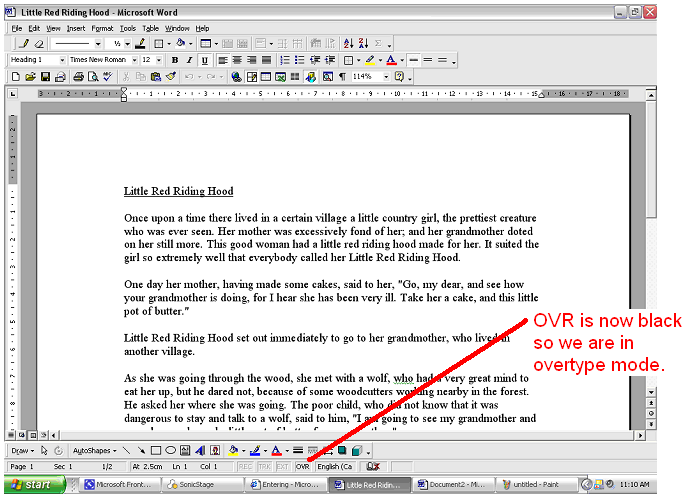
To tell which mode you are in look at the OVR at the bottom of the window.  

  1.     If the OVR is grey then you are in insert mode.
  2.     If the OVR is black then you are in overtype mode.

If you want to switch between the two modes do this:

  1. Place the pointer over the OVR and double click.
  2. The OVR should change colour and a new mode is selected.

Selecting Text

The first thing you need to do when editing text is to select the text you wish to copy.  There are different ways you can do this:

The most common way is probably by manually selecting the text you wish to copy.  In order to do this you:
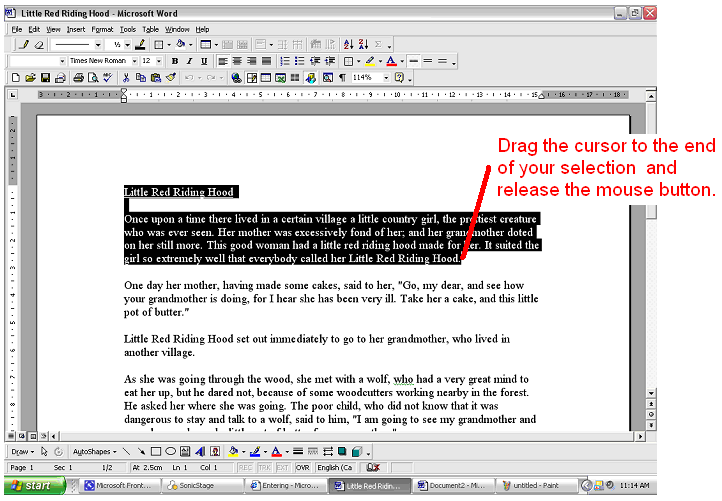
  1. Click and hold the button at the beginning of the text you wish to select.
  2. Drag the cursor to the end of your selection.  
  3. Once you have all of the text highlighted you release the mouse button.                                                           

Copying and Pasting Text

To copy a piece of text to the clipboard follow these instructions:

  1. Select the text to copy.  See above if you don't know how to select text.
  2. Right click on the selected text.  When the menu pops up click on copy.

In all cases the text is then copied to the clipboard and is then ready to paste somewhere else.

Pasting Text

If you want to paste the text you have just copied to another area of your document or to another Microsoft Office document then do this:

  1. Place the cursor where you wish to paste your text then right click.  
  2. When the menu pops up click on paste.                                                
  3. Your selection will be pasted where you put your cursor.

Cutting Text

If you want to cut a piece of text out of your document then you can do this:

  1. Highlight the section you wish to cut.                       
  2. Right click on the selected text and when the menu pops up click on cut.
  3. After you cut a piece out of a document you can then paste it somewhere else if you wish.  Follow this link to learn how to Paste.

Moving Text

Moving text is done by following the steps below:

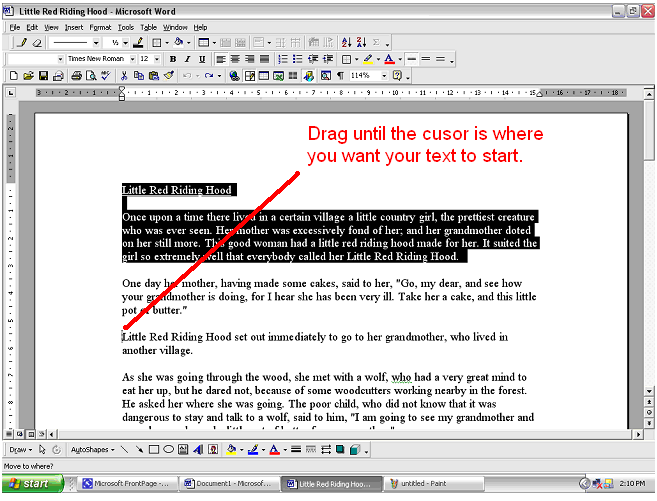
  1. Select the text you wish to move.                               
  2. Click on the highlighted text on hold the mouse button down.
  3. Drag until the cursor is where you wish the text to begin.
  4. Release the mouse button and your text will have been moved.