Setting Up Microphone.
The first thing you need to do is make sure you have the microphone pluged
into the right port in the
back of your pc. There should be a picture of a microphone on the
back of your PC that denotes the correct location to plug the mic into.
Once you have checked that it is in correctly, then we need to move onto
the next step...
If you look to the bottom right hand corner of your screen( task bar )
you will see a gold looking speaker...place your mouse pointer
over the speaker and it will show you that it is volume...
See picture below.
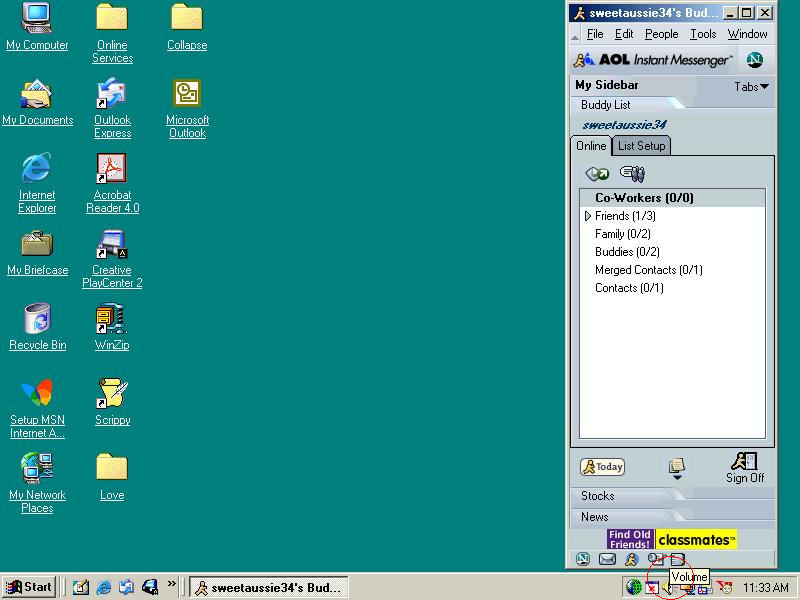
Right click on the speaker and a little menu will pop up saying open volume
controls.
See picture below.

Place your mouse pointer over the open volume controls
which will highlight it.
Left click .
Another window will appear called play control.
Look in the top left hand corner of the new window and make sure it is
called
Play Control NOT Record Control as these directions are for play control.
If the window is called record control then you need to
click here
If its play control continue following this tutorial.
Locate the one that says microphone it may look something like the picture
below.
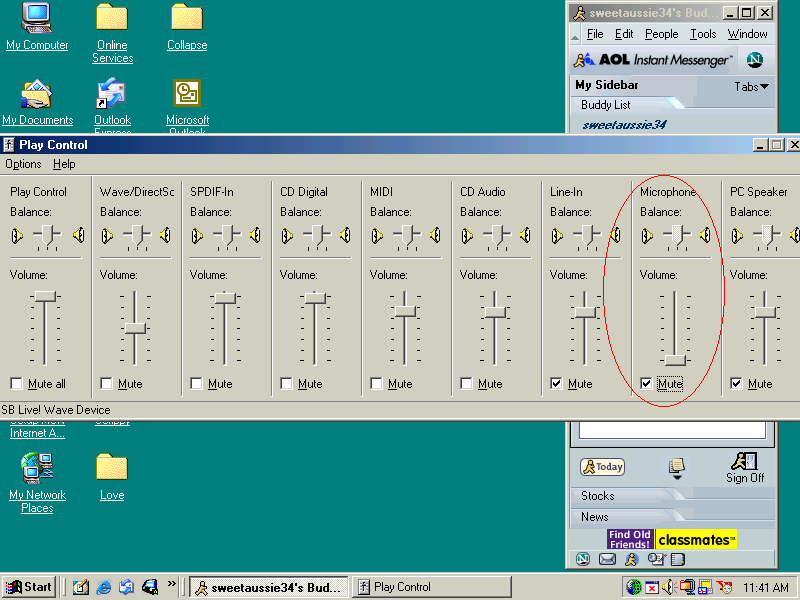
If the microphone box has a tick in it we need un tick
it.
To do this place your mouse pointer over the little box under microphone
and left click once.
There should be no tick in the box now..
If you see any other boxes with a tick in them left click on them as well...
so now we should have no ticks in any boxes.
See picture below.
If it now looks like the picture above.
If it does then you have completed the microphone setting...
You can now close the play control window.
If microphone still does not work then maybe you have it plugged into the
wrong port hole in the back of your pc.


