Photoshop Tutorial: Grid
First you make a new page. I made mine 100x100 just so its a nice size.
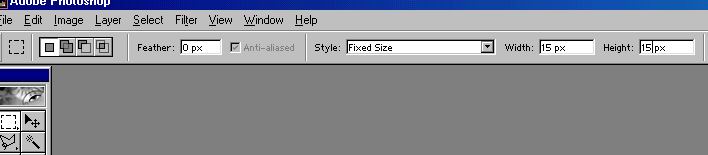
Then go to the ractangle marquee tool and choose fixed size like I have above. Make the Width and Height 15 px. This is how big the grid will be so if you want it bigger or smaller change the px here (but remember for it to look good always make it have the same height and width). Make sure Feather is set at 0 px.
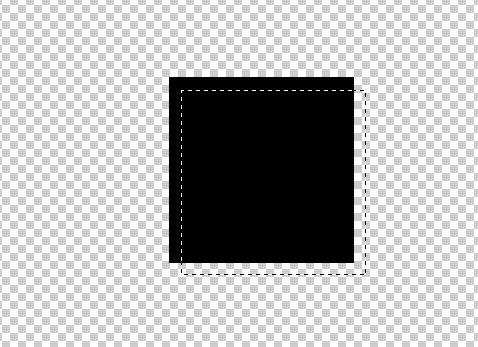
After you have done that, click on the image and it should make a box. Zoom into it as much as you can. Make the foreground black and hit ALT-Backspace. This will fill in the Square. Hit down once and right once on your arrow keys.
Your image should look like the image above. Hit Delete.

It should now look like the image above. Now go to edit and down to Define Pattern. Call it whatever you want and you have a grid.
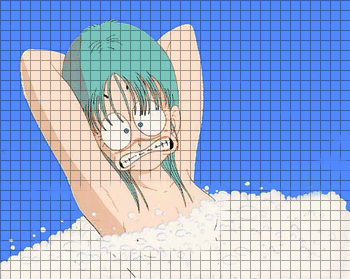
That is an Image with the grid pattern. I didnt change the opacity or anything I just put the pattern down.

