Status Bar control plus others added to ToolBox
- < Project > (from menu bar at top)
- < Components >
- < Microsoft Windows Common Controls 6.0 >

Click on Status bar Icon in Toolbox
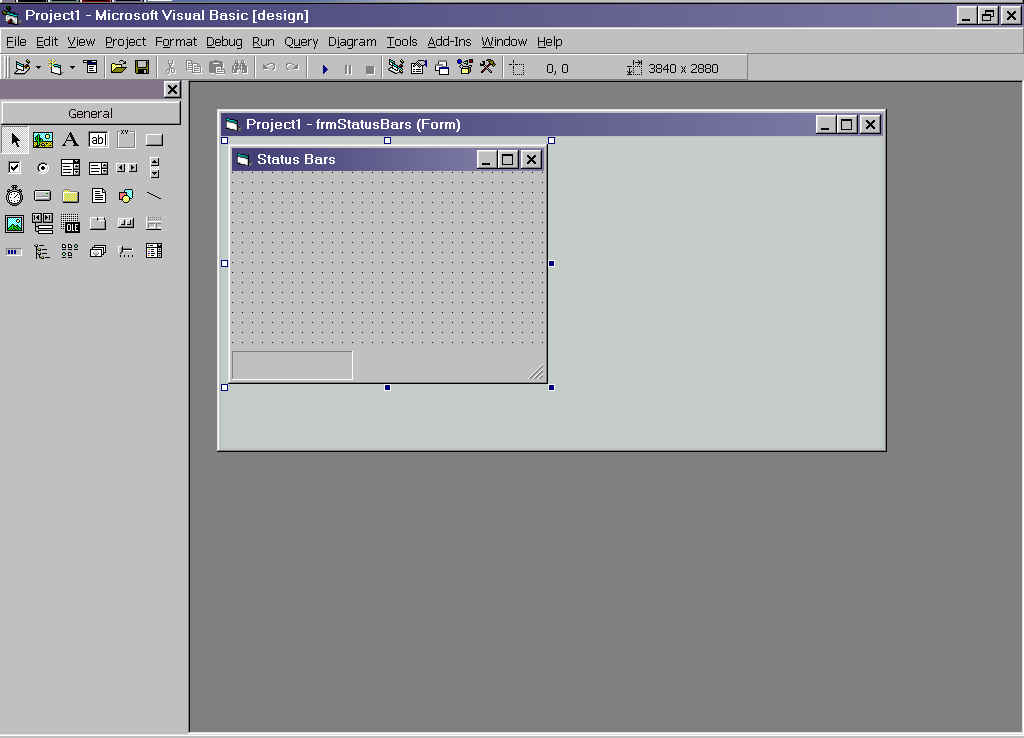
| Property Pages
3 methods to obtain :
- Status bar selected -
- < View > (see menu bar at top)
- < Property Pages >
- Status bar selected -
- 3rd method
- Right click Status bar
- < properties > (from pop-up menu)
|
Set up Status Bar using Property Pages
Click on 'Panel' tab :

Style set to 'sbrCaps'

Enter 'Tool Tip text'

Press <OK>
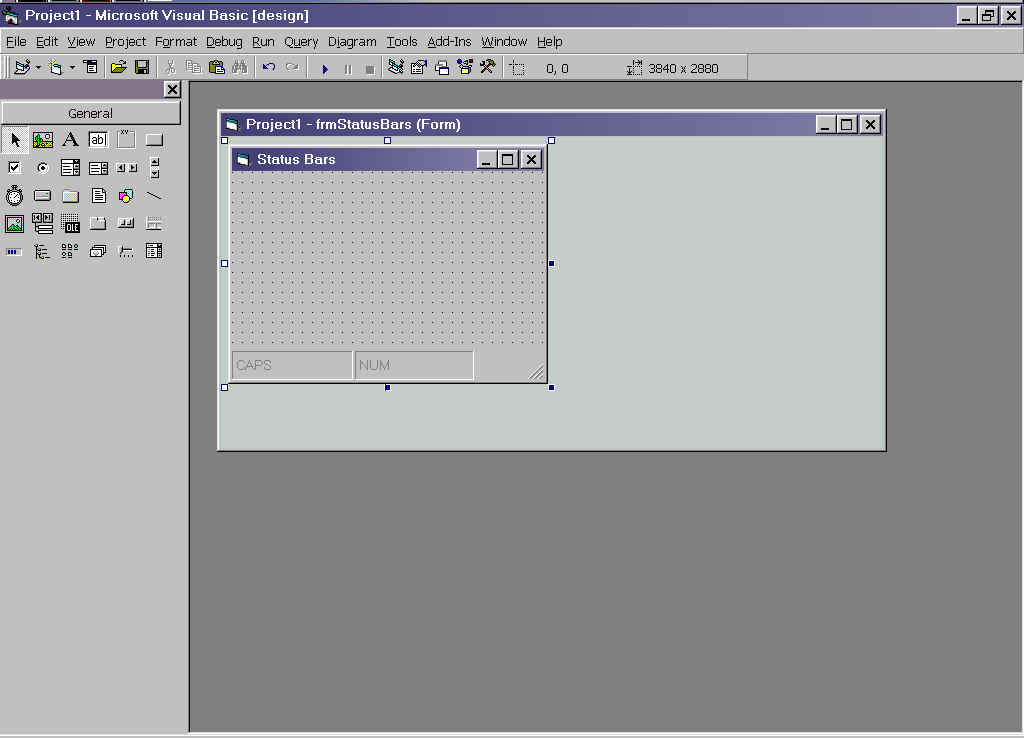
Form

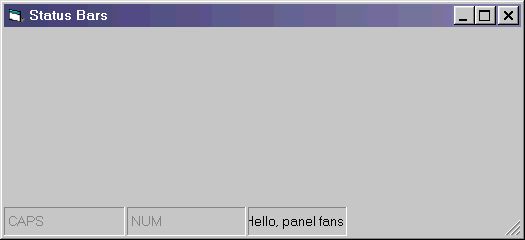
Log of Run :

To add another Status Bar panel :
View property page again, clicking on 'panel' tab :
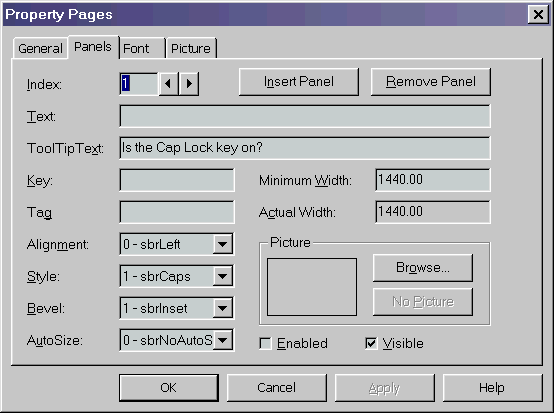
- Click on 'Insert Panel' button
- Click on right arrow next to 'index', to move on to
next panel :
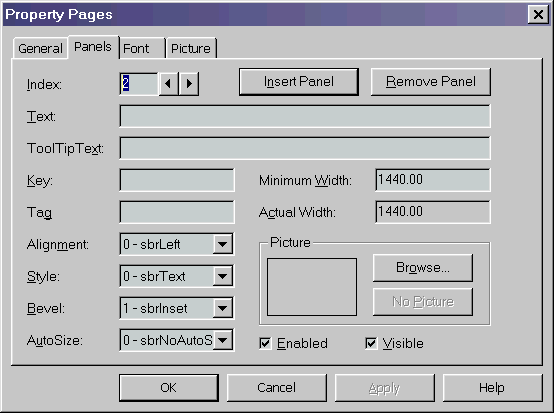
- Select '2 - sbrNum' in the 'Style' box
- Enter 'Is the Num Lock key on ?' in the 'Tool Tip
Text' box


Click <OK>
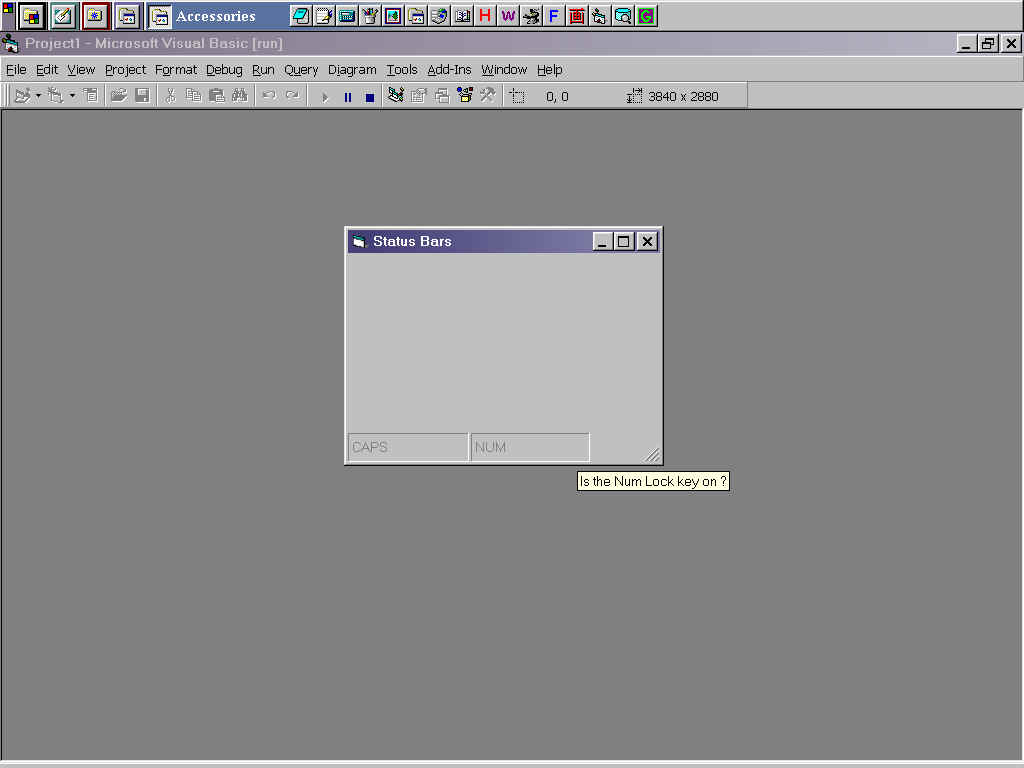
Form
Log of Run
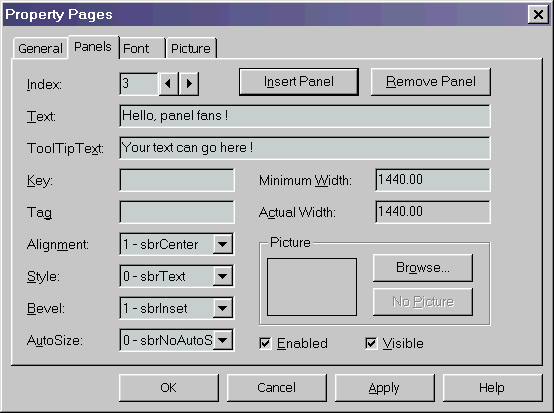
To Add A Text Panel
- < View >
- < Property Pages >
- Click on 'Panels' tab
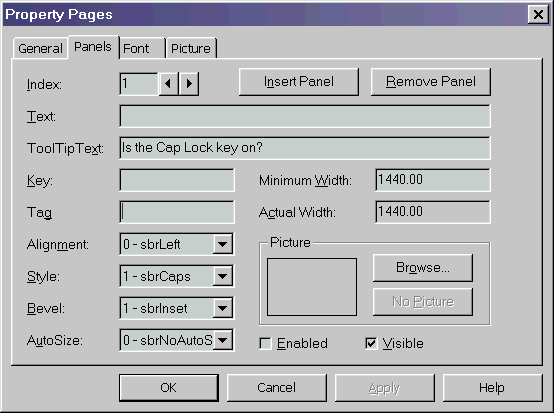
- Click on arrows to right of 'Index' box, to set index to '2'
- Click on 'Insert Panel'
- Click on arrow to right of 'Index' box, to set index to '3'
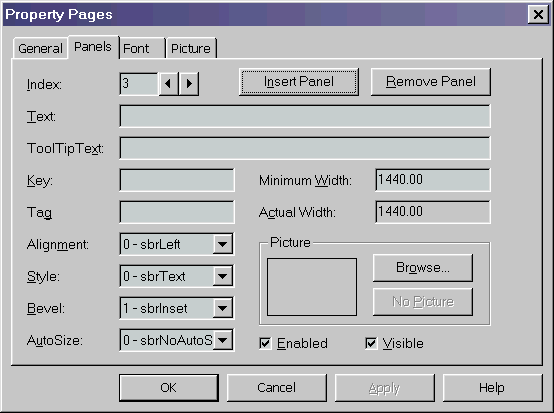
- Leave 'Style' box set to '0 - sbrText'
- Set the 'Alignment' box to '1 - sbrCenter'
- Add text in 'Text' box (to display in the Panel on
the status bar)
- Add text 'ToolTip Text' box
Form

Log of Run

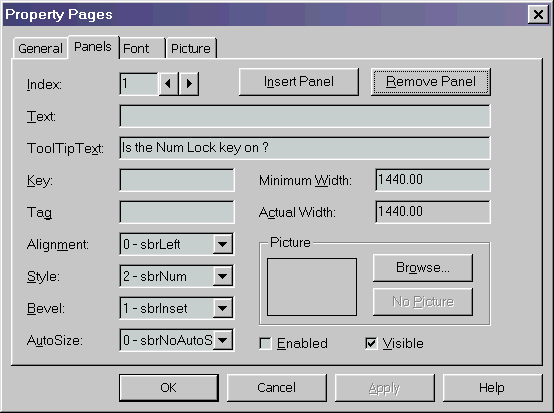
To Remove Panel
- < View >
- < Property Pages >
- Click on 'Panel' tab
- Ensure 'Index' field is pointing at correct Panel
- Click on 'Remove Panel' button
To Toggle the Status bar
Code:
Option Explicit
Private Sub Form_Click()
If staDemo.Visible = True Then
staDemo.Visible = False
Else
staDemo.Visible = True
End If
End Sub |
Log of Run :
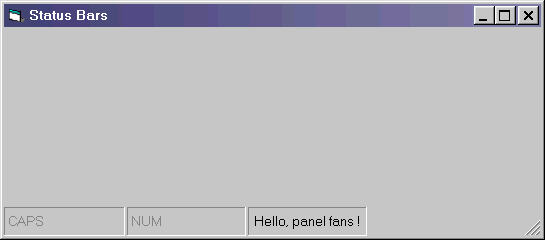
(Toggle - i.e. click on form)
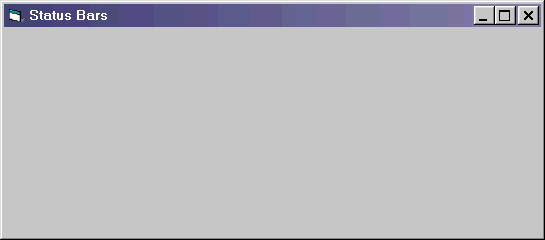
(Toggle)
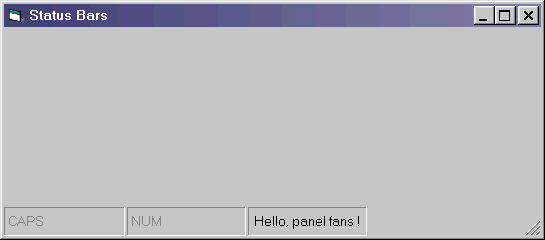
Resizing the Status Bar when the User resizes a Form
- In the properties window, set the form's BorderStyle
to '2 - Sizeable' :

Option Explicit
Private Sub Form_Click()
If staDemo.Visible = True Then
staDemo.Visible = False
Else
staDemo.Visible = True
End If
End Sub
Private Sub Form_Resize()
If frmStatusBars.Width < 6300 Then
frmStatusBars.Width = 6300
'Use trial and error to find this number
End If
staDemo.Panels(3).Width =
frmStatusBars.ScaleWidth
- (staDemo.Width
- staDemo.Panels(3).Width)
End Sub |
Log of Run
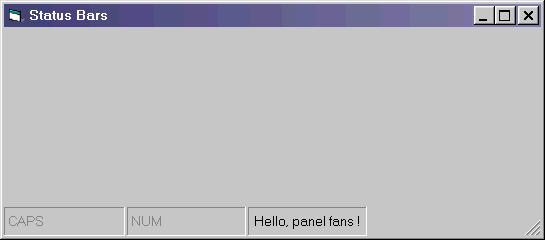
(Elongate form, using Mouse)
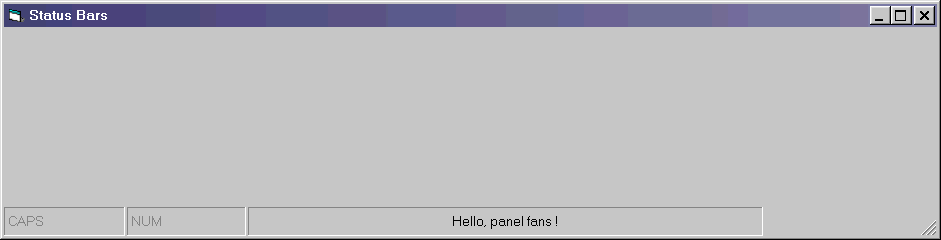
(Shorten form, using mouse)
n.b. this is the shortest the code allows the form to
go.