Welcome to the tutorial section of Black Board! Here I'll teach you how to make your very own drawing program.
I know you want to get started, so let's dive right in!
Step 1. Getting Started
Open up Visual BASIC and start a new project. (Standard.exe) Set up a simple menu structure for your project using the Menu Editor. It should look like this: FileProperties for these menu items should be as the following:
New
----------
ExitStep 2. Create the GUI
Caption Name &File mnuFile &New mnuNew - mnuDash1 E&xit mnuExit
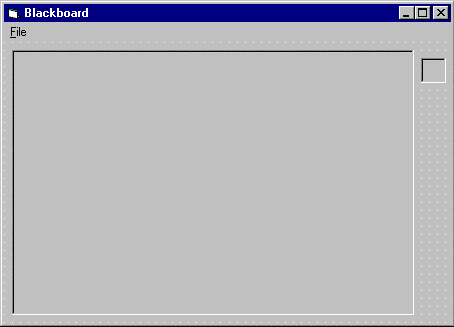
Put a picture box and a single label box (will be used to set color) on the form. Set the following properties: Your program should now look something like this:
Form1: BorderStyle 1-Fixed Single Caption Blackboard Name frmDraw
Picture1: Name picDraw
Label1: BorderStyle 1-Fixed Single Caption [Blank] Name lblColor
Now, copy and paste the label box (create a control array named lblColor) until there are eight boxes on the form
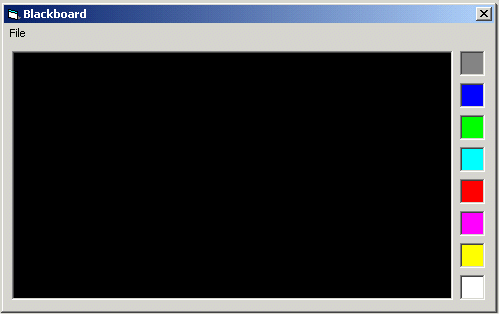
lined up vertically under the original box. When done, the form will look just as above, except there will be eight label boxes.Step 3. Programming!!
I know, this is what you've all been waiting for...so let's get busy!
Type these lines in the general declarations area. DrawOn will be used to indicate whether you are drawing or not: Option Explicit
Dim DrawOn As Boolean
- Attach these lines of code to their procedures.
- The Form_Load procedure loads colors into each of the label boxes to allow choice of drawing color.
It also sets the BackColor to black and the ForeColor to Bright White.Private Sub Form_Load()
'Load drawing colors into control array
Dim I As Integer
For I = 0 To 7
lblColor(I).BackColor = QBColor(I + 8)
Next I
picDraw.ForeColor = QBColor(15) ' Bright White
picDraw.BackColor = QBColor(0) ' Black
End Sub- In the mnuFileNew_Click procedure, we check to see if the user really wants to start over.
If so, the picture box is cleared with the Cls method.Private Sub mnuFileNew_Click()
'Make sure user wants to start over
Dim Response As Integer
Response = MsgBox("Are you sure you want to start a new drawing?", _
vbYesNo + vbQuestion, "New Drawing")
If Response = vbYes Then picDraw.Cls
End Sub- In the mnuFileExit_Click procedure, make sure the user really wants to stop the application.
Private Sub mnuFileExit_Click()
'Make sure user wants to quit
Dim Response As Integer
Response = MsgBox("Are you sure you want to exit the Blackboard?", _
vbYesNo + vbCritical + vbDefaultButton2, "Exit Blackboard")
If Response = vbYes Then End
End Sub- When the left mouse button is clicked, drawing is initialized at the mouse cursor location in the picDraw_MouseDown procedure.
Private Sub picDraw_MouseDown(Button As Integer, Shift As Integer, X As Single, Y As Single)
'Drawing begins
If Button = vbLeftButton Then
DrawOn = True
picDraw.CurrentX = X
picDraw.CurrentY = Y
End If
End Sub- When drawing ends, the DrawOn switch is toggled in picDraw_MouseUp.
Private Sub picDraw_MouseUp(Button As Integer, Shift As Integer, X As Single, Y As Single)
'Drawing ends
If Button = vbLeftButton Then DrawOn = False
End Sub- While mouse is being moved and DrawOn is True, draw lines in current color in the picDraw_MouseMove procedure.
Private Sub picDraw_MouseMove(Button As Integer, Shift As Integer, X As Single, Y As Single)
'Drawing continues
If DrawOn Then picDraw.Line -(X, Y), picDraw.ForeColor
End Sub- Finally, when a label box is clicked, the drawing color is changed in the lblColor_Click procedure.
Private Sub lblColor_Click(Index As Integer)
'Make audible tone and reset drawing color
Beep
picDraw.ForeColor = lblColor(Index).BackColor
End Sub- Run the application. The final product should look something close to this:
- Click on the label boxes to change the color you draw with. Fun, huh? Save the application.