|
|
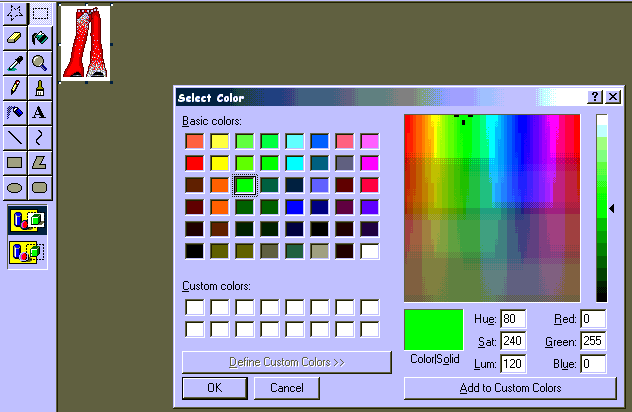
If you don't make your props transparent they won't work. It is easy and I have seen some people make it so hard. It took me a while to figure out how to make my white images stay white
and not clear. To help you avoid that mistake I will tell you in the easiset way I can.
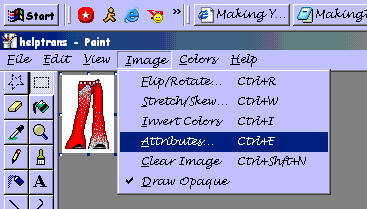
Here is what you do. Open your paint program and open a prop. Then you will go accross the top to Image. Click and go down to Attributes.
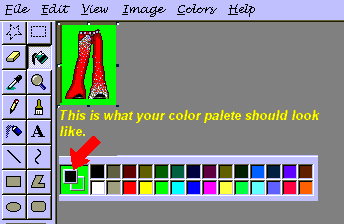
Now you have to flood fill around you image the same color as you chose for your tranparent color. And, save. That's it you're done.
Yes, you will see the background color whie in paint. But, click open, and look at your files in a thumbnail view, you only see the image; Right? Great, that means you did it correctly.
If you see the background color then you didn't flood fill with the correct color. Remember... the transparent color and the background color have to be the same.
Some other great transparency tutorials will be found below. This place has definitions of terminology and links. If you are using a Power Point graphics program, you need to go here for the tutorial on transparency. This site offers a lot of great web building features. Well worth the browse. Adobe PhotoShop transparency tutorial.
| |