|
 |
||||||||||
 |
|
 |
|
||||||||
 |
 |
 |
 |
 |
 |
 |
 |
 |
|
||
 |
 |
|
|||||||||
 |
 |
 |
|
||||||||

1. First, start a new image that is any size you want, 72 pixels/inch and transparent background.
2. Now, fill the background with black. Then, goto Filter>Noise>Add Noise and match the settings that you see in the image below.
3. Then, goto Filter>Blur>Motion Blur and use a distance of 50 and an angle of 0. Now, goto Filter>Render>Lighting Effects and again match the settings in the image below.
4. Now, in the layers palette, click on the Channels tab and make a new channel. Now, select the Elliptical Marquee tool and make a circle and fill it with white.
5. Goto Filter>Blur>Gaussian Blur and use a setting of 5. Then, goto Filter>Distort>Ripple and use a setting of 300 and a size of small. Your image should look similar to mine below.
6. Goto Image>Adjustments>Levels(Ctrl+L) and use my settings below.
7. Now, hold Ctrl and click on the Channel that you created to make a selection. Now, go back to the layer's tab and create a new layer. Fill the selection with black and copy that layer. Hide the copied layer and go back to your original layer with the black fill. Now, goto Layer>Layer Style>Bevel&Emboss and match the settings below.
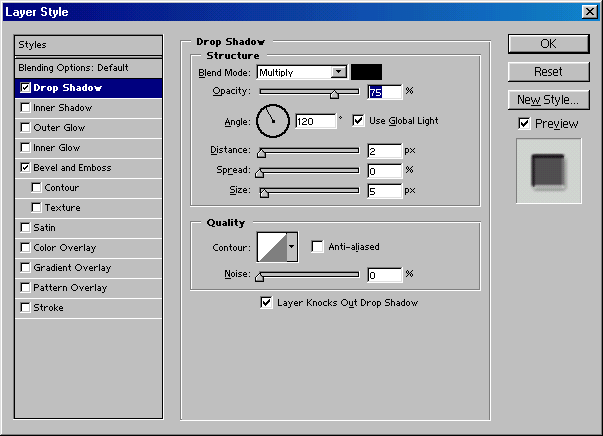
8. Now, apply a Drop Shadow under the Layer Styles box and match these settings.....
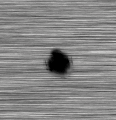
9. Now, goto the copied layer and apply a gaussian blur with the setting of 2. Below is my final bullet hole.
Have questions about this tutorial? E-mail me at majinvegeta1322@yahoo.com