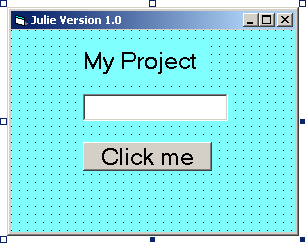
“Click Me” Program
Okay, this is easy, just follow the instructions:
1.) Open VB 5.0
This is you’re programming program in the computer. If you don’t have this program you have very little chance of doing anything with this course.
2.) Open the Standard EXE when prompted
This Standard EXE is you’re standard executable file, meaning that you will be able to run the program you made outside of VB
3.) On the form create a label object by selecting Label from the toolbox.
Once you’ve made the label you can change the size of it at any time, so don’t worry if it doesn’t like you want it to. On the right side bar there should be a ‘Properties’ toolbox. In there you will find a little box called ‘Caption’. Type in ‘My Project’.
4.) On the form create a text box underneath the label
In the right hand side tool box under ‘Properties’ again under ‘text’ you want to clear that out that there are no words in the textbox on you’re program.
5.) On the form create a command button.
In ‘Properties’ again under ‘Caption’ type in ‘Click me’.
6) Double click on the command button and the code window will appear. In the space provided wirte the code:
Private Sub
Command1_Click()
Text1.Text = "Can you dig this?"
End Sub
To run your program there is a play button right above your program, click it. To stop the program you click the ‘x’ in the corner of your program.
Now that that’s done, I’d like you to start to play around with your program, make the size of the words on the command button bigger, about to 18 pt. You can also change the background color of your form, choose anything but grey... what a boring color! You can also change the caption on the form to your name Version 1.0.
The picture of my program is here.