Case Study
Calculator
Now... This is where we have fun. Case Studies are used to learn problem-solving techniques. Each Case Study illustrates the sequence of steps and thinking that goes into the construction of the substantial application. Learning to program is much more then simply learning a particular language. If is learning how to produce robust, clear, working code. It is learning a process for creating an application.
The four steps in creating an application are specification, design, coding and testing and debugging. In this first Case Study each of these steps are explained.
The first step in creating an application is clearly defining what the application is to accomplish. This definition is call the specification, or spec, because it specifies what the application should do. In real-world situations, the specification is developed by talking with the application user and other computer professionals. In this text the specifications will be provided.
The specification for this case study is:
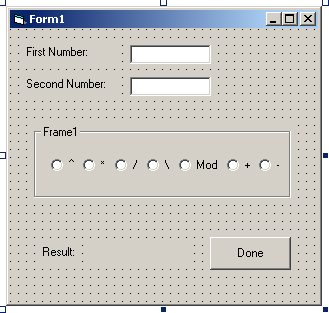
A calculator application that allows the user to enter two numbers and then select the operator (^, *, /, \, Mod, +, -) to be used to form an expression with the numbers. Selecting an operator should display the result of the expression. For example, entering 10 and 5, and selecting the + operator displays 15, the result of 10 + 5.
The design of an application is how the interface will look and how the program code will be written to accomplish the specification. The best way to design the interface is to draw from designs on paper. The code design ins description of each object’s event procedures. In this text each case study will show an application’s interface.
The interface design for this case study is here. Note that the label is sketched with dashed lined so indicate that its Caption property will be empty at design time. The label Caption will be changed at runtime when an operator had been selected.
The program code design for this case study is:
Each option button click event procedure will be coded to store the text entered in the text boxes in Double variables and then display the results of an expression in a label. The text box change event procedures will be coded to clear the option buttons and label. The Done button will be coded to end the program.
Coding is creating the interface and writing the program code. In this text, coding will be presented and disussed in the case studies but not in the reviews and exercises.
The things that you will need for this will be:
Three labels
Two text boxes
One frame
Seven option buttons
One command button
The naming is simple:
LblNumber1
lblNumber2
lblAnswer
txtNumber1
txtNumber2
frmOperators
optExponentation
optMultiplication
optDivision
optIntegerDivision
optModulus
optAddition
optSubtraction
cmdDone
Here is the code:
Private Sub txtNumber1_Change()
LblAnswer.Caption = “”
optExponentation = False
optMultiplication = False
optDivision = False
optIntegerDivision = False
optModulus = False
optAddition = False
optSubtraction = False
End Sub
Private Sub txtNumber2_Change()
LblAnswer.Caption = “”
optExponentation = False
optMultiplication = False
optDivision = False
optIntegerDivision = False
optModulus = False
optAddition = False
optSubtraction = False
End Sub
Private Sub optExponentation_Click()
Dim dblNumber1 As Double, dblNumber2 As Double
Dim dblAnswer As Double
dblNumber1 = txtNumber1.Text
dblNumber2 = txtNumber2.Text
dblAnswer = dblNumber1 ^ dblNumber2
lblAnswer.Caption = dblAnswer
End Sub
Private Sub optMultiplication_Click()
Dim dblNumber1 As Double, dblNumber2 As Double
Dim dblAnswer As Double
dblNumber1 = txtNumber1.Text
dblNumber2 = txtNumber2.Text
dblAnswer = dblNumber1 * dblNumber2
lblAnswer.Caption = dblAnswer
End Sub
Private Sub optDivision_Click()
Dim dblNumber1 As Double, dblNumber2 As Double
Dim dblAnswer As Double
dblNumber1 = txtNumber1.Text
dblNumber2 = txtNumber2.Text
dblAnswer = dblNumber1 / dblNumber2
lblAnswer.Caption = dblAnswer
End Sub
Private Sub optIntegerDivision_Click()
Dim dblNumber1 As Double, dblNumber2 As Double
Dim dblAnswer As Double
dblNumber1 = txtNumber1.Text
dblNumber2 = txtNumber2.Text
dblAnswer = dblNumber1 \ dblNumber2
lblAnswer.Caption = dblAnswer
End Sub
Private Sub optModuludDivision_Click()
Dim dblNumber1 As Double,
dblNumber2 As Double
Dim dblAnswer As Double
dblNumber1 = txtNumber1.Text
dblNumber2 = txtNumber2.Text
dblAnswer = dblNumber1 Mod dblNumber2
lblAnswer.Caption = dblAnswer
End Sub
Private Sub optAddition_Click()
Dim dblNumber1 As Double,
dblNumber2 As Double
Dim dblAnswer As Double
dblNumber1 = txtNumber1.Text
dblNumber2 = txtNumber2.Text
dblAnswer = dblNumber1 + dblNumber2
lblAnswer.Caption = dblAnswer
End Sub
Private Sub optSubtraction_Click()
Dim dblNumber1 As Double,
dblNumber2 As Double
Dim dblAnswer As Double
dblNumber1 = txtNumber1.Text
dblNumber2 = txtNumber2.Text
dblAnswer = dblNumber1 - dblNumber2
lblAnswer.Caption = dblAnswer
End Sub
Private Sub cmdDone_Click()
Unload Me
End Sub