
| 5. Installing the Windows 95 driver |
That's the hardest part. If you are cardiac or sentimental, do yourself a favor and go buy a Sound Blaster. I won't be held responsible for any frustration you might feel.
Set your DOS parameters
If you do not wish to run your GUS with DOS games, you can skip this
part.
The documentation mentions that the Ultrasound "must be working in DOS"
in order to install it with Windows 95, but this is untrue. However,
if it is, the driver will scrap your ULTRASND environment setting.
Please make a backup of your AUTOEXEC.BAT if you're using DOS.
First of all, you will need to add some settings to your AUTOEXEC.BAT. If you do have one, simply add this before the win command (or anywhere if you do not have any win in it):
SET ULTRASND=XXX,X,X,XX,XX
SET ULTRADIR=C:\ULTRASND
If you do not have any AUTOEXEC.BAT, type the following in a DOS prompt instead:
ECHO SET ULTRASND=XXX,X,X,XX,XX >> AUTOEXEC.BAT
ECHO SET ULTRADIR=C:\ULTRASND >> AUTOEXEC.BAT
Always Replace C:\ULTRASND with the directory where you installed the MIDI patches. The patches must be in a directory named MIDI and the ULTRADIR variable contains the parent of this directory. This, if you've installed the patches in Z:\CLOWN\BOZO\MIDI, the ULTRADIR variable will be Z:\CLOWN\BOZO.
Install the driver
Unzip the driver in a temporary directory and run SETUP.EXE.
Follow all of the instructions as stated. If you have another sound
card in your system, do not install the gameport when prompted. When the
install program will prompt you to select the resources of the card
in order to set your parameters manually, follow these guidelines:
If you've set your GUS to address 240 as I've recommended earlier, select
the Basic configuration 1 setting when you'll be prompted to play
with the Resources of the card.

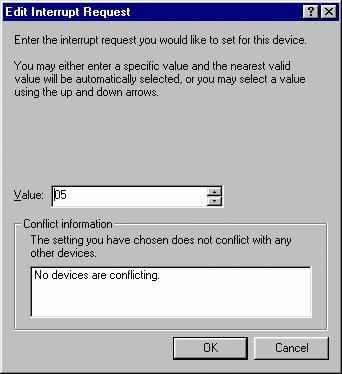
Afterwards, select both Interrupt Request resources and set it
to a value that doesn't conflict with another device. Windows will probably
have already found a good one for you. If you wish to save an IRQ, you
can set both interrupt requests to the same value, it doesn't really bother.
The same goes to both Direct Memory Access fields. Select one that doesn't conflict with another device. I do not suggest using DMA 1 or 3 as they are 8 bit DMAs and they will decrease the speed at which your card will be able to upload patches in its RAM. If you plan on taking benefit the full-duplex capabilities of the card, select two different DMAs. If full duplex doesn't interest you, you can use the same DMA channel.
Follow the instructions in the setup program to quit the device manager and restart your computer.
That's it. If everything went well, your GUS should work with Windows 95. If not, well you're out of luck. Remove the driver in the device manager and try re-installing again. And again. And again.
