
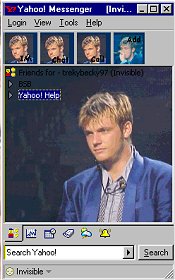
 The button on the top right is a view of what it looks like in *mouseover* mode |
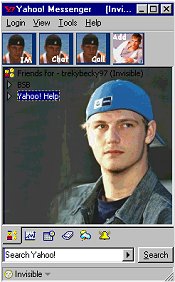 The button on the top right is a view of what it looks like in *mouseover* mode |
 The button on the top right is a view of what it looks like in *mouseover* mode |
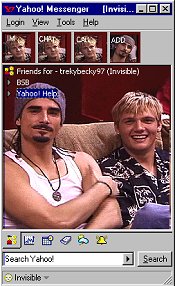 The button on the top right is a view of what it looks like in *mouseover* mode |
 The button on the top right is a view of what it looks like in *mouseover* mode |
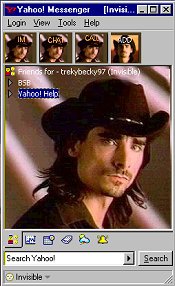 The button on the top right is a view of what it looks like in *mouseover* mode |
How to Use your skins!
In Yahoo! Messenger, there is a folder called *skins*
Go into your files (I always use Windows Explorer) and find that directory. Mine is C:\program files\yahoo\messenger\skins
Create a new sub-directory in the skins folder (I called mine 'Nick blue' or whatever the skin is named), unzip and save the files to that directory.
Open messenger, and click on *log in*, then *preferences*.
Scroll down to *appearance* and in the *current theme* window, choose the name of the new theme. *Nick Blue* (or whatever!). On the bottom, choose *apply* and you should be all set.
NOTE: Make sure each set of skin files is in a separate directory, because they ALL have the same file names. Every background is named *background.bmp* etc.
