
|
This tutorial is for the  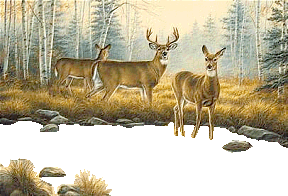  |
|
Ripples are alot like the lake overlay applet, but no class file is used. The water moves because of a filter that affects a layer of the images used. This is an ideal way to use a lake effect when the water is sparse. Step #1 Prepare your image . I use PSP, but other
programs will give you the same results....Use what you know. I
usually add my border(optional), apply any filters i may want to
use. Save it and give it a name such as deer.jpg
Step #2 Then Imake a new transparent image, the same as
your image . Copy and paste your image as a new selection
carefully on top of the transparency. If you match the
numbers up at the bottom of the screen, they will be exact.
Step #3 With this done, you are ready to select and clear out
your water. You will be using the image that we pasted for
this. I find it easier if you click on view/zoom in by 1 so
that you can see better. Using the lasso tool, trace around the
edges of the water and click edit/clear. You can do this in small
portions, until all of the areas of the water are cleared away and now
transparency is showing. To save click on file/export as a gif and
save using the already transparent setting. I generally name mine
the same as the other, but add water.....deerwater.gif.....here is what
mine looked like.....
Step #4 Not all scripts will use a frame. But if your
script calls for a frame, here is what I do. If you use your
rectangle tool to make a dotted line around just the inside part of the
frame, you can click on selections/invert and now your frame will be
selected. From here all you need do is click on edit/copy and
paste/as a new image. To save the frame, click on file/export as a
gif and use the already transparent setting. I name my frame
the same as well......deerframe.gif Here is the one i made for this
ripple.
I hope you were able to follow this. The script will do the
rest. As for placing the images, I like to write mine in a Div
container. That way the images stay inside of it, centered for any
screen resolution. Here is an example of that part showing what you
need to change in red.
The div container should be
about 10px larger than the images, if there is a border.
<DIV class=div1
id=container style="LEFT: 0px; WIDTH: 297px; POSITION: relative; TOP: 0px;
HEIGHT: 205px">
<!--This is the main
image used for the background. The background image and the gif with
the water cut out must be identical in size.-->
<IMG id=pic1
style="Z-INDEX: 2; LEFT: 0px; WIDTH: 288px; POSITION: absolute; TOP: 0px;
HEIGHT: 196px"
src="Your web
addy/deer.jpg">
<!--This is the gif image
with the water cut out. -->
<IMG style="Z-INDEX: 3; LEFT: 0px; WIDTH:
288px; POSITION:
absolute; TOP: 0px; HEIGHT: 196px"
src="Your web addy/deerwater.gif"> <!--This is the frame image. This image may be larger than the main image, however you will have to adjust the top and left to compensate.--><IMG style="Z-INDEX: 4; LEFT: 0px; WIDTH: 288px; POSITION: absolute; TOP: 0px; HEIGHT: 196px" src="Your web addy/deerframe.gif"> </DIV> You can move the div as one
unit now on the page......and you can move the images inside the div as
well. Be careful that the images inside are all set to the same left
and right numbers.
***Below
is the script part. No changes are necessary here, but you can make
changes to the numbers in red.
Larger
number will increase the ripple effect.
<SCRIPT language=vbscript>
'~~~~~~~~~~~~~~~~~~~~~~~~~~~~~~~~~~~~~~~~~~~~~~~~~~~~~
' This Script was written on 08-11-01 by KareBear ~ ' Please do not remove these credits from the script ~ ' For questions or comments karebear56@adelphia.net ~ '~~~~~~~~~~~~~~~~~~~~~~~~~~~~~~~~~~~~~~~~~~~~~~~~~~~~~ Dim water
Sub Window_OnLoad() SetTimeOut "start", 300 End Sub Sub
Start()
pic1.style.filter="wave(freq=3,strength=2,phase=5,lightstrength=0,add=0,enabled=1)" animatwav End Sub Sub animatwav
water=(water+1)mod 5+10 pic1.filters(0).freq=water SetTimeOut "animatwav", 300 End Sub </SCRIPT>
____________________________________________________
~ Once again, I would like to thank NormaJean
for sharing her wonderful piano playing
talent with us ! ! ~
|
