|
|

Enlarge |
When you start the game you have to create a character. You are able to have up to three characters in which you can delete at a later time if you wish to do so.
This is what the control panel for creating a Sim looks like. You can select gender, skin color, a head and a body. Also, you must name your Sim here, but please keep in mind that you cannot re-name your Sim,
only delete them. So choose a name wisely because once you delete a Sim they lose all of their money, items, and everything else. Another good thing to know is that your three characters must live in different cities so if you know someone who plays the game you may want
to ask them what city they live in so that you will be able to interact with them within the game. |
|
|
Enlarge |
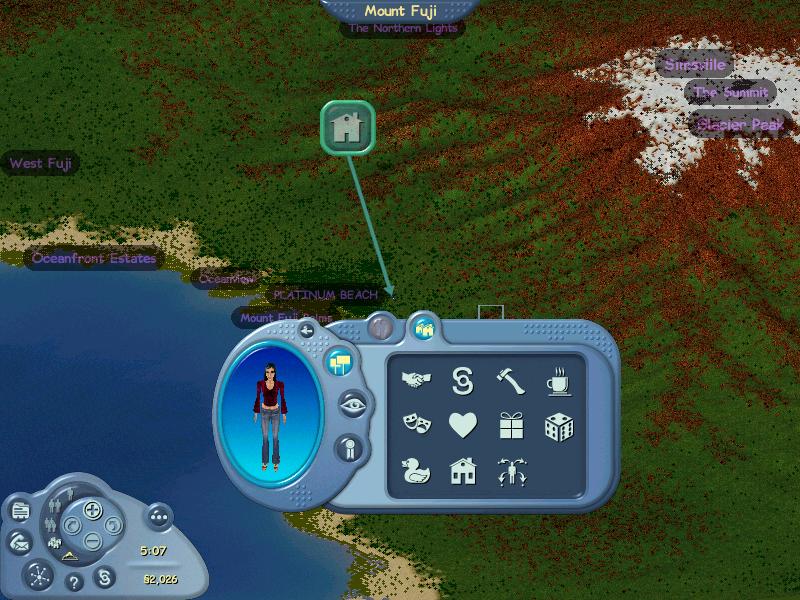
Once you create your Sim and pick a city and everytime you enter the game you will come to this view, which is an overall view of the city. This city happens to be
Mt.Fuji. The panel in the middle is your city control panel. It shows where your Sim is currently at, in the case mine is not at a property yet. Then the other options are to
view current properties that are online by their category. In order for a property to be online one of the people who live there must be at the property. Also, in the city view it will show where your property is located, the place that you live, by marking it with a
green house. The purple words are neighborhood names. The more properties belonging to the same neighborhood the bigger the name will get. Most things in this game are represented with an icon and if you just hover your mouse over it, it will tell you what it is. |
|
|
Enlarge |
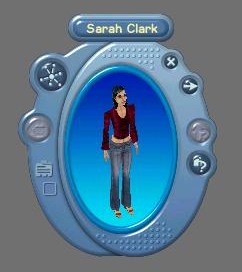
This is what the Sim control panel looks like. You can view the information about any Sim by looking at this panel. It displays the characters name and you can view a variety of other info about them like where they live and who their friends are. |
|
|
Enlarge |
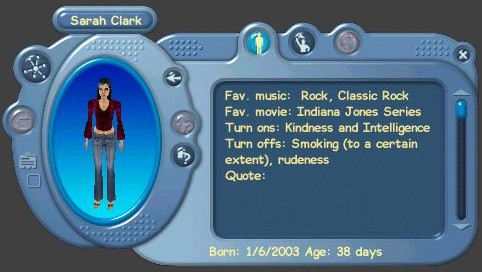
When you expand the Sim control panel this is what you get. At the bottom it says the day that the Sim was born and how many days old that would make the Sim. There are two tabs, the first one is pictured here, which is basically a character description. |
|
|
Enlarge |
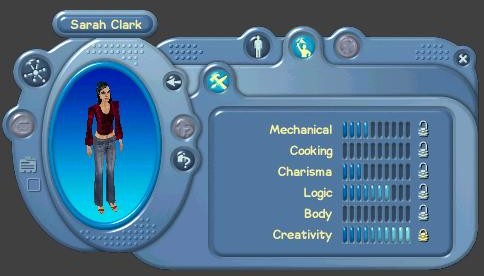
This shows the second tab, which displays the skills that the Sim has earned. Once you earn a total of 10 skill points the skills start to decay. You are allowed to lock down one skill to keep it from decaying. So here I have locked down creativity. You can change this at anytime. |
|
|
Enlarge |
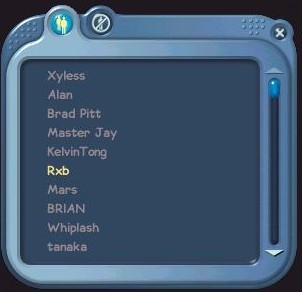
In the game you can bookmark people that you meet. You cannot bookmark a property, so I would suggest bookmarking someone who lives at a property that you really like. When the person is online their name will be shown in yellow. |
|
|
Enlarge |
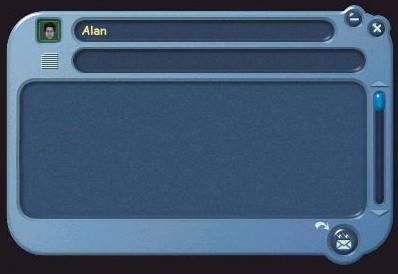
In the game you are able to send people mail. This is what the window looks like when you send mail. This is helpful for various reasons like sending info to your roomates. You can only send mail when the person is not online. |
|
|
Enlarge |
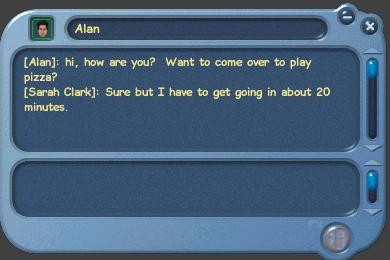
When the person is online instead of sending mail you start what is like an in game telephone conversation, basically like a private chat. This is nice if you arent at the same property or you do not want people to see what you are saying to each other. |
|
|
Enlarge |
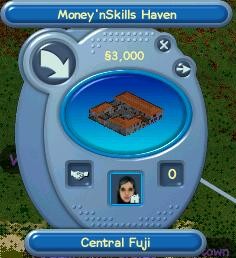
This is the property information panel. It displays what the property looks like, the name of it, and who the owner is. When this expanded it displays who lives there and a description about the property. |
|
|

