
Using WinZip
Many things that are downloadable from the Internet are compressed into Zip files. WinZip is one of many programs that can be used to un-zip these files. I've tried other programs, but have found WinZip to be the easiest to use.
 The
WinZip icon.
The
WinZip icon.
Step 1: Downloading the zipped file.
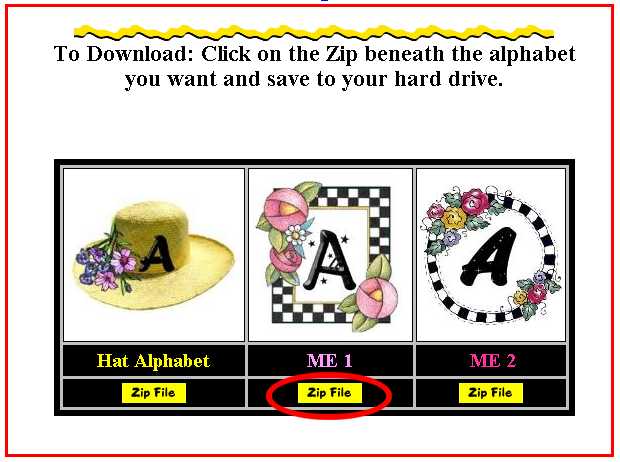
I have selected the file I want to download.
Step 2: The WinZip dialog box opens.

This box appears and to continue further, click the "I Agree" button.
Step 3: This box opens with a list of all the files that the zipped file contains.
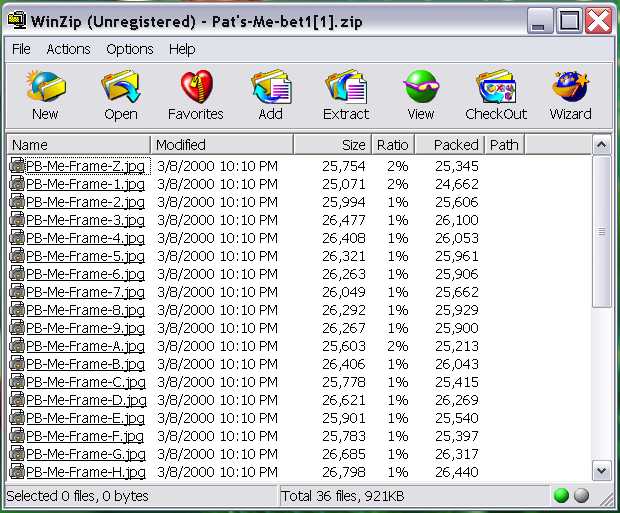
Step 4: All of the files can be selected, or you can highlight just the ones you want to extract.
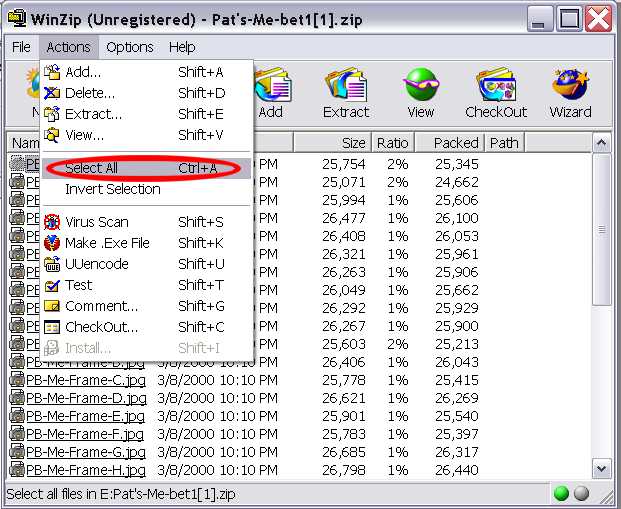
Step 5: For demo purposes, I have selected all of the files. When the files for saving have been selected, click on "Extract."
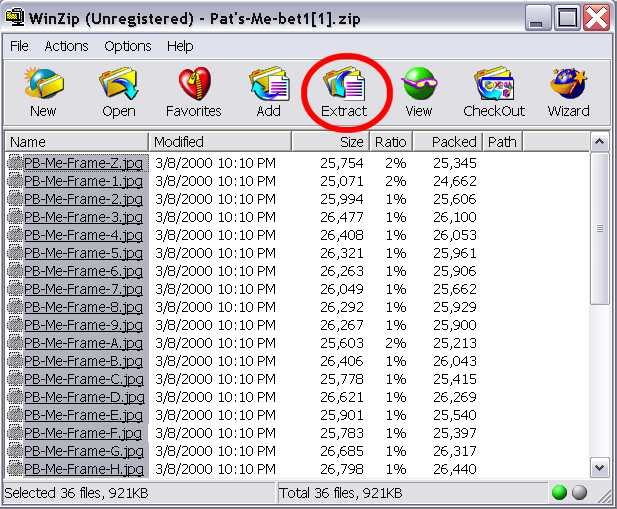
Step 6: Another box appears to continue the extraction.
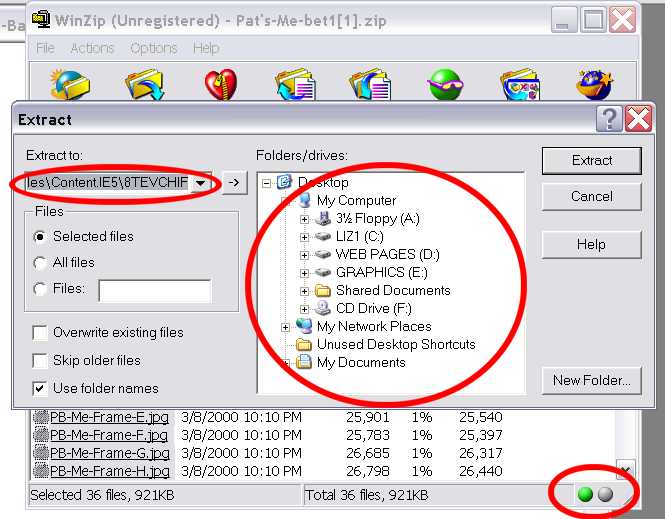
In the Extract To field, you can type in a folder name and the folder will be created. OR, you can locate a place or folder on your hard drive from the large encircled area. The green dot in the lower right hand corner is an indicator. The green dot lets you know that the files are ready to be extracted. Once you click on the "Extract" button, the greyed out dot to its right will momentarily turn red to indicate that the files are being loaded onto the computer. The green dot will appear again, once the files are extracted.
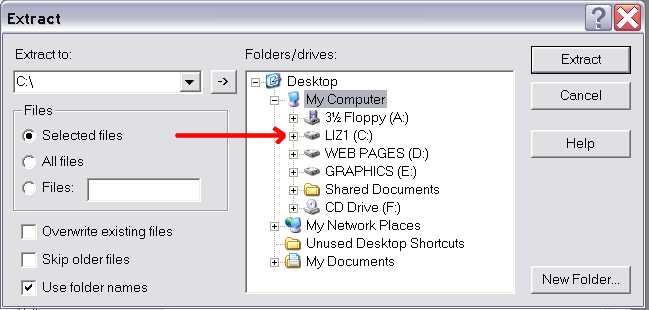
I have chosen to extract the files to my C: drive.
But I could have chosen from the list under the "Extract to:"
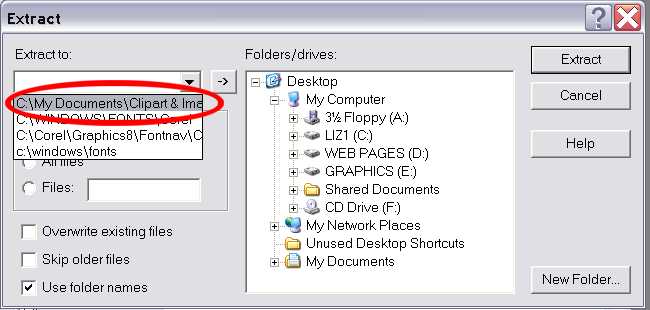
I chose My Documents, and then decided to create a new folder.
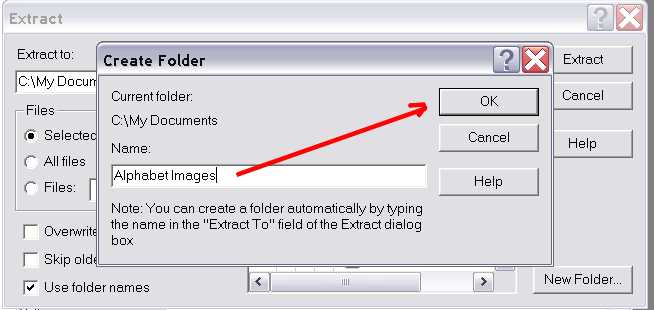
I named the new folder "Alphabet Images" and clicked "OK"
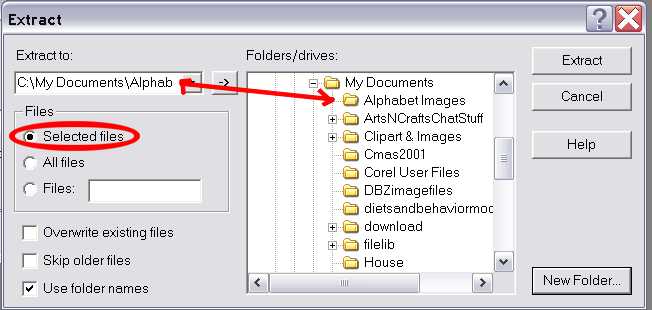
The new folder appears on the list. The "Selected files" option is selected.
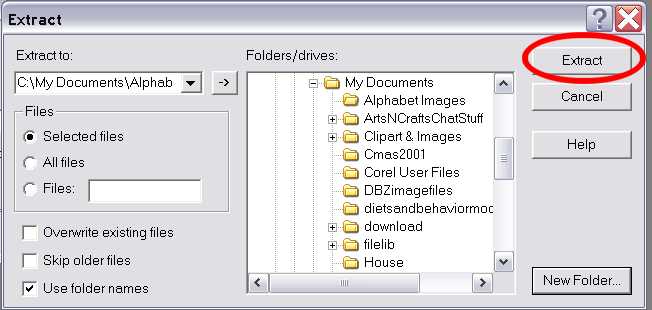
I click on the "Extract" button and the files are transfered into the folder.
