
How To Empty the Temporary Internet Folder
Everytime you view a webpage, all of the advertisement banners, images, and the URL (a webpage's Internet address) is automatically downloaded and stored into the Temporary Internet Folder on your hard drive. These are the "cookies" from the Internet pages that you visit. It doesn't take long to build up and it take up a lot of space on your hard drive. It is a good idea to clean this folder out at least once a week, especially if you do a lot of surfing on the Internet.
IF you use Internet Explorer you will find this icon on your desktop:

Right click on this icon and see this:
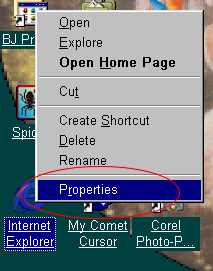
Select Properties.
IF you use the MSN Explorer browser you would go to your Start menu and find the MSN Explorer icon and then right click... Select Internet Properties:

A dialog box will appear with 6 tabs: General, Security, Content, Connections, Programs, and Advanced. On the "General" tab, notice the middle portion where the header says "Temporary Internet Files." The quickest way to delete the "cookies" is to select the "Delete Files" button.

Another dialog box will pop up:
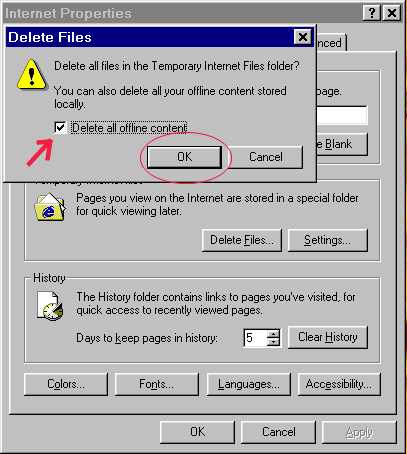
Check off the "Delete all offline content" and then click the OK button.
If you are interested in seeing what is in the Temporary Internet Files folder, click the "Settings" button.

Notice that the "Clear History" button is circled. The "History" folder also stores a great deal of data and should be cleared out as well. You can clear out that folder either before or after the Temporary Internet Files folder, it doesn't matter.
When you click on the "Settings" button, another dialog box opens.
Select "View Files"

When you do this, a normal "window" will open; it is the Temporary Internet File folder.

Here, I have encircled the "Edit" menu and the "Delete" button as well. The first thing you need to do is open the Edit menu.
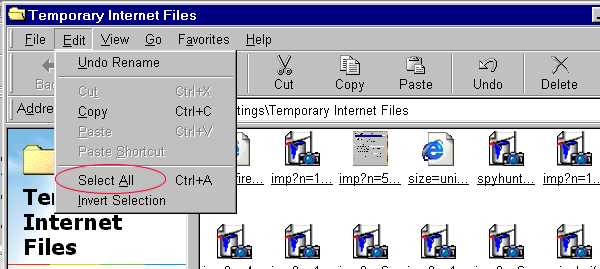
Click on "Select All."
This will highlight all of the files in the folder.

You can either click on the "Delete" button or simply hit the delete key on your keyboard. When the files have been deleted, the window will look like this:
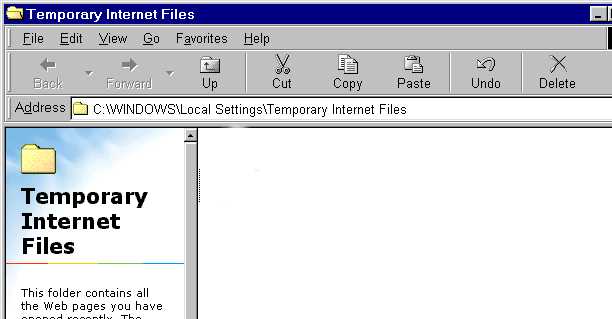
Close out the window either by going to "File" and selecting "Close" or by clicking on the X box in the upper right hand corner.
This will then take you back to the "Settings" dialog box; click "OK."

Once you click "OK," you go back to the Internet Properties dialog box.
Click "OK" once again and you are done.
