Creating
Custom Animated Signatures with Sparkle Text
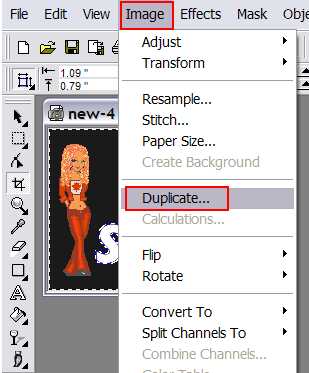
1 Once you get
your doll and text made, you make a duplicate.
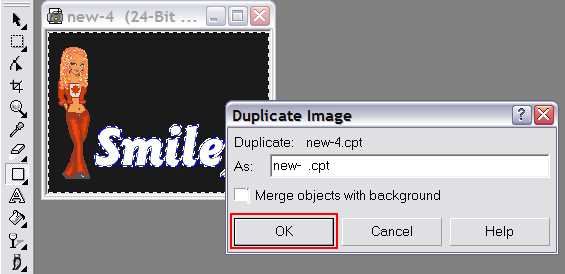
2 Click OK.
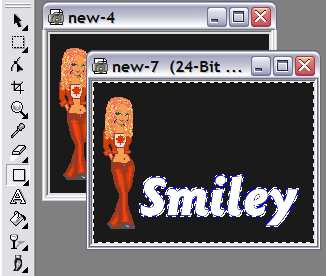
3 Ready to fill.
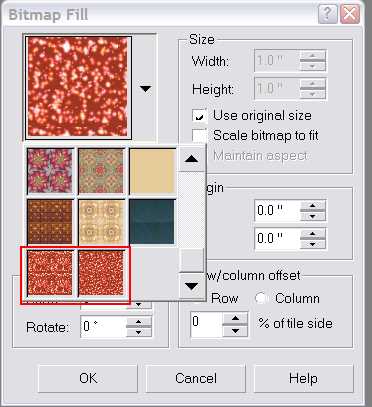
4 Load the color
fills at the same time. Then, go to the first one to start. The only reason
for doing it that way is to help keep them straight in your mind.
5 Check off
Scale bitmap to fit.
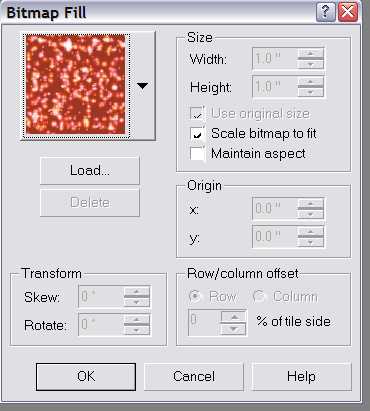
6 Fill the one on
top first, then the other with the second fill.
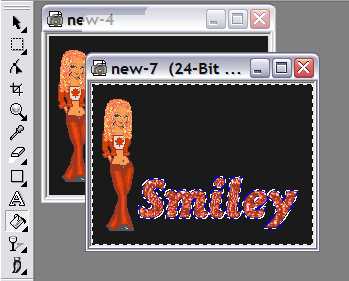

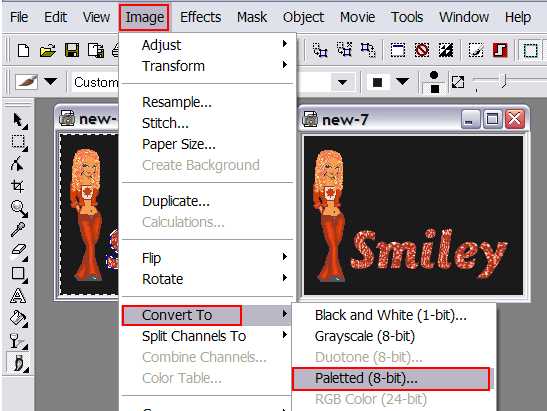
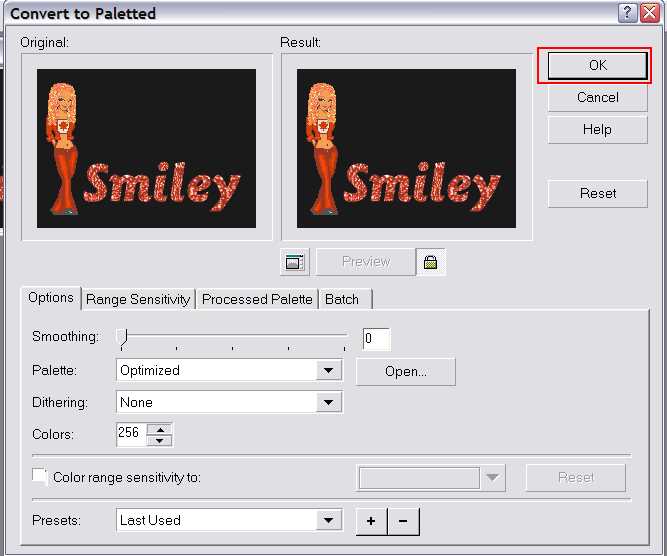
7 Convert both to
Paletted 8 bit.
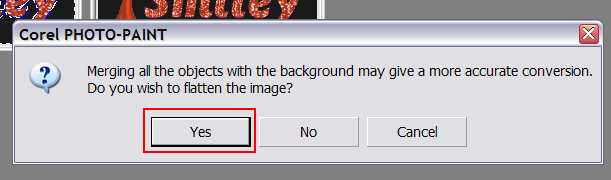
8 Click
Yes.
9 Click
OK.
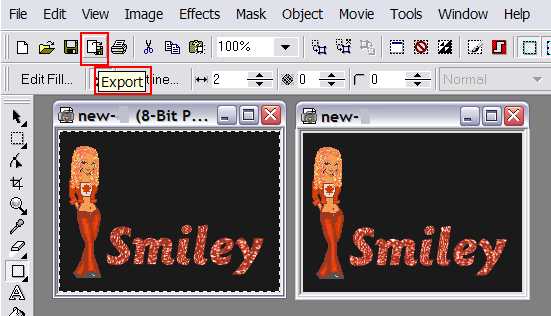
10 Export (or
Save As)
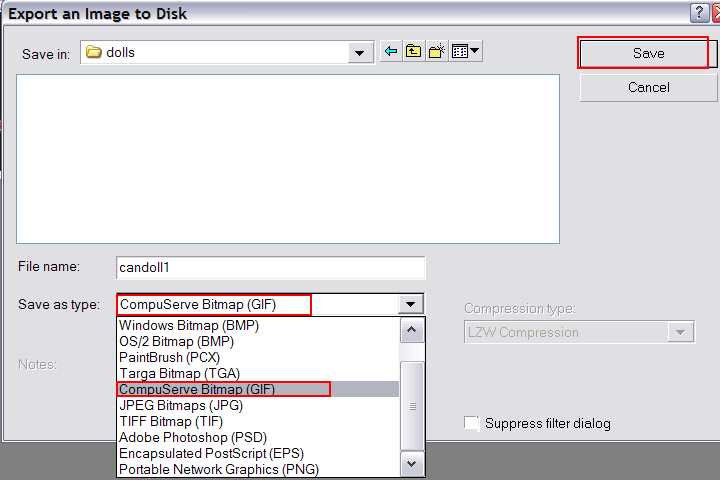
11 Name file
logically and then select CompuServe Bitmap (GIF) as file
type and then Save.
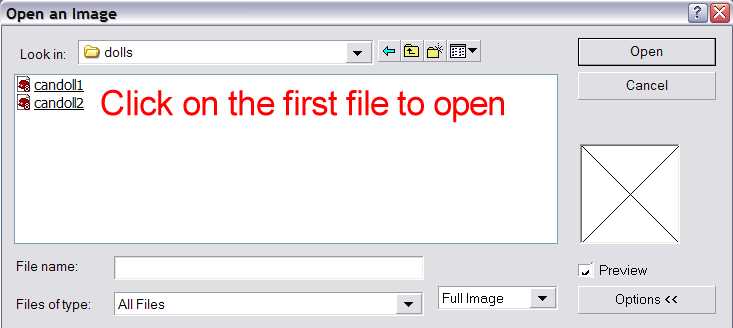
12 Once both
images are saved, go to the folder and click on the first one to open.
13 Go to
Movie - Create From Document.
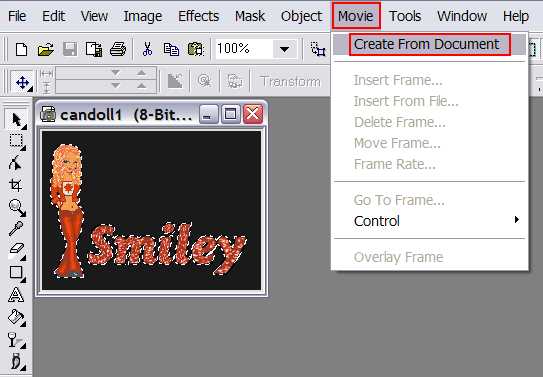
14 Set to insert
the second frame.
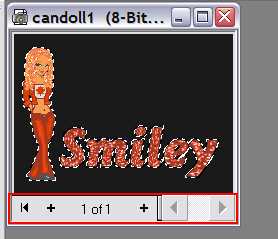
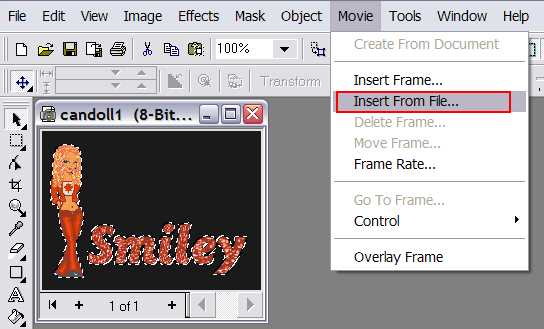
15 Movie
- Insert From File...
16 Click on
second file document.
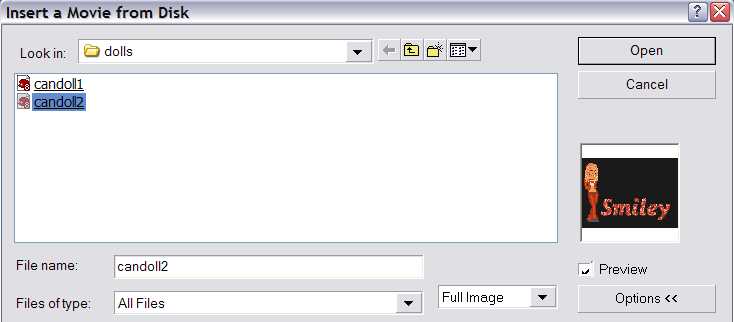
17 Click
OK.
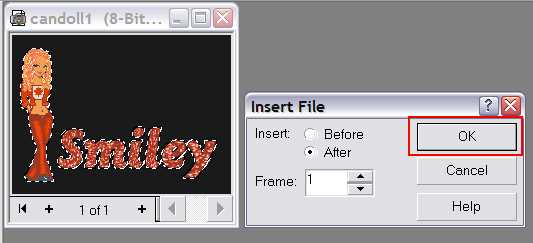
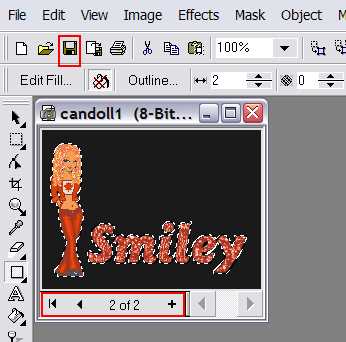
18 Ready to save.
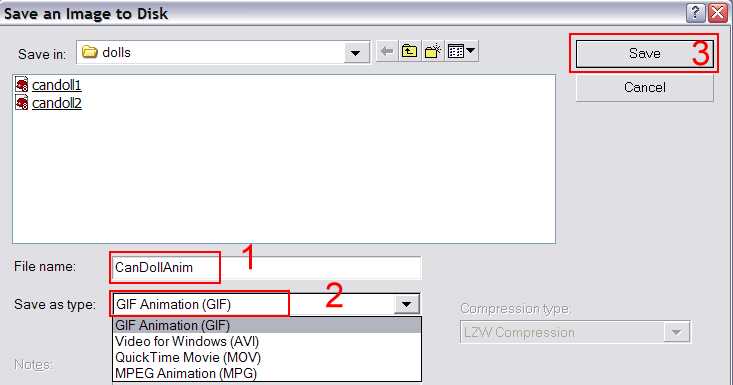
19 Give file a
logical name; select GIF Animation (GIF); click Save.
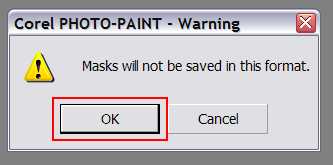
20 Click
OK.
21 Click
Image color radial button and then Select Color.
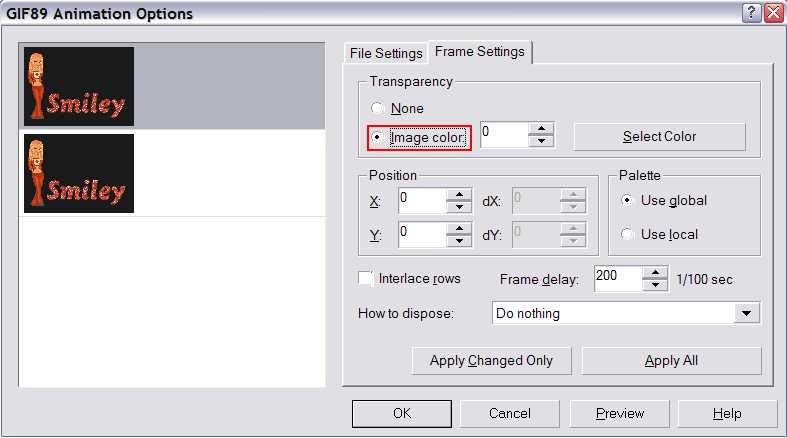
22 Using
eyedropper tool, click on background.
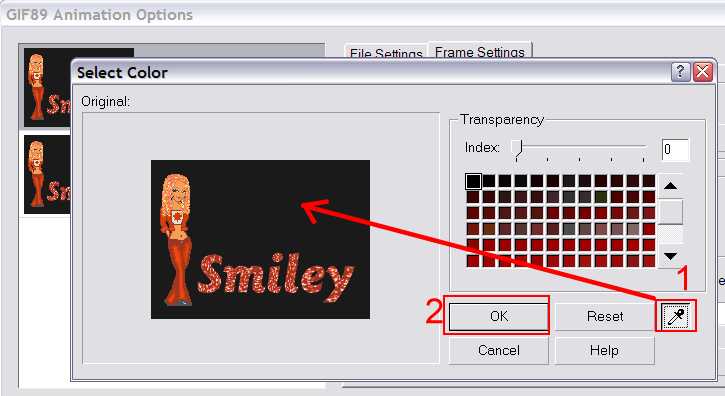
23 Change
Frame delay to 30 and then click Apply
Changed Only.
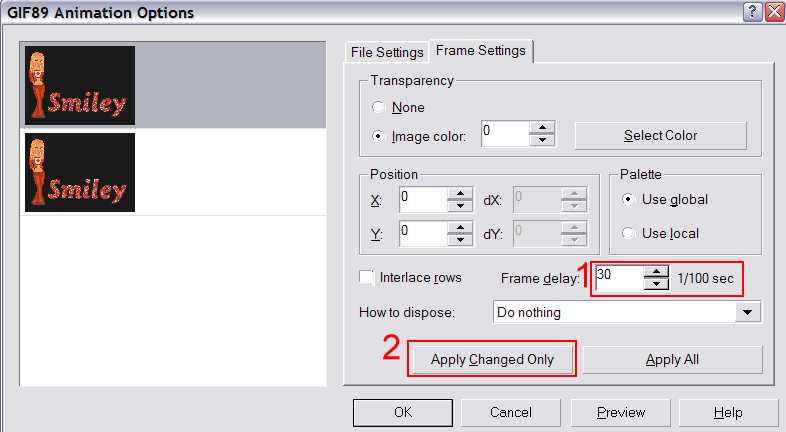
24 Click on the
second frame and repeat the same steps 1 thru 4; click Apply All;
click OK.
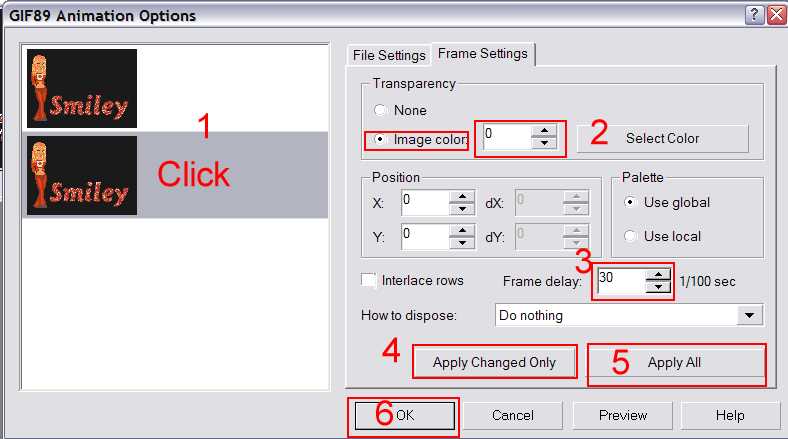
25 Close document
in Corel workspace.