
Creating a New Folder
and
Adding Images to It
A new folder can be created just about anywhere on the hard drive of a computer. But it must be understood, that some places are better than others. My Documents is a good place to start.
The following images shows the opened My Documents folder opened where the path is
File - New - Folder.
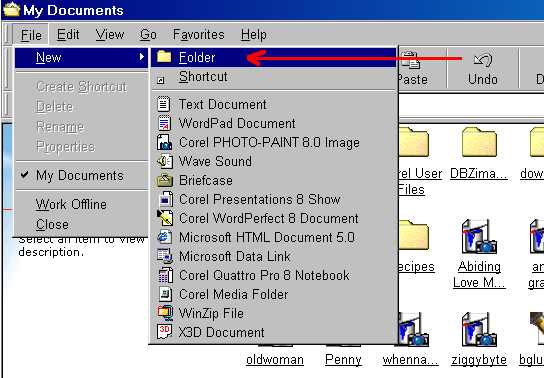
If an object has been highlighted in the folder for some reason, the image looks like this:
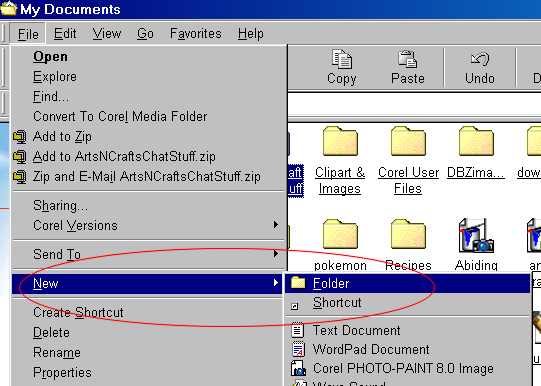
Both are the same thing. In the second image, the folder that I had created for the ArtsNCrafts had been highlighted. You can see it just to the right of the File dropdown menu.
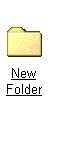
After you have clicked on the Folder icon, a New Folder will appear in the opened Sub-directory (My Documents), and it will look like this:
I recommend that you rename the folder. For my demonstration, I will rename this one to "New Images."
Right click on the folder icon and select Rename.
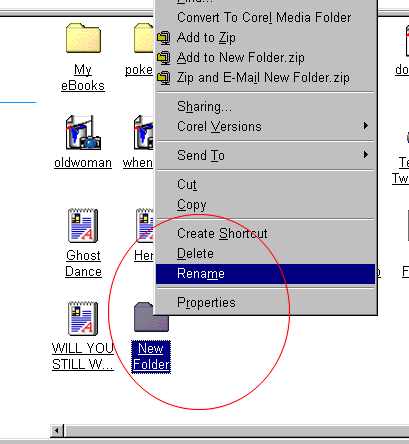
A field will open under the folder icon and you then type in the new name for the folder.
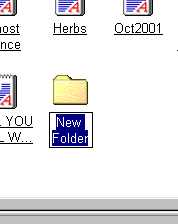
The new folder named New Images:

Click on the new folder to open.
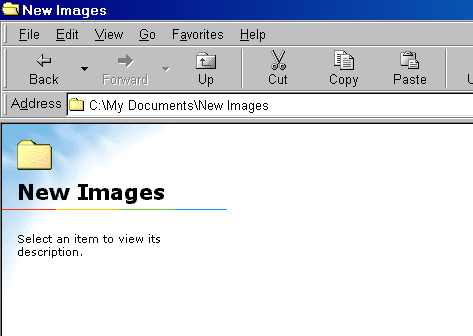
Opened folder with nothing in it.
Now, on to saving images to the new folder.
When you find an image on the Internet that you would like to save, here is how you do it:
First, right click on the image and see the dropdown menu -

(Image to be saved.)
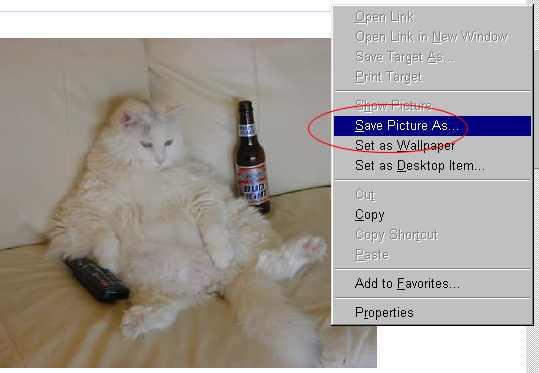
Select: Save Picture As...
(Note: The process is a tad bit different for Netscape users, but not that much different.)
Next, you locate the folder that you want to save the image to:
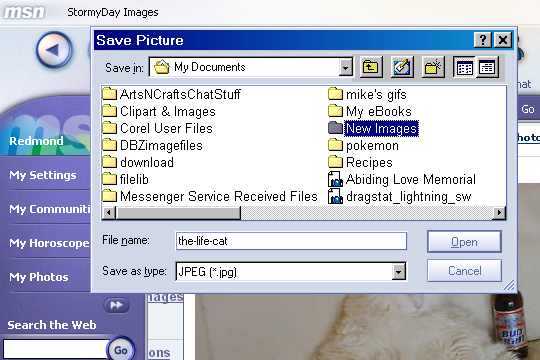
Double click on the folder and see:
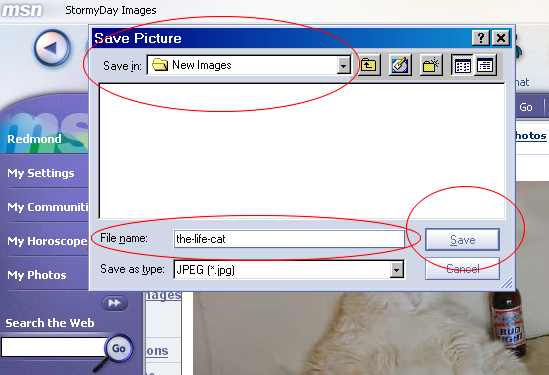
Click on Save.
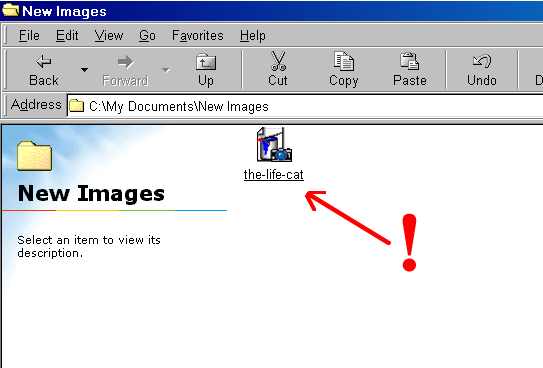
Image is saved to the folder.
