
Copy & Paste Instructions for Text
Often we find things on the Internet or in emails that we think are worthy of saving. The best way to save text from the Internet is to copy and paste it into a document. These instructions are ONLY for text. (If the text has images incorporated into it, it involves saving those images onto your hard drive, ideally in the SAME folder as the document, and then inserting the images into the document where they need to be.)
Step 1:
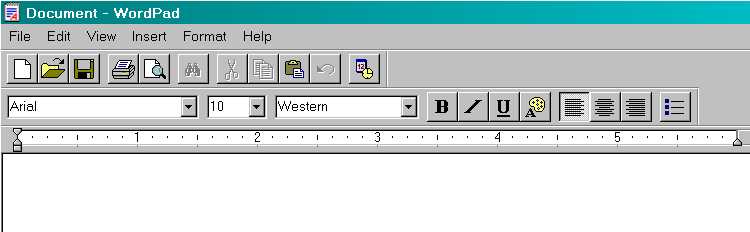
When you find something that you want to save, open a new word processing document. If you are using ANY Windows operating system, WordPad is an option; which is what I am using here.
Step 2:
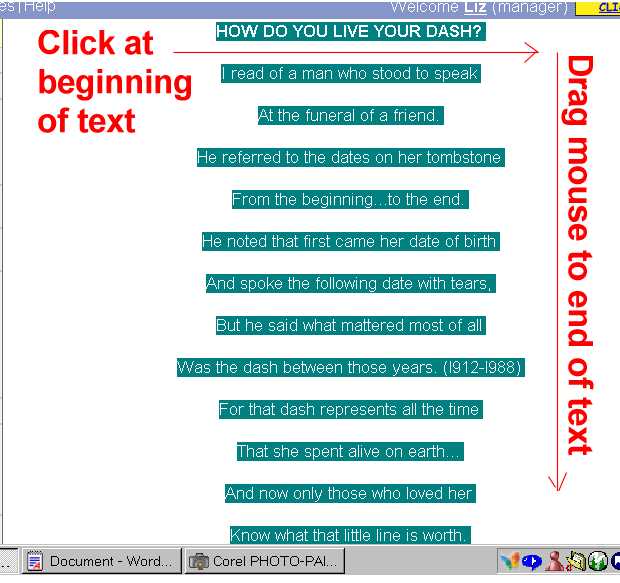
For demonstration purposes, I chosen a page from my community, StormyDay Images, called How Do You Live Your Dash. Highlight the text by clicking your mouse button at the beginning of the text and then dragging it to the right and down until you reach the end of the text portion you wish to save.
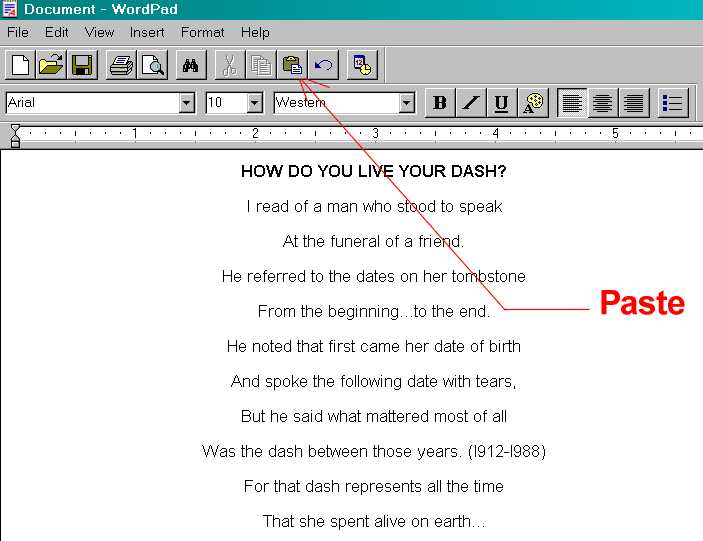
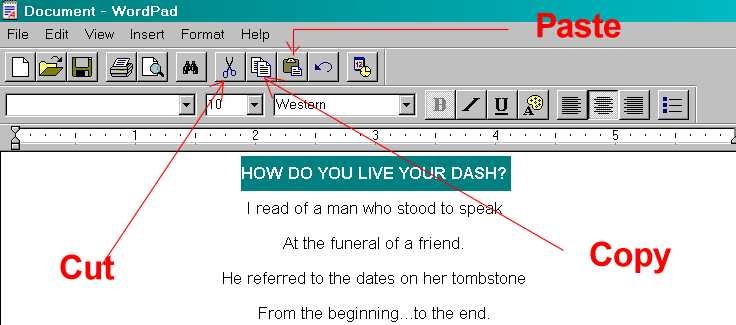
Step 3: Once you have highlighted the text, hold down the Ctrl and the C keys at the same time, and then let up on them. Go to the new document and the click on the Paste button as indicated. This will paste the text onto the document.
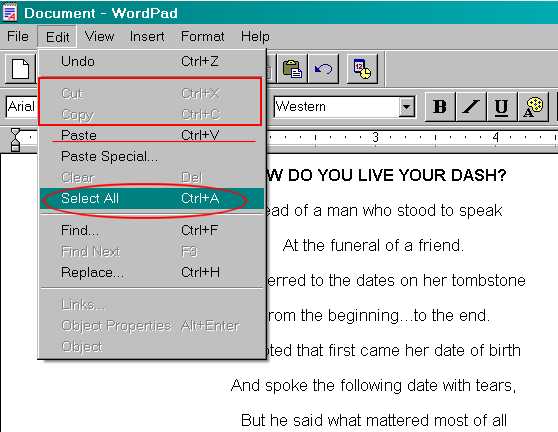
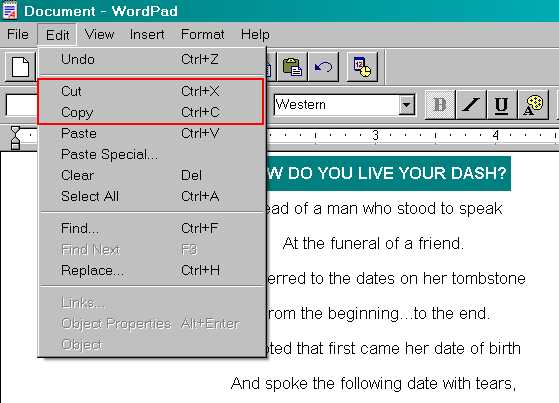
The document is ready to be saved. However, before I get to that part of the instructions, I want to point out that there are several different ways to copy and paste text, and images. If you click on Edit, you get a dropdown menu where you will find the cut, copy, and paste options. Here, I have outlined the greyed out Cut and Copy, underlined the Paste, and selected the Select All option, which is circled. Notice to the right of the menu the Ctrl+ (whatever letter). Those are keystroke commands, and are often faster to use than using the mouse click on buttons.
Ctrl+C = Copy Ctrl+V = Paste Ctrl+A = Select All and Ctrl+Z = Undo (I use THIS one a lot!)
And then, there are the tool buttons.
Ok, NOW we can save the document.
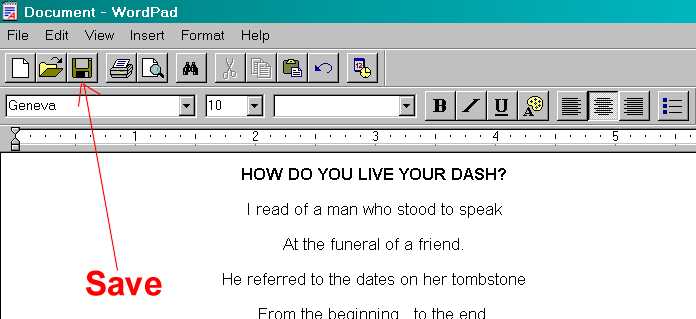
You can either click on the Save button with the floppy disk icon, or you can go to File to save the document.
By default, your computer will generally prompt you to save in My Documents unless you have recently saved something in another folder.
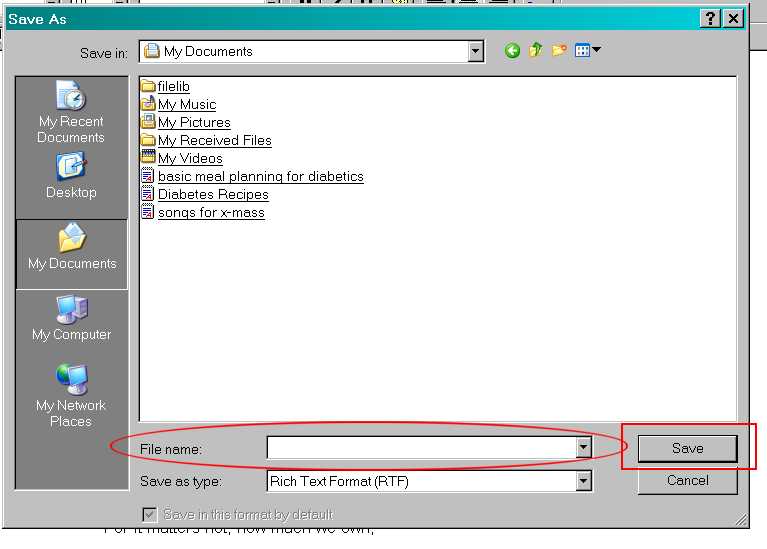
Give the document a name and click on Save.
