
ASME Technical Seminar 11/15/03
Introduction
to AUTOCAD 2000
Date of Printing: 18
October 2003
University of Akron, Auburn
Science and Engineering Center 8:00am-1 pm
Instructor: Dr. John C. Stearns
This course introduces the AUTOCAD program to beginners. Basic features, simple drawing techniques, editing techniques and dimensioning are covered interactively. Applications from industry gives the student hands on AUTOCAD training.
1) Getting Started with AUTOCAD 2000
a) Exploring the AUTOCAD interface
b) Using Simple Drawing tools
i) Drawing lines, circles,
ii) Relative coordinates
c) Using simple editing Tools
i) Selecting individual objects
ii) Selecting groups of objects
iii) Erase and OOPS
2) Learning some basic editing tools
a) Duplicating and Relocating objects
i) Copy, move, mirror and offset commands
b) Fine tuning your drawings
i) Trim, extend commands
ii) Working with layers
c) Correcting your mistakes
i) Undo, redo commands
d) Changing the Screen display
i) Redraw, zoom and pan commands
3) Using additional drawing and editing tools
a) Drawing with some new tools
i) Polygons, arcs
b) Adding text to your drawings
c) Manipulating Objects
i) Fillet, chamfer
ii) Rotate, scale, stretch
4) Adding more tools to your drawing kit
a) Drawing with some new tools
i) Drawing ellipses
ii) Hatching
iii) Blocks
iv) Dimensioning
(1) Linear, angular and radial dimensions
(2) Leaders
v) Plotting
AUTOCAD 2000
New license : ~$3000 Lt Version: ~$600
My website https://www.angelfire.com/oh4/psychfea
Autodesk on the web at http://www.autodesk.com/autocad
System Requirements:
Software
Windows NT® version 4.0, Windows® 95, or Windows 98: It is recommended that you install and run your copy of AutoCAD on an operating system in the same language as your AutoCAD software or on an English version of one of the supported operating systems.
WHIP!® Browser Accessory: Drawing Web Format (DWF) files are designed to be viewed on the Internet or company intranets using a Web browser. Using the WHIP! Browser Accessory 4.0, you can view DWF files created with AutoCAD 2000. WHIP! is available as a Netscape® Navigator® plug-in and as a Microsoft Internet Explorer ActiveX® control. WHIP! is installed if you install Internet Tools with AutoCAD. You can also download WHIP! from the Web. For information about downloading and using WHIP!, see the following Web site:
http://www.autodesk.com/products/autocad/whip/whip.htm
To download the plug-in, see the following FTP site:
ftp://ftp.autodesk.com/pub/component_technologies/whip/whip2.exe
Microsoft Internet Explorer 3.0 or later or Netscape Navigator 3.0 or later: One is required if you plan to use Internet Tools.
TCP/IP or IPX protocol: If you are a system administrator planning to install AutoCAD on a network, you must have either the TCP/IP or IPX protocol installed and functioning on the computers running AutoCAD.
64 MB of RAM (recommended), 32 MB (minimum)
130 MB of hard disk space (minimum)
64 MB of disk swap space (minimum)
50 MB of free disk space in your system folder
This section describes
both the required and optional hardware recommendations for running AutoCAD.
Required
Pentium 133 or better, or compatible processor
800 × 600 VGA video display with 256 colors (1024 × 768 or higher recommended)
CD-ROM drive for initial installation only
Windows-supported display adapter
Mouse or other pointing device
Optional
Printer or plotter
Digitizer
Serial or parallel port (for peripheral devices)
Network interface card (for network versions of AutoCAD)
Modem or access to an Internet connection
1)
Exploring the AUTOCAD interface
Drawing limit- Infinaite piece of paper, Draw full size, Scale title block to fit to drawing
Limits LL (lower left) UR(upper right), Units decimal inch
WCS icon Menus Pulldowns Command line Layer area




When you start AUTOCAD the screen looks like the one above, the various parts are labeled.
The drawing area appears in the white region that occupies most of the screen. The lower left hand corner of the drawing area is the origin (0,0) of the coordinate axis indicated by the user coordinate system (UCS) icon. The icon displays a W to show that the current coordinate system is the world coordinate system.
Drawing LINES
· To pint
· @ Relative coordinates
· real coordinates relative to UCS
· Close option, type 'c'
· Polar coordinates xx<30
Drawing CIRCLES
Center, rad
Center Dia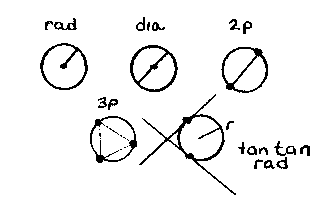
2 point
3 point
tan tan radius
1c. Selecting Objects
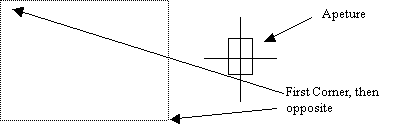
Erase:
-One or more objects
To recover erased objects èOOPS from erase menu, Only One OOPS is allowed
Endpoint
Midpoint
Center
Quadrant
Intersection
Nearest
+++OTHERS
