| Apache Systems | |||
|
Over time you will no doubt notice your PC's performance decline. 1. Clear Temporary Internet FilesOne major thing which can decrease the performance of your PC, are the temporary Internet files created when you view web pages such as this one. You may not realize it, but every page you view along with it's associated images and scripts are saved to your computer's hard drive. Deleting temporary Internet files not only frees up hard disk space but will also improve performance. To remove temporary Internet files, you should follow the method below Open Internet explorer and click on the browser bar on TOOLS/ then select Internet Options a box appears click on delete Files and select all files Box and click ok. If you are using AOL then the same procedure works for you as AOL under the skin is a IE engine. If you are using Netscape then go select Edit from Browser Bar , then select Preferences and in the dialogue box that appears select advanced and then select Cache--click the buttons which say clear cache there are two of them.
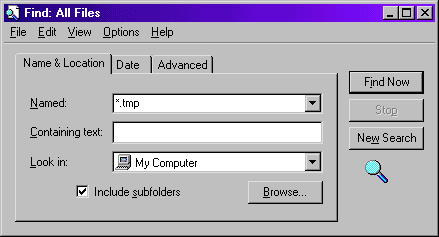
Temporary files are similar to the temporary Internet files in that they are not required to run you PC. These files are often created when installing a piece of software on your computer, and may not be properly removed. To delete temporary files, follow the method below: 1) Click your Start Menu followed by Find
then Files or Folders.
3) Now click Find Now.
3. Defragment your Hard Disk
This may seem obvious, but most people, including myself, do not defragment their hard disks often enough. Over time, files are created and deleted on your hard drive, leaving a space where there is no data. This space will then be filled in next time a file is written to the disk, however what happens if a file is too big to fit in the space? As much of the file as possible is written in it, and the rest of the file is written elsewhere on the disk. Next time you come to use the file, part of the must be retrieved from one place, then the head on the drive must physically move to the other place on the disk where the rest of the file is located. This move takes a finite amount of time and will increase loading times. The Defragmenter utility will sort this out, putting all of a file in one place, instead of having different parts of the file in different places. It may take a long time to run, but a Defrag is normally worth it. This should be run 1-2 times a month at least for best performance. To run defrag you need to: 1)
Click your Start Menu followed by Programs
> Accessories > System Tools > Disk Defragmenter. 4. Use MSConfig to Improve Startup Times and to Free ResourcesMSConfig, is a utility which is mainly involved with the startup of your PC. It doesn't actually start up your PC, or play any part of starting your PC, but instead allows you to modify various aspects of your startup, including enabling and disabling scandisk, editing startup files such as autoexec.bat and config.sys. Most importantly, it allows you to disable "startup items" - programs which are automatically loaded when Windows is started. These programs can significantly increase the time it takes for your PC to enter a "usable" state because of the time it takes to load them. To enter MSConfig you need to: 1) Click on your Start Menu, then Run.
The way I normally do things, it to disable absolutely everything which isn't necessary to the operation of your PC, and isn't something I use almost every time my PC is on. So I leave programs such as MSN Messenger, or printer monitoring software, but pretty much everything else is unticked. If SystemTray is present, do not disable this as it is essential for the correct operation of Windows. To see some of unnecessary Tasks click here. Did you know that you can find “patches” or updates to correct certain windows problems at http://v4.windowsupdate.microsoft.com/en/default.asp Best it is a free service... They scan your PC for new drivers as well. Keep looking on the left bar icons . Once there click on the green button to select scan for updates. The left window will slowly show all available updates. Select each available updated and click add from the main window. Do not want unneeded updates. Do not install Arabic or Portuguese languages if you only use English. Do not need the fancy screen savers or just use plain common sense. then CLICK THE GREEN DOWNLOAD BUTTON. A screen will come up showing all the software click install. Microsoft usual Legal Box will appear give your OK and proceed to installation. If you are on a Broad band connection fine otherwise a 56K modem connection will take all night to download 5 -10 MB. For example, there is an update for computers using Windows 98
second edition that hang on shutdown or restart when you select shutdown.
There are also updates that prevent "a malicious user" from
gaining access to certain files on your computer. Have some extra time on HAND AND HAVE YOUR OS disk. SFC
- System File Checker - Windows 98 - replace corrupt system files Windows File Checker -
Windows XP - replaces incorrect system file versions Windows XP System Restore
|
|||