Mirror Tutorial, Page 4
Insert both images into this area by clicking on "Add Image" button. Make sure that you start at the last frame (2.gif) and then hold down the Shift key as you click on the first frame (1.gif). This will now appear in numerical order in the list area (see below). These are entered in one order but will appear in the opposite order.
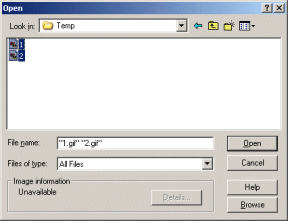
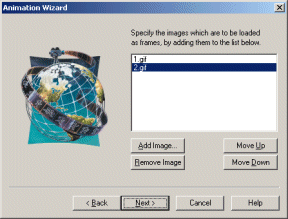
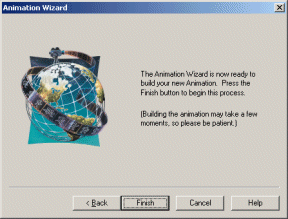
Click on the "Next" button and you will now be at the last page of the Animation Wizard. Click on the "Finish" button as shown below.
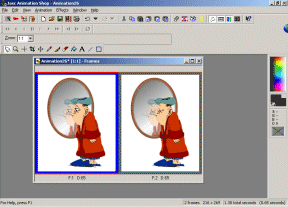
You will now be able to view both of the frames that you created.
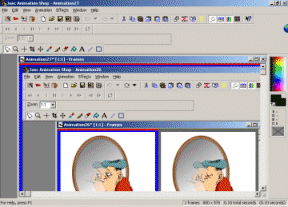
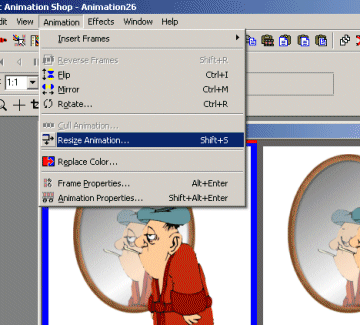
Resize this to 3" by clicking on "Animation" on the menu bar. Scroll down on the drop down menu and click on "Resize Animation".
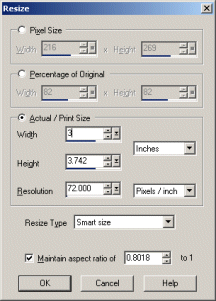
Change the width to read "3" and then click on "OK".
Your frames will now look like the frames below.
You are now ready to view your animation. Click on the "View Animation" icon (located to the right of the toolbar).
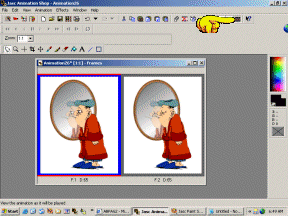
There it is! You have just created a mirror reflection animation!
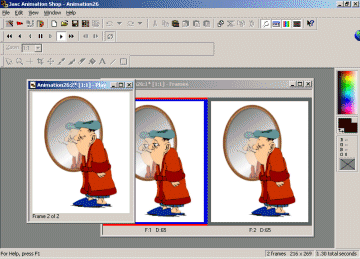
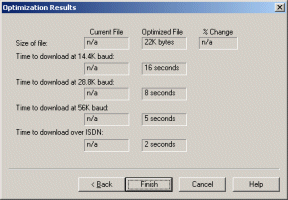
Click on "File" on the menu bar and then "Save As". Give it a name and save it to whatever folder you choose. Click "Next" on the following dialog boxes.
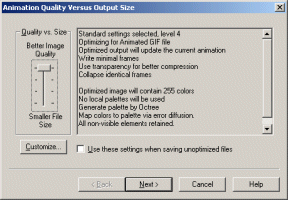
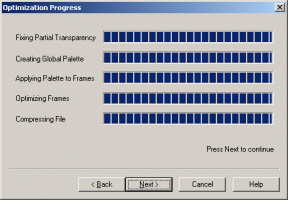
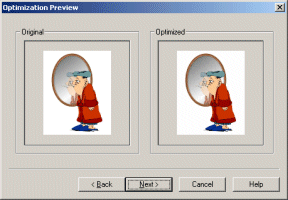
Click "Finish" on the last one.
Congratulations!
Now that you've learned how to create this effect have fun searching the internet for lots of images to practice on.
E-Mail
Mirror Tutorial Home

