
How to set up an FTP correctly behind a router using GuildFTPD
1. Start - run - cmd - ipconfig. You should get a Black box with a bunch of numbers.
2. Write down your IP Address and Default Gateway (Usually 192.168.0.2 and 192.168.0.1 or something similar)
- The Default Gateway will be the address you use to get to your router management page. http://defaultgateway i.e. http://192.168.0.1
- If you don't know what your username and password is, try admin as username and leave password blank, or admin/admin, or admin/1234, or admin/password
3. Go to http://www.portforward.com/english/routers/port_forwarding/routerindex.htm - The password can usually be found here if you know what router you have.
- Look up your router to follow along with the next section. It Will give you pictures of what you need to do if you click on the FTP after you select the model.
4. You need to open 1 port to run the FTP on, and a set of ports for a passive connection. Such as 7000, and 50000-50050.
5. The number you input as your IP address will be the last digit of the IP Address you wrote down earlier
6. Download Guildftpd - http://www.guildftpd.com/ It's free, and easy to setup.
7. Once installed and open - Click on System on the left.
On the bottom - find "port" and change the number to the single number you opened on the router - "7000" in my example
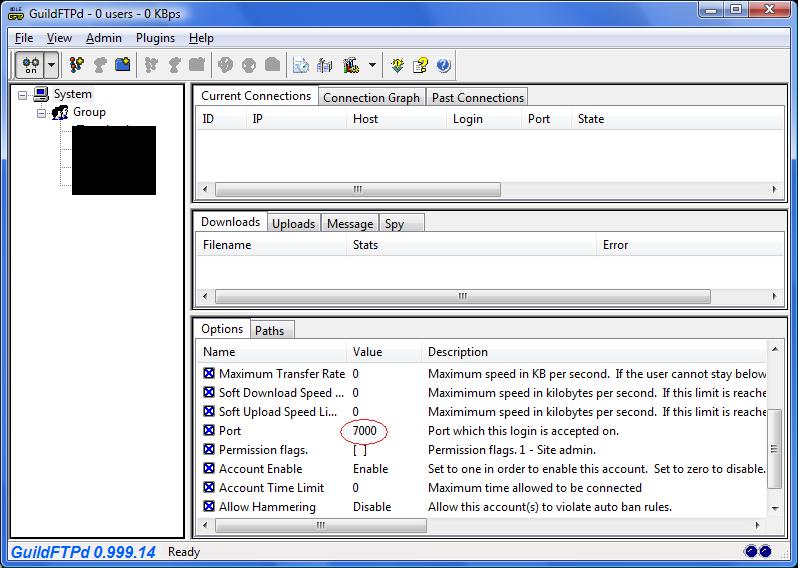
8. Go to Admin - Options - Advanced Settings
- Click Custom IP, then Detect IP, it should put your REAL IP in the address box. You can confirm the number at www.ipchicken.com
9. Below that, put in the range in the passive port range that you opened on the router - '50000-50050' in the example above.
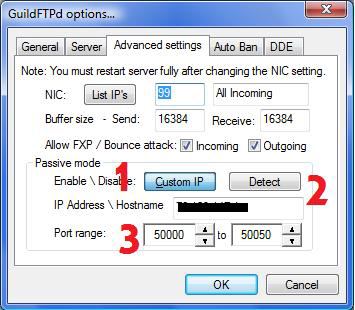
10. Click OK. Your FTP should be working now, but you need to set up an account for someone to use.
Setting up a User.
1. On the left under System, Right Click on Group and select Add User.
2. Name the user and fill in the password field - hit ok.
3. On the left under group you should see the user you just defined.
4. Left-Click on the user you just defined, then click the 4th button on the top for "Add Path".
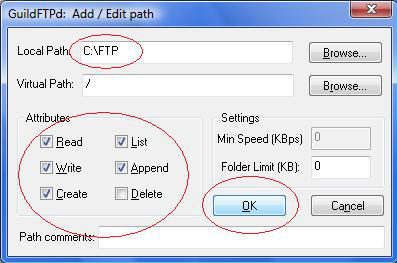
- This is going to be where your FTP is - Where you want that user to login to.
5. Choose the path, and select all the boxes except delete. (Or depending on what you want the user to be able to do) Read, Write, etc.
6. Click ok. Make sure Windows
Firewall is off.
