The first thing you need to do to join the wonderful world of FFRP is to join the wonderful world of IRC. IRC stands for "Internet Relay Chat," which basically means you can chat on it with a bunch of other people. Most roleplaying sites are on IRC servers, and although some roleplaying web sites have java clients to access them, the best way to get into IRC is to have a program on your computer. The program I'm going to teach you how to use to connect to IRC is Pirch98.
Why Use Pirch?
You can use mIRC, but I prefer Pirch98. I've used it for the past two years and it does me right, and I'm still discovering nuggets of gold in it. Besides, mIRC and the Mac IRC client, Ircle, have their own comprehensive websites. Pirch's website doesn't work well anymore, so here is some of the only support you'll get, unless you search for it on Google or something to that effect.
1. Getting Pirch98. Although the people who owned the rights to Pirch98 had a website, www.pirchat.com, it doesn't seem to be running nowadays, so go here to download it. It's Shareware, but I haven't seen any notifications yet about paying anything. Install as necessary. It's not too big of a file and it's easy to use.
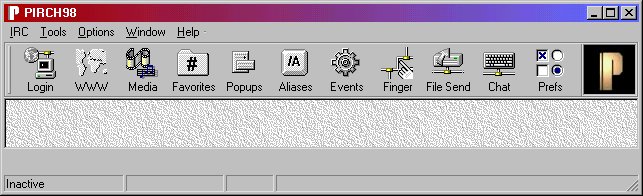
2. Now, open up Pirch. You should get a screen like this:
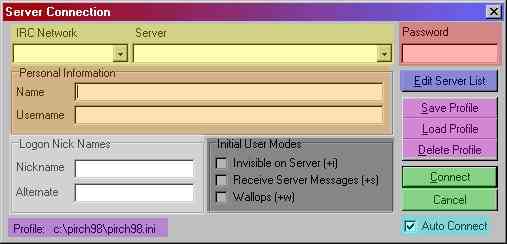
3. Click on the Login button on the far left to start your adventure towards IRC. The screen will look like this:
I've highlighted all the parts and gave them little descriptions so you know what you're dealing with:
Red: This is where you put your Password. Actually, it's useless. It won't put in your password for you if you've registered your nickname, so that little password thing is just taking up space. Don't use it.
Green: Connect (to IRC) or Cancel. Self explanatory.
Cyan/Turquoise: Chooses whether you want to connect as soon as you press the "Connect" button. Make sure it's on; it'll save you some time.
Orange: The Name is what comes up only when someone does a "/whois" on you. Feel free to put anything in it. Leaving your username at the default, "pirch@pirch.com," is perfectly fine. No one will ever see the second part, because the second part is actually you IP address (or your masked IP), and it's seen whenever you enter a channel.
Light Gray: This is where you fill in your nickname and an alternative nickname, which people will usually call you by in the channel. If your nickname's taken, it will switch to the alternate one.
Dark Gray: These are optional. You don't have to have any of these checked (I sure don't).
Light purple/pink: This is where you can save, load, or delete a profile. Actually, the delete profile doesn't work. Saving profiles is handy if you have multiple characters/nicknames. It saves everything, even the stupid password feature.
Purple: This just lists the profile name. If you don't establish a profile, "pirch98.ini" is where the settings will be saved.
Yellow: This is where all the Networks and servers are listed. Networks usually have a bunch of servers in case one or two go down, and the network I'm connecting you to, Sorcery, to is no different.
Blue: This is where you can modify the list of servers you can connect to by using that Server drop-down menu.
4. There are two ways you can go from here: you can add the Sorcery server to your list of server using the "Modify Server List" button, or you could just type "cookie.sorcery.net;9000", "blackmagic.sorcery.net;9000", or "irc.sorcery.net;9000" in the server box and connect that way. If you do go to "Modify Server List," make sure you type in SORCERY as the group name for easy access (to add a group, click the button with plus sign with the bunch of computers). SORCERY (or whatever name you put) will be at the bottom when you save it. It's best to save all three server addresses (added by clicking the little computer with the plus sign) just in case one is down; you can leave the Name field blank.
WARNING: If you do save a profile, Pirch will screw up and give you a black background color. To solve this problem, go to Options, then Colors. After that, click Background Color from the left sidebar, then click the white block. This should solve your problems. Feel free to toy around with your colors after that. :D