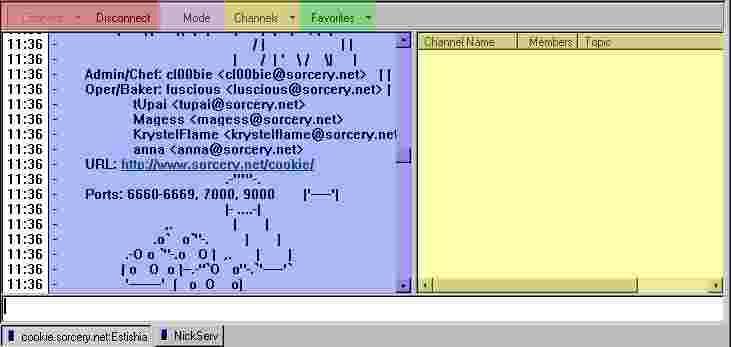
Once you've done logging in, hit the connect button..and pray. My computer takes 30 seconds to log on, so don't be afraid if yours takes a minute or so to log onto IRC. Once you're connected, you should get a window like this: Author's Note: Sorry about all the low rez pics, but you don't need to read much and it loads faster. Red: These are the Connect/Disconnect buttons.
Pink: Remember those optional modes from the "Connecting to IRC" page? Well, by pressing the "Mode" button, you can change these settings without reconnecting.
Yellow Group: This is the Channels button and the window is where the channels would be displayed..if it weren't bugged to all heck. If you press the Channels button, it'll spontaneously disconnect you until further notice, so you're not going to have a good time. If you accidentally press this button, just click the Connect button again.
Green: This button is your Favorites button, which will become your favorite button. This button is your friend. Unlike in java clients, where you have to type /join #this and /join #that all the live long day, you can just access the channel through the Favorites menu in this window. Isn't that easier? Also, you can access all the channels you have accessed while the program was open, just in case you left a channel and wanted to go back to it.
Blue: This is the main window. Whether it's a server window, chat window, or private messaging window, you should know this is where the action is!
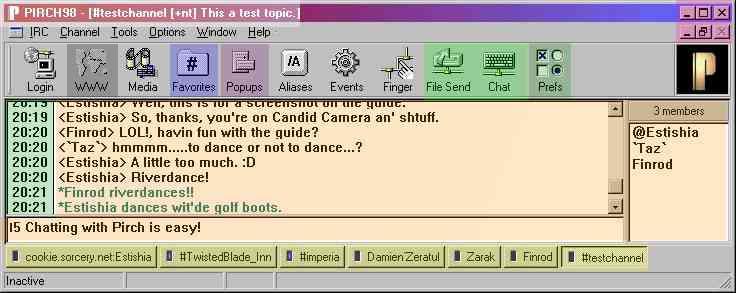
Now I'll show you a typical chat window.
Pink: These are the standard minimize, full/regular screen, and close buttons. For chatting, it's best to have both screens full, but you can do what you like. White: This shows the title bar, but most importantly, the channel's name and the topic. Most of the time, FFRP channels' topics are too long, sometimes even for the /topic command. Don't fret, though: most of the important stuff should be in the first few sentences.
Gray: The "WWW" button takes you to a list of links. You double-click on these links to go to the site. Where do the links come from, you ask? Well, they come from the chats. For example, if Estishia posts in the chat: "Check this out! https://www.angelfire.com/nf/StoneTavern/guide/", the link https://www.angelfire.com/nf/StoneTavern/guide/ will appear in the WWW window. If these links are not used, they will disappear once you close Pirch (this is the default option). However, there are options to change that and then you can save those for next time!
Blue: This button is your Favorites button. This button is your best friend by now, yes? If not, try saying hi to it. Click this button to edit your favorites. Purple: The Popups button will take you to your scripts. Be sure to save by using the checkmark before you exit, or you will lose your changes. Lighter green group (two buttons): These buttons are for file sending and chatting through DCC. The only difference between private conversations and DCC chat is that in DCC, you can tell when your chatting partner is typing and when he/she is idle. However, in order to DCC chat with someone, they -must- be on the same server as you are.
Dark green group (sidebar and Prefs button): If you were ever wondering about my sidebar and extra things like having separate windows for things like Chanserv and Nickserv, feel free to mess around with the Preferences button. You'll be so much better off once you tweak it to your needs.
Yellow Group: These are wonderful buttons. The beauty with Pirch (as well as mIRC, of course) is that you can be in more than one channel at a time. Also, you can chat privately in separate windows rather than be confused what's public and what's private in a channel. Almost no more messups (human error is always considered)! These buttons work like the Windows' taskbar (although they crash far less) - you can have many open windows at once, and the other windows blink when there's activity. You click on the buttons to switch between windows.
Orange: Here you have the chat window; to the right, a sidebar listing the nicknames; and below, the input box. This is a typical chatroom conversation. The @ next to Estishia in the sidebar (me!) means that she is a channel operator. Although there are many levels of operators, all operators can set the topic of the channel (or set channel modes), kick and ban people who break the rules, and have an @ next to their nickname.As for the sidebar, if you double-click on someone's name, a private message window will open. If you click on a person's name to highlight it, then right click, you get all sorts of cool options, from doing a /whois to ignoring them - without having to type a command! (Thus helping save you from the not so good wonders of carpal tunnel syndrome, which I now have as a teenager. Believe me, it sucks.)
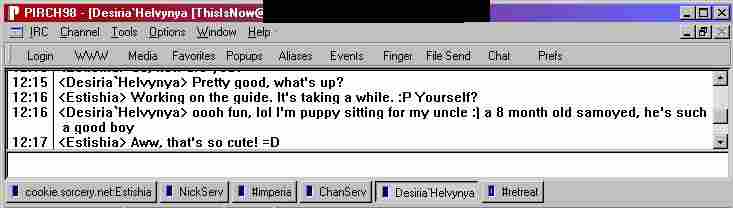
As long as I'm showing you all the windows, I might as well show you a window of a Private conversation:
Note that a private conversation's title bar looks different from the other windows. If you were in the server window, the title bar would show your nick and your IP address (whether it's masked or not). If you were in a channel's window, it would show the channel's name and its topic. A private window shows the Nickname you're talking to and their IP address (whether it's masked or not). Also note the lack of sidebar.
Well, now for what you've been waiting for - the quick list of IRC commands.
Control-k + # - This changes the text color for that particular post.
/join #channel - This is the command you use to join a channel.
/topic (in a channel) - This reveals the channel's topic, in case it cuts off in the title bar. Given most channels, you'll use this often.
/nick Name - This is the command you use to change your nickname.
/msg Name - This is the command you use to privately message another person. If they reply, a new window will be opened so you can privately converse with that person. Once you start using this, you'll never want to go back to using a Java client again.
/query Name - This is the command you use to open a window to privately converse with that person.
/whois Name - This is the command that gives you the information (which includes the personal information about that person, if you remember that part on the IRC page) of a specific nickname. You can even do this to yourself.
/ignore Name - This is the command you use to ignore someone. This is useful when someone is flooding/insulting a channel and there isn't an op around.
/ping Name - This is the command you use to ping a person, which means that it checks to make sure the person is still active. If they're lagging, you'll know this. You can check the Server window for that.
/dcc chat Name - This is the command you can use to initiate a DCC chat with someone.
Now, for some of my personal tips that will help you around Sorcery:
Registering Nicknames: This was basically taken from NickServ, with some EsyEdits. The command is - /msg NickServ REGISTER (password) (e-mail address or NONE) - and NickServ REGISTER allows you to 'own' your nickname on SorceryNet. You can then configure your nickname to your liking using the various NickServ features. The email address is optional, but we highly recommend that you do supply it to assist us if you lose your password. If you do not wish for Sorcery to have your e-mail or you do not have e-mail, please put in NONE instead. Your email address will not be distributed to anyone. If you do not identify your nickname with Sorcery (done by /msg NickServ ID password) for a period of 25 days or more, it is at risk of expiring.
Changing the Program's Colors: I mentioned that you can change Pirch's colors by selecting Options from the menu, then Colors before, but I just want to reiterate this feature, since you can't access it from your preferences (although you SHOULD be able to do that). It's useful for tinkering with, and tinkering's a necessity for using Pirch once you start using profiles (see the page on connecting to IRC for more). Tinkering around with the options may help you familiarizing yourself with Pirch, but is not guaranteed to raise your IQ.