If you are going to
be using LC to make your stats - it is a good idea to set up a
template so that you don't need to type in the same information
every time you create a new stationery. So. here is a mini tut
to help you quickly set up a template.
BEFORE you begin.
Go to IM and create a folder in your style box named whatever
you want your creations to be stored in. Keep in mind that when
someone saves your stationery, it will create a folder in their
style box named whatever you choose here, so make it something
that your recipients can recognize as being yours.
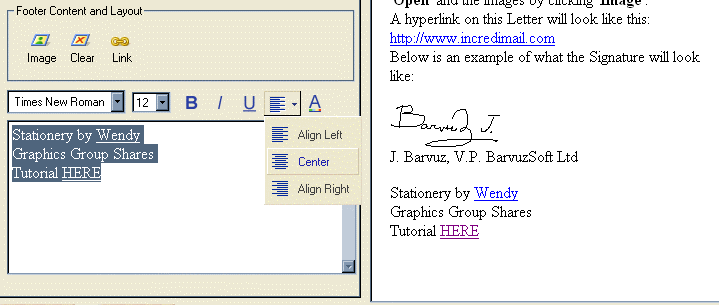
Add whatever text
you want to show in the footer of your stationery. If you want
to do as I have follow these steps. Add your name - highlight
it and select the LINK icon
In the drop down
menu select mailto:
and add your email
address
I always add the
line indicating that my graphics are collected from the web.
You can add an
image here if you wish, but keep it small. Just click Image and
browse to the image you want to use.
Now you can center
the text by selecting the text and choosing the alignment icon
You may also change
the font, color and size as you wish
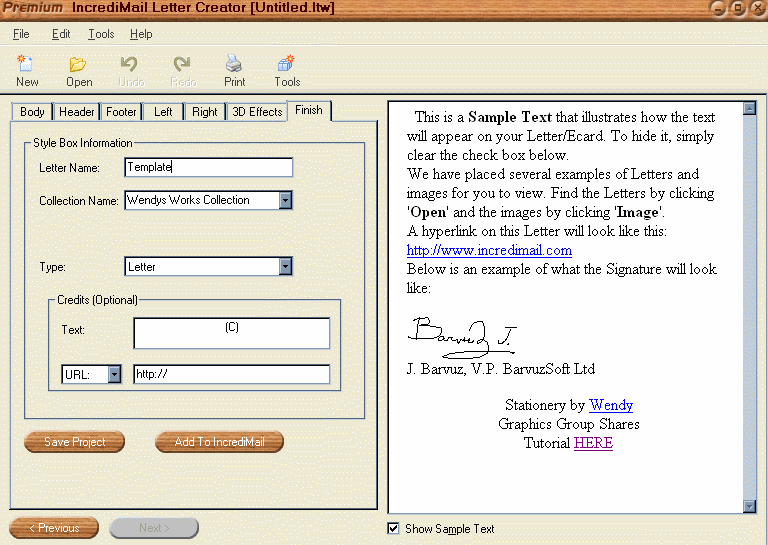
Click on the FINISH
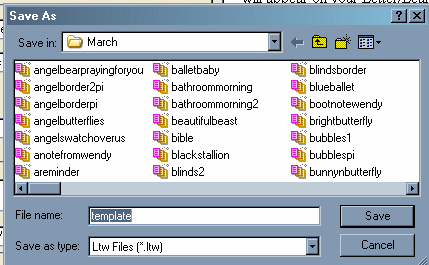
tab - and name your template - make sure you save this template
to
c:\program files\Incredimail\data\lettercreator\folder
of your choice.
We have discovered
that saving this file to anywhere else can cause problems with
your end results. Within this same folder I create a folder for
each month and always save to the current month folder. Each
month I copy the template folder forward into the new month's
folder. This seems to work well.
You may choose
another method.
Fill in any other
fields you want here.
Make sure that you
click SAVE PROJECT
Do not add this
template to Incredimail - you only need it in a folder as
directed so you can use it again.
You're done!!
This tutorial was
written by Tzeriah, any similarity to other tutorials is
coincidental.
All links you use
in reference to my tutorials please use my email address
wwpspclasses@yahoo.com.au NOT the group email address.