|
How to make a 3 Layered Nameplate
.
The DOWNLOAD file contains
the following files...
rosepink.tub
rosepink1.tub
Download and unzip.
.
Open PSP. Open your tubes and export them as
picture tubes.
Go to FILE>NEW with the following settings...
Width: 300
Height: 100
Background color: white
Click ok.
Now click on the layers palette  . .
Now click on the add new layer button  . .
When the new box comes up just click ok.
Do this 3 times.
Now your layers box will say, from top to bottom,
Layer3, Layer2, Layer1, Background...like this...

Go to SELECTIONS>SELECT ALL. Go to
SELECTIONS>MODIFY>CONTRACT by 25 pixels
Click ok. Go to SELECTIONS>SAVE TO ALPHA CHANNEL. Now I didn't
give mine a name, I just clicked ok on each box that came up. Now go to
SELECTIONS>SELECT NONE. On the layers box click Layer2. Go to
SELECTIONS>SELECT ALL. Go to SELECTIONS>MODIFY>CONTRACT by 15
pixels
Click ok. Go to SELECTIONS>SAVE TO ALPHA CHANNEL. Now I didn't
give mine a name, I just clicked ok on each box that came up. Click on
Layer1. Go to SELECTIONS>SELECT ALL. Now click the tube tool  and
pick the rosepink tube. On the control palette use the following
settings... and
pick the rosepink tube. On the control palette use the following
settings...
Tube: rosepink
Scale: 57%
Now place roses all around the edges of the
nameplate like this...

Now go to IMAGE>EFFECTS>BUTTONIZE I used the
following settings...
Height: 15
Width: 15
Opacity: 69
Transparent edge
Click ok. Now click on Layer2. Go to SELECTIONS>LOAD FROM ALPHA
CHANNEL choose the bigger one and click ok. Now click the tube tool and
pick the rosepink1 tube. On the control palette use the following
settings...
Tube: rosepink1
Scale: 55%
Now place roses all around the edges of the new
section like this...

Now go to IMAGE>EFFECTS>BUTTONIZE I used the same settings
as before. Click on Layer3. Go to SELECTIONS>LOAD FROM ALPHA CHANNEL
choose the smaller one and click ok. Now here you can add more tubes or
flood fill with a color. I picked this color.. and
flooded the new section. Now go to IMAGE>EFFECTS>BUTTONIZE I used
the same settings as before. Go to LAYERS>MERGE>MERGE VISIBLE. Go
to SELECTIONS>SELECT NONE. Now it looks like this... and
flooded the new section. Now go to IMAGE>EFFECTS>BUTTONIZE I used
the same settings as before. Go to LAYERS>MERGE>MERGE VISIBLE. Go
to SELECTIONS>SELECT NONE. Now it looks like this...
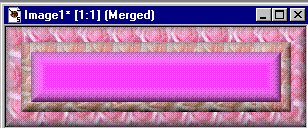
Now you can add text and save it as a JPEG if you
want.
I'm going to add a couple of sparkles to mine first
then add text.
Here's the finished one...

Hmm, not too bad for my first one. lol
If you have any questions, please just ask...
Copyright © 2000-2001 by LovlyGypsy,
all rights reserved
| I, LovlyGypsy,
Give my permission to Ldy
Archrr aka Artists for PSP to place any and all tutorials
that I have made on her site.. this 22nd day of February 2001.
These tutorials were made solely by me and permission is mine
to give. |
|


