|

How To Make A
Bouncing Ball Animation
The attached file contains the following files... Download
Here
ball.tub
BBall.gif
Download and unzip to any file.
Open PSP, open the tube ball.tub and export it by going to
FILE>EXPORT>PICTURE TUBE when the box comes up just type in a name
where it says Tube Name: and click ok. Go to FILE>NEW and use these
settings...
Width: 200
Height: 200
Transparent Background
Go to EDIT>COPY, EDIT>PASTE>AS NEW IMAGE do that five times so
that you have 7 images open like this...
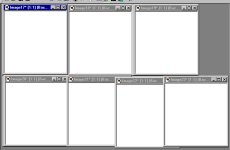
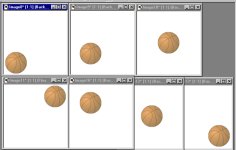
Click on the first image. Click the tube tool [] and on the control
palette select the ball tube at 51% and place a ball at the bottom left
side. Click on the next image and place another ball up a little farther
than the first. Click on the third image and place a ball in the center.
Click on the fourth image and place a ball at the top right side. Click
the fifth image and place a ball out a little from the top left side.
Click on the six image and place a ball in the center. Click on the
seventh image and place a ball at the bottom right hand side. Here's
what mine look like...
Now click on image 1 and go to FILE>SAVE AS and save it as
Image1.PSP, close it. Click on image 2 and go to FILE>SAVE AS and
save it as Image2.PSP, close it. Click on image 3 and go to FILE>SAVE
AS and save it as Image3.PSP, close it. Click on image 4 and go to
FILE>SAVE AS and save it as Image4.PSP, close it. Click on image 5
and go to FILE>SAVE AS and save it as Image5.PSP, close it. Click on
image 6 and go to FILE>SAVE AS and save it as Image6.PSP, close it.
Click on image 7 and go to FILE>SAVE AS and save it as Image7.PSP,
close it. Close PSP. Open PSP>ANIMATION SHOP by clicking
START>PROGRAMS>PSP>ANIMATION SHOP. Go to FILE>ANIMATION
WIZARD, when the first box comes up click Next. Make sure Transparent is
selected in the next box and click Next. Click Next on the next box.
When the next box comes up where it says...How long do you want each
frame to be select 50 and click Next. When the next box comes up click
where it says Add Image like this....
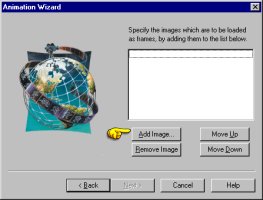
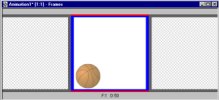
Now find Image1.psp and single click on it and click Open, then click
Next, then click Finish. Now you will have an image that looks like
this...
Now go to EDIT>INSERT FRAMES>FROM FILE.
Now a box will come up that
looks like this...
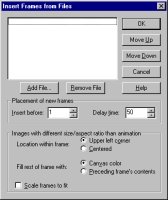
Where it says...Insert before: set that to 2... . .
Click the Add File button  and select Image2.psp and click Open. Now click Ok. Now go to
EDIT>INSERT FRAMES>FROM FILE. Where it says...Insert before: set
that to 3. Click the Add File button and select Image3.psp and click
Open. Now click Ok. Now go to EDIT>INSERT FRAMES>FROM FILE. Where
it says...Insert before: set that to 4. Click the Add File button and
select Image4.psp and click Open. Now click Ok. Now go to EDIT>INSERT
FRAMES>FROM FILE. Where it says...Insert before: set that to 5. Click
the Add File button and select Image5.psp and click Open. Now click Ok.
Now go to EDIT>INSERT FRAMES>FROM FILE. Where it says...Insert
before: set that to 6. Click the Add File button and select Image6.psp
and click Open. Now click Ok. Now go to EDIT>INSERT FRAMES>FROM
FILE. Where it says...Insert before: set that to 7. Click the Add File
button and select Image7.psp and click Open. Now click Ok. Now your
image should look like this...
and select Image2.psp and click Open. Now click Ok. Now go to
EDIT>INSERT FRAMES>FROM FILE. Where it says...Insert before: set
that to 3. Click the Add File button and select Image3.psp and click
Open. Now click Ok. Now go to EDIT>INSERT FRAMES>FROM FILE. Where
it says...Insert before: set that to 4. Click the Add File button and
select Image4.psp and click Open. Now click Ok. Now go to EDIT>INSERT
FRAMES>FROM FILE. Where it says...Insert before: set that to 5. Click
the Add File button and select Image5.psp and click Open. Now click Ok.
Now go to EDIT>INSERT FRAMES>FROM FILE. Where it says...Insert
before: set that to 6. Click the Add File button and select Image6.psp
and click Open. Now click Ok. Now go to EDIT>INSERT FRAMES>FROM
FILE. Where it says...Insert before: set that to 7. Click the Add File
button and select Image7.psp and click Open. Now click Ok. Now your
image should look like this...

Now let's see how it looks by clicking the View Animation button  .
Mine's not the greatest but what do you expect for my first try? lol Now
let's save it by going to FILE>SAVE AS and I'm saving mine as
BBall.gif, click ok, when the next box comes up just click Next, click
Next again, then click Finish. I've attached mine so that you can see
it. .
Mine's not the greatest but what do you expect for my first try? lol Now
let's save it by going to FILE>SAVE AS and I'm saving mine as
BBall.gif, click ok, when the next box comes up just click Next, click
Next again, then click Finish. I've attached mine so that you can see
it.

If you have any questions please just ask...
Copyright © 2000-2001 by LovlyGypsy,
all rights reserved
| I, LovlyGypsy,
Give my permission to Ldy
Archrr aka Artists for PSP to place any and all tutorials
that I have made on her site.. this 22nd day of February 2001.
These tutorials were made solely by me and permission is mine
to give. |
|


