|
How to make Rainbow Text
The DOWNLOAD file contains
the following file...
scripbl.ttf
.
Download and unzip to your Windows>Fonts folder.
Open PSP go to FILE>NEW and use these
settings....
Width: 380
Height: 190
Transparent Background
.Select Black as your
foreground (top box) color. Click the text tool  and
click in the middle of the pic, select a font I'm using the font I
attached. Script MT Bold, Bold, Size 48, make sure Floating IS checked. and
click in the middle of the pic, select a font I'm using the font I
attached. Script MT Bold, Bold, Size 48, make sure Floating IS checked.
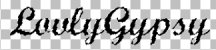
Here's mine...
Select none by either going to SELECTIONS>SELECT
NONE or holding down the Ctrl button on your keyboard and pressing the
D. Now change your foreground color to any color you want, I'm changing
mine to purple... .
Click the selection tool .
Click the selection tool  and
draw a rectangle around the top part of your text and click inside to
select it. The size of your rectangle will depend on how many colors you
want to use. Click the airbrush tool and
draw a rectangle around the top part of your text and click inside to
select it. The size of your rectangle will depend on how many colors you
want to use. Click the airbrush tool  and
spray the text. and
spray the text.
Here's mine...

Change your foreground color. I'm changing mine to
dark blue... .
Click the selection tool again and go right below the purple and draw a
rectangle and click inside it. Click the airbrush tool and spray the
text. .
Click the selection tool again and go right below the purple and draw a
rectangle and click inside it. Click the airbrush tool and spray the
text.
Here's mine...

Change your foreground color. I'm changing mine to
bright blue... .
Click the selection tool again and go right below the dark blue and draw
a rectangle and click inside it. Click the airbrush tool and spray the
text. Here's mine... .
Click the selection tool again and go right below the dark blue and draw
a rectangle and click inside it. Click the airbrush tool and spray the
text. Here's mine...

Change your foreground color. I'm changing mine to
dark green... .
Click the selection tool again and go right below the dark blue and draw
a rectangle and click inside it. Click the airbrush tool and spray the
text. Here's mine... .
Click the selection tool again and go right below the dark blue and draw
a rectangle and click inside it. Click the airbrush tool and spray the
text. Here's mine...

Change your foreground color. I'm changing mine to
yellow... .
Click the selection tool again and go right below the dark blue and draw
a rectangle and click inside it. Click the airbrush tool and spray the
text. .
Click the selection tool again and go right below the dark blue and draw
a rectangle and click inside it. Click the airbrush tool and spray the
text.
Here's mine...

Change your foreground color. I'm changing mine to
orange... .
Click the selection tool again and go right below the dark blue and draw
a rectangle and click inside it. Click the airbrush tool and spray the
text. .
Click the selection tool again and go right below the dark blue and draw
a rectangle and click inside it. Click the airbrush tool and spray the
text.
Here's mine...

Change your foreground color. I'm changing mine to
red... .
Click the selection tool again and go right below the dark blue and draw
a rectangle and click inside it. Click the airbrush tool and spray the
text. Go to IMAGE>EFFECTS>DROP SHADOW I used these settings... .
Click the selection tool again and go right below the dark blue and draw
a rectangle and click inside it. Click the airbrush tool and spray the
text. Go to IMAGE>EFFECTS>DROP SHADOW I used these settings...
Color: Black
Blur: 8.1
Both Offsets set to 0
Now you can save it and mine looks like this...

If you have any questions please feel free to
ask...
Copyright © 2000-2001 by LovlyGypsy,
all rights reserved
| I, LovlyGypsy,
Give my permission to Ldy
Archrr aka Artists for PSP to place any and all tutorials
that I have made on her site.. this 22nd day of February 2001.
These tutorials were made solely by me and permission is mine
to give. |
|


