|
How to remove text
from images
.
Right Click on the image below
and save to your hard drive to use for this tutorial =)

Open it in PSP.
Click the dropper  and click on the yellow, now yellow should be your foreground color (top
box).
and click on the yellow, now yellow should be your foreground color (top
box).
Now click the freehand tool  and draw around the text like this...
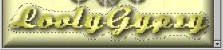
Now click the airbrush tool  ,
check your control palette under Tool Controls and set your Paper
Texture to none. Now spray the text and select none by either going to
SELECTIONS>SELECT NONE or holding down the Ctrl button on your
keyboard and pressing the D. Now it looks like this... ,
check your control palette under Tool Controls and set your Paper
Texture to none. Now spray the text and select none by either going to
SELECTIONS>SELECT NONE or holding down the Ctrl button on your
keyboard and pressing the D. Now it looks like this...
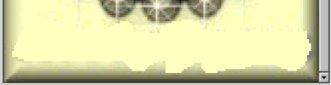
It looks really messy so let's clean it up a bit.
Click the Selection tool  and draw a rectangle around the bottom left side like this...
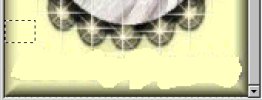
Go to EDIT>COPY, EDIT>PASTE>AS NEW SELECTION
and place it towards the bottom left side like this...
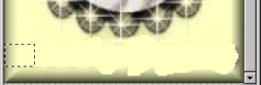
Now do the same thing for the right side.
Draw a rectangle around the bottom right side like
this...
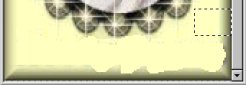
Go to EDIT>COPY, EDIT>PASTE>AS NEW SELECTION
and place it towards the bottom right side like this...
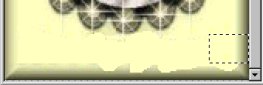
Now we need to do the same thing for the bottom.
Draw a rectangle around a part of the bottom like this...
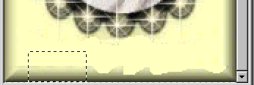
Go to EDIT>COPY, EDIT>PASTE>AS NEW SELECTION
and place it on the bottom, do it as many times as needed I had to do
mine 4 times. It looks like this...
Now we can just add new text and save....

If you have any questions please feel free to
ask...
Copyright © 2000-2001 by LovlyGypsy,
all rights reserved
| I, LovlyGypsy,
Give my permission to Ldy
Archrr aka Artists for PSP to place any and all tutorials
that I have made on her site.. this 22nd day of February 2001.
These tutorials were made solely by me and permission is mine
to give. |
|


