|

How to put a child in a shoe
The attached file contains
the following files...
Littlegirl.jpg
shoe.jpg
.
Download and unzip to any file. Open PSP, open both
pics.
Go to FILE>NEW and used these settings...
Width: 400
Height: 400
Blue Background
Now click the Toggle Layer Palette button  ,
click the Add New Layer button ,
click the Add New Layer button  .
Then go to VIEW>NORMAL VIEWING. Now click the magic wand .
Then go to VIEW>NORMAL VIEWING. Now click the magic wand  and
click the white background on the shoe and go to SELECTIONS>INVERT,
EDIT>COPY, now click on the transparent pic and go to
EDIT>PASTE>AS NEW SELECTION, place it towards the bottom, now it
looks really messy around the edges so go to
SELECTIONS>MODIFY>CONTRACT by 2 pixels, go to SELECTIONS>INVERT
and hit the Delete key on your keyboard. Then select none by either
going to SELECTIONS>SELECT NONE or by holding down the Ctrl key on
your keyboard and pressing the D. Now add another layer. Make sure white
is your background color (bottom box). Now click on the pic, Littlegirl,
this part is a pain but click the Freehand tool and
click the white background on the shoe and go to SELECTIONS>INVERT,
EDIT>COPY, now click on the transparent pic and go to
EDIT>PASTE>AS NEW SELECTION, place it towards the bottom, now it
looks really messy around the edges so go to
SELECTIONS>MODIFY>CONTRACT by 2 pixels, go to SELECTIONS>INVERT
and hit the Delete key on your keyboard. Then select none by either
going to SELECTIONS>SELECT NONE or by holding down the Ctrl key on
your keyboard and pressing the D. Now add another layer. Make sure white
is your background color (bottom box). Now click on the pic, Littlegirl,
this part is a pain but click the Freehand tool  and trace around her, do a little at a time then hit the delete key,
this will replace the background with white, like this...
and trace around her, do a little at a time then hit the delete key,
this will replace the background with white, like this...
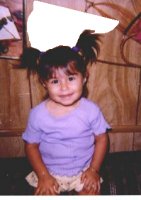
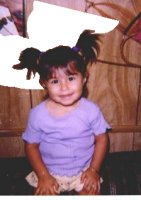
just keep doing it until it's all white...
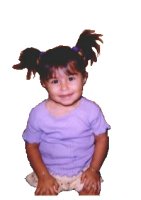
Now click the magic wand and click the white, then go
to SELECTIONS>INVERT, EDIT>COPY, shrink it. Click on the big pic
to select it. Click on the Layer Palette and make sure the very top
layer is selected or Layer2. Go to EDIT>PASTE>AS NEW SELECTION I
placed her like this...

Now I'll click the free hand tool again and trace
around the arm on the left side like this...

and I'll go to EDIT>COPY, EDIT>PASTE>AS NEW
IMAGE and just shrink it for now and do the same for the other arm. Now
on the Layer Palette click and hold down the button and drag Layer1 on
top of Layer2. That puts the shoe in front of her like this...

Now we need to get rid of part of the shoe, click the
freehand tool and select the back part, like this...
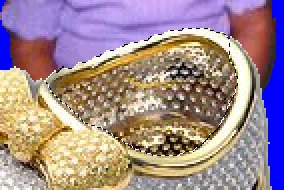
now hit the Delete key. Now put her arms on top of
the shoe and line them up. Then on the Layer Palette click the
Background Layer ( the layer with the blue) and click the Delete Layer
button . Now go to LAYERS>MERGE>MERGE VISIBLE, now you can add a
drop shadow and save here's mine...
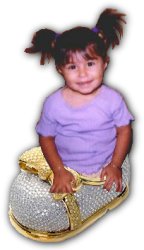
If you have any questions please feel free to
ask...
Copyright © 2000-2001 by LovlyGypsy,
all rights reserved
| I, LovlyGypsy,
Give my permission to Ldy
Archrr aka Artists for PSP to place any and all tutorials
that I have made on her site.. this 22nd day of February 2001.
These tutorials were made solely by me and permission is mine
to give. |
|


