|
~Some pics that can be used as
masks~
.
The DOWNLOAD has the flowers
pic and 5 frames.
.
You can use any pic as a mask.
Here's the pic I want to put the mask on...

Open the pic you want to put the mask on in PSP.
Go to EDIT>COPY
On the bottom right hand side it will tell you what
size your pic is.
This is what mine says...

Close out the pic. Go to FILE>NEW Use the same
size. Mine is...
Width: 198
Height: 256
Background color: White
Click ok.
Go to EDIT>PASTE>AS NEW LAYER
Now you need to open the pic you want to use as a
mask.
I am going to use frame5. It looks like this...

Now make sure the pic you want the mask on is selected. You can
select it by clicking on it's toolbar. So I will click on the flowers
toolbar. Now go to MASKS>NEW>FROM IMAGE when the Add Mask From
Image box comes up you need to select the pic you want to use as a mask.
Mine is frame5. Use the following settings...
Source window: frame5
Create mask from: Source luminance
Do not check Invert mask data
Click ok. Close out the pic you used for a mask mine is frame5 so
I will close that out. Go to FILE>SAVE AS. Give it a name and save it
as a JPEG file and click Save. Close you pic and reopen it. Now it looks
like this...
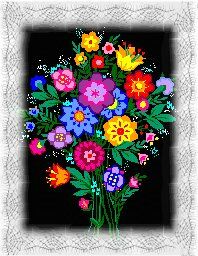
That's all there is to it.
Then you can buttonize or do what ever you want.
If you have any questions, please just ask...
Copyright © 2000-2001 by LovlyGypsy,
all rights reserved
| I, LovlyGypsy,
Give my permission to Ldy
Archrr aka Artists for PSP to place any and all tutorials
that I have made on her site.. this 22nd day of February 2001.
These tutorials were made solely by me and permission is mine
to give. |
|


