|
Easy Textures
Marble, Soft Marble,
Cracked, & Granite
Needed for this tutorial (free) Toadies
1 and 2
A new collection of excellent filters, including the
old ones, by Ilya
Razmanov, alias Ilyich the Toad. These filters are really
cool. Metalwork is used in some of my texture tutorials, but
most of them are very useful. Included are two filters for
making bevels.
.
Download and unzip to your PSP Plugins
file.
Open PSP
Marble
Start a new file with these settings...
Width: 150
Height: 150
Background Color: White
Set your foreground color to white. Go to
IMAGE>NOISE>ADD Select Random and 50% Noise. Go to
COLORS>GRAY SCALE. Go to COLORS>INCREASE COLOR DEPTH>16
Million Colors. Go to IMAGE>BLUR>BLUR MORE. Go to
IMAGE>OTHER>HOT WAX COATING. Now go to
IMAGE>SHARPEN>SHARPEN MORE. Go to IMAGE>PLUG-IN
FILTERS>TOADIES>METALWORK set everything to 255 like
this...

Now save it and this is what it looks
like...

On this one I went to
IMAGE>BLUR>SOFTEN...

.
Soft Marble
Start a new file with these settings...
Width: 150
Height: 150
Background Color: White
Set your foreground color to black.
Click the airbrush  set
the control palette like this... set
the control palette like this...
Size: 10, Shape: Round, Opacity: 50,
Paper texture: None.
Now draw some lines on it, here's mine...
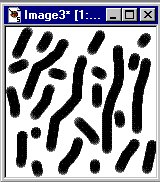
Go to IMAGE>BLUR>MOTION BLUR use
these settings...
Direction: 135 Deg, Intensity: 40 Pixels
Go to IMAGE>BLUR>MOTION BLUR use
these settings...
Direction: 90 Deg, Intensity: 40 Pixels
Go to IMAGE>OTHER>DILATE 3 times.
Now go to IMAGE>SHARPEN>SHARPEN MORE.
Now save it and it looks like this...
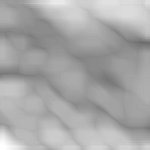
.
Cracked
Start a new file with these settings...
Width: 200
Height: 200
Background Color: White
Set your foreground color to black.
Click the airbrush set the control palette
like this...
Size: 10, Shape: Round, Opacity: 120,
Paper texture: None. Now draw some lines on
it, here's mine...
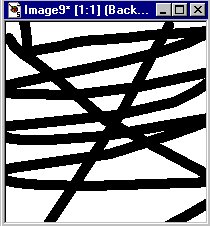
Go to IMAGE>BLUR>BLUR MORE 3 times.
Go to IMAGE>OTHER>DILATE 5 times.
Now go to IMAGE>SHARPEN>SHARPEN MORE
2 times.
Now go to IMAGE>RESIZE and size to Pixel
Size: 150x150.
Save it and it looks like this...

.
Granite
Start a new file with these settings...
Width: 150
Height: 150
Background Color: White
Set your foreground color to White.
Set your background color to pink like
this...
Red: 255, Green: 128, Blue: 192. Hit the delet key to fill
with pink. Go to IMAGE>NOISE>ADD Select Random and 20%
Noise. Go to IMAGE>OTHER>HOT WAX COATING. Go to
IMAGE>PLUG-IN FILTERS>TOADIES>METALWORK when the box
comes up it will have the standard settings.
Leave them except for Reflection 1, set it
to 100.
Now save it and it looks like this...

That's it. They're pretty easy huh?
If you have any questions, just ask... |