|

How to change the color of a image
using layers
.
(save this image by right clicking on it and save
to your hard drive =)
Open PSP. Open the pic, car19.jpg.
Which looks like this...

Click the layers palette button  . .
Click the new layer button  name
it colorize and click ok. name
it colorize and click ok.
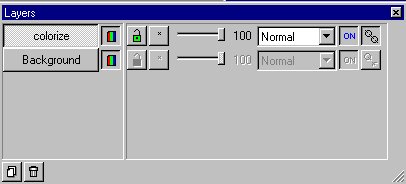
Make sure the layer called colorize is the active
layer by clicking on it.
Like this...
Now pick a color you want the car to be. I picked
dark blue.
Now click the paint brush tool  . .
Set your control palette like this...
Brush Tip...
Shape: Round
Size: 13
Opacity: 100
Hardness: 100
Density: 100
Step: 1
Now paint over the red on the car.
To get in some of the tight places I had to change
the size of the brush to a smaller size.
Now it looks like this...

On the layer palette, change the layers blend mode
of the layer called colorized to Color. Like
this...

Click the layer called background to make it the
active layer.
Now go to
COLORS>ADJUST>HUE/SATURATION/LIGHTNESS
use the following settings...
%Hue: 0
%Saturation: -100
%Lightness: 0
Click ok. Now it looks like this...
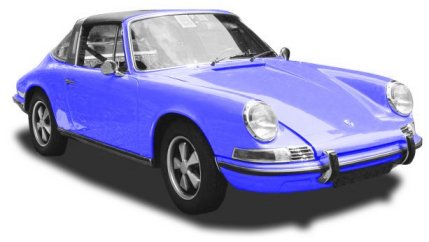
That looks ok. But let's change it to a green
color.
Click on the layer called colorize then go to
COLORS>ADJUST>HUE/SATURATION/LIGHTNESS
use the following settings...
%Hue: -21
%Saturation: 0
%Lightness: 0
Click ok. Now it looks like this...
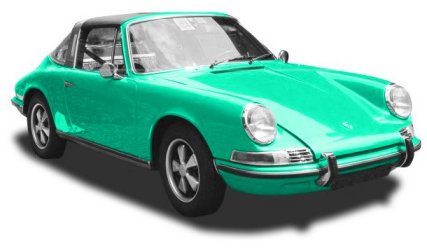
You can experiment with the Hue settings
and see how the color changes. This one is at -68

Just play around with it!
If you have any questions, please just ask....
Copyright © 2000-2001 by LovlyGypsy,
all rights reserved
| I, LovlyGypsy,
Give my permission to Ldy
Archrr aka Artists for PSP to place any and all tutorials
that I have made on her site.. this 22nd day of February 2001.
These tutorials were made solely by me and permission is mine
to give. |
|


