|

How to make a Bordered Background
.
The DOWNLOAD file contains
the following file...
faces.jpg
Needed for this tutorial:
Dcbdrfd. 8bf (is a Border Fade Filter)
You can get it free here: DCSpecial
Plugin Filters
Download, unzip. Go to explorer and find the
"dcbdfd.8bf " file
and cut it then go to PROGRAM
FILES>PSP>PLUGINS and paste the file there.
Open PSP
Here's the pic we will be using...
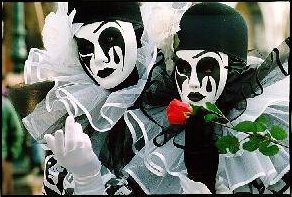
Now you need to resize by going to IMAGE>RESIZE.
I want to use this bg in e-mail so I used the
following settings...
Pixel Size:
Width: 170
Height: 115
For a web page bg, you would want to go
around...200 x 200
Now go to IMAGE>PLUG-IN
FILTERS>DCSPECIAL>BORDERFADE
set it at 23 and click ok. Now it looks like
this...

For a white bg, make sure the background color box
has white
in it and go to IMAGE>ADD BORDER with the
following settings...
Do not check Symmetric
Set all to 0 except for Right set it to 1000
Click ok. Now it looks like this...

You can pick a different color that white or you
could
flood fill with a bg pic by clicking the magic wand
in the white
to select it then flood filling. Like this one...

Or you can click on the air brush tool  and
pick a paper and
pick a paper
on the control palette and color the white. I used
Fruit Peel on this one...

Well that's it. Not too shabby for my first ones.
=o )
If you have any questions, please just ask...
Copyright © 2000-2001 by LovlyGypsy,
all rights reserved
| I, LovlyGypsy,
Give my permission to Ldy
Archrr aka Artists for PSP to place any and all tutorials
that I have made on her site.. this 22nd day of February 2001.
These tutorials were made solely by me and permission is mine
to give. |
|


