
This is a 3 part class
and your Teacher today is Cyndie.
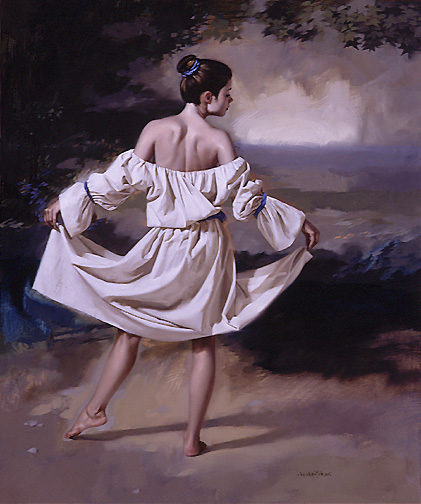 |
This is our first image. It's too big, needs a border and then we'll add a drop shadow. First we need to resize this image and get rid of a lot of the edge waste so that we just end up with mostly the dancer in the picture. |
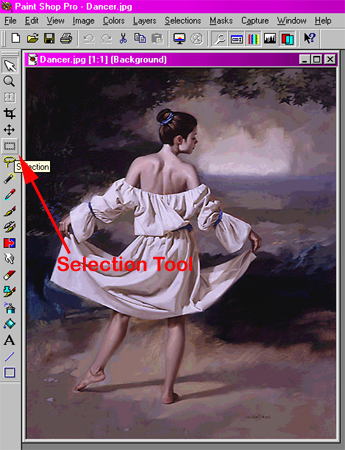 |
Click on the Selection Tool and click and hold while you mark a square around your image. |
 |
Try only to select the as much of the picture as you need, this will help to keep the file size down. |
 |
To get rid of the edges outside the selected area click Image from the menu bar and click Crop To Selection from the drop down menu. |
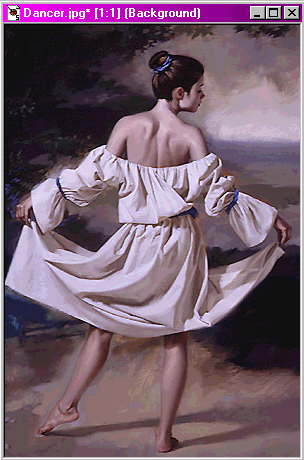 |
You will end up with an image that has all the waste taken off but is still to big in file size. |
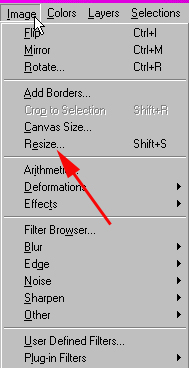 |
From the menu select Image again and click on Resize. |
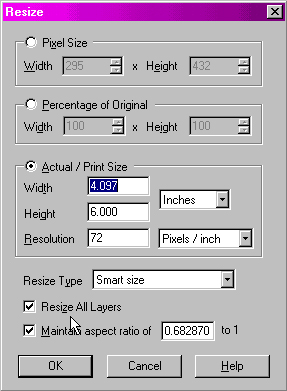 |
As you can see our image is 6 inches in height. Change the 6 to a 4 and because the Maintain Aspect Ratio button is checked it will automatically adjust the size of the width. Once you have changed the 6 to a 4 click OK. |
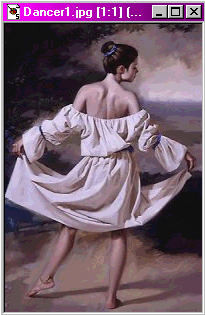 |
Our image is now the perfect size and ready to add a border. |
