OK Ladies.
So you want to make some gold text in the easiest way possible? Well this
tutorial is for you!
Before we begin, there are a few things you should know. First and foremost, you must have Paint Shop Pro 6 for this tutorial. Oh, I know. You have downloaded the shareware version and maybe even installed it, but you fail to open it up because you just are too comfortable with PSP 5. Yes, we are creatures of habit, BUT why leave such treasures unopened? Go ahead, install it or open it, it won’t bite! You can have both PSP 5 and PSP 6 running on your system without one affecting the other…so go for the gusto, what can it hurt? A few tutorials in PSP 6 and it won’t be long before PSP 5 is sitting in idle on your system!
You
will need the white sparkles tube to add the decoration after you have
completed your text. You can download this here. White
Sparkle Tube.
Start by creating a new image, 400 x 600 pixels , 16 million colors with a black background.
Select
your text tool and
click on the center of the image.
Now, I chose to use Blockin Font, size 28, antialias checked and floating checked. The color of your font does not matter with this method, no matter what color you choose your font will always come out Gold.
Type your
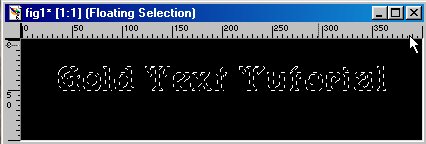
words and click OK I chose black color font. My image looks like
this
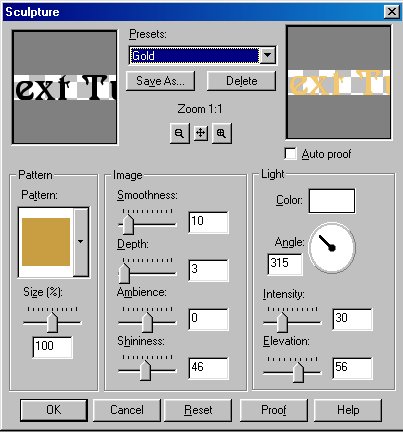
With your text still selected, click on Image> Effects> Sculpture. A new window opens that looks like this.
Under presets
choose Gold and then click OK Now you image looks like this.
Now click on Image>Effects>Inner Bevel.
Under presets, choose Angled and then click OK
Deselect your text (ctrl + d) and add your sparkle with the tube! That’s it!



 and
click on the center of the image.
and
click on the center of the image.