
The next step is a head section which includes mainly your title it is set off by <head> and at the end is </head> The title is between these two tags.
Title = a tag at the top that tells the browers the name of the page at the top! To make a title type:
<title>The Title Goes Here</title>
an Example <title>HTML Help Page</title>
Now you have you body which encases everything else that I show you here. It is set off in <body> and at the end is </body>
To make a link you need to know the URL (Uniform Resource Locator) of the site in which you want to link to. Such as a great link to My Web Page at angelfire. It is at https://www.angelfire.com/me/Brain6/
TO LINK You need to type a less than sign or <, and a greater than sign or a >, in between you put a href="then the URL, or https://www.angelfire.com/me/Brain6/" then you type the text to appear as the link then a closin < and > with /a in between.
It should look like this if that was to confusing:
<a href="https://www.angelfire.com/me/Brain6/"> Brain's Web Page</a >
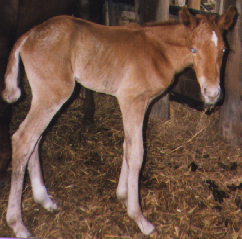
http://people.goplay.com/brain_6/images/BabyPic.gif
Then you put on a code that goes like this:
<img src="https://www.angelfire.com/me/Brain6/images/Babypic.gif">
This will then show the picture there like this:
| Tag | Result | Closing Tag |
|---|---|---|
| <i> | Hello | </i> |
| <b> | Hello | </b> |
| <strike> | </strike> | |
| <u> | Hello | </u> |
| <tt> | Hello | </tt> |
| <em> | Hello | </em> |
| <strong> | Hello | </strong> |
| <dfn> | Hello | </dfn> |
| <code> | Hello | </code> |
| <kbd> | Hello | </kbd> |
| <cite> | Hello | </cite> |
| <var> | Hello | </var> |
| <big> | Hello | </big> |
| <small> | Hello | </small> |
| <sub> | Hello | </sub> |
| <sup> | Hello | </sup> |
There are five basic kinds of lists the unordered, ordered, definition, menu, and directory lists. Usually only the first three are used often.
You can type <caption> right after the opening tags of the lists to put a caption or title to that list but don't forget to close with the </caption>
The first being unordered uses the tag <ul> to start one. You can
choose from three different types of bullets for the unordered. You can
have a disc, circle or square. To change which type you type this code
<ul type="..."> You then put the type where the dots are. Such as
<ul type="circle">
To make items on the list you must type <li> Inside you can also
change the type by typing <li type="..."> So you could actually
make each item a different shape on the list. Or make very complex lists.
Always make sure you close with the </li>
Example:
For the ordered lists you type <ol> Besides
the type choices of A, a, I, i, and 1. you can choose where the list starts
at by putting in this code <ol type="1" start="2"> That makes it
start at number 2 on an ordered list.
You use the same concept for items on this list execpt you may add one
more tag to the ordered list's items it is called value and it assigns
the number by which this item goes by. An Example tag would be
<li type="A" value="5"> that would make it use the letter E for the
item on the list.Always make sure you close with the </li>
For the definition lists you use the tag <dl> There are no special
attributes for the definition lists.
For definition list items you type <dt> and this also has
no special attributes.Always make sure you close with the </dt>
To make the definition of the word you must type <dd> and end with
the </dd>
The Next list is the menu type for this you use the tag <menu> this is
another one of the lists with no special features.
For list items you must type <li> and it too has no special features.
Always make sure you close with the </li>
The last list is the directory list with the tag <dir> Most items in a
directory list are less than 20 characters long. It too has nothing special.
For list items all you must type is <li>
Always make sure you close with the </li>
That is about it for basic Html for more advanced html help conact me or wait until I have finished the next page. MY Email is below or You can go to Zen Netwerk


