F4 Mod Manager Install Instructions
WARNING !!!
Use this software at your own risk !! Programmer is not responsible for any mess up of your F4 install or any other hard drive catastrophe ! :)
1) Download the file F4modman.zip and save it to your hard drive.
2)We will assume you are using WINZIP to unzip this file. IF that is not the case skip to step 8.
Double click on the F4modman.zip file and you will open up into the Winzip appilcation.
3) Click on the Extract button in Winzip. This will take you to a screen where you will browse for an extraction location.
NOTE: DO NOT just drag the files inside the zip directly to your hard drive since the files have path info associated with them and the program expects to use this structure !!!
4) Point the drive and directory path to any directory. It is recommended you use the directory just above your \falcon4 folder (in most cases c:\microprose or whatever your path structure looks like)
(e.g. e:\microprose\)
IMPORTANT !!!!!
5) Make sure the check box for Use Folder Names option is CHECKED. (lower left of Extract window)
6) Once you have the correct path click Extract.
7) This process will create a folder called F4ModMan in your selected sub-directory. Change over to this folder and click on the F4modman.exe to run the application. You can also create a shortcut to it on your desktop for quick access.
8) If you do not have Winzip, just make sure you can unzip the files while keeping the path information. There are some files which will go in other subdirectories under F4modman. These need to be in the right places for the program to work. You might want to create a temporary folder somewhere on your drive and practice extracting the files to it instead of your F4 location. If you get a folder named F4modMan with some files and additional sub-folders populated by files you are ok. Go ahead and extract to the F4 location.
**********************************************************************************
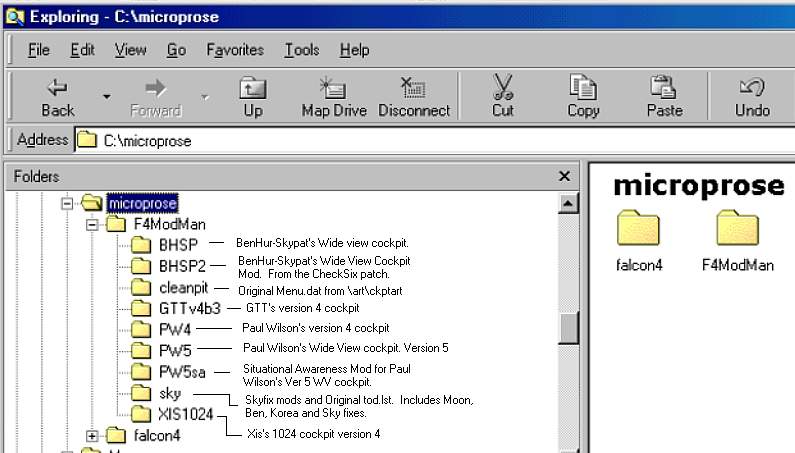
the final path structure looks like this assuming you extract to your microprose directory:
NOTE:
At this time the following sub-dirs are not populated by the required files in order to keep the download size smaller.
PW4, PW5SA, Xis1024, GTTv4b3, BHSP, BHSP2
You need to download the cockpit zip file from the owner's page and then extract the files to the corresponding directory using the above guide.
These are the links to these files:
I will be including only the Paul Wilson Wide view ver 5 at this time. I need to get a place that will host larger files !
************************************************************************
The first time it runs the program will ask you to locate the directory path where F4 is located. You only have to do this once assuming you don't later change this location.
The rest is pretty much self-explanatory.
Send comments, bug reports, suggestions, stock tips to :
jbarreto@olg.com
Enjoy !!
Jose "Starwolf" Barreto