Site hosted by Angelfire.com: Build your free website today!

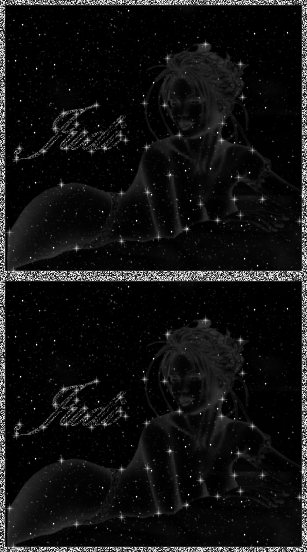
Constellation Tutorial

Please feel free to Link to this tutorial,
 and/or print it out for your personal use,
but please do not copy it in anyway to put online,
pass out or re-write without my permission.
2003© byTeri
For this Tutorial you will need:
Ghost and Glitterato plugins by Flaming Pear
you can download it Here
scroll down to free plugins for Ghost
scroll down to find Glittato
A sparkle white tube
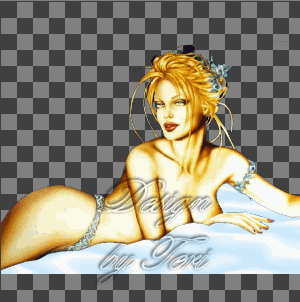
Your Choice of an Image:
You may choose this Sexylady tube 
unzipped to your PSP Tubes Folder
 
 
Open a new 600X600 transparent 16 mil color canvas
Flood fill with black.
Add a new layer
Find your image you want to use in your Tubes folder
place in the center of canvas.
 
Go to effects/plugins/flamingpear/Ghost
you wont be able to see it after you click on ghost
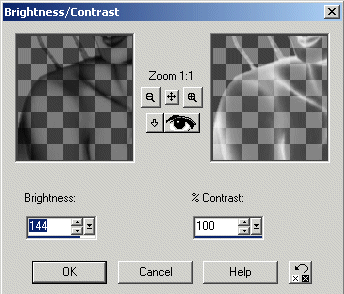
go up to colors/adjust/brightness
 
Click on your first layer. the black one.
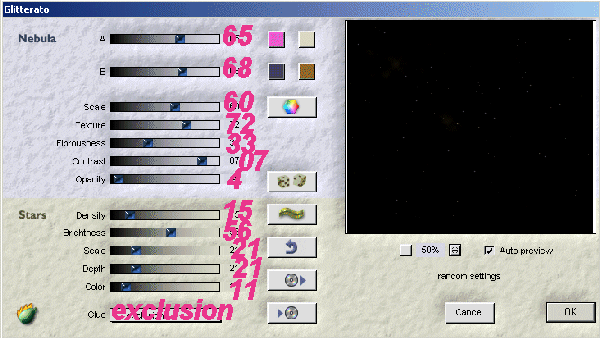
Go to Effects/plugins/glitterato
  

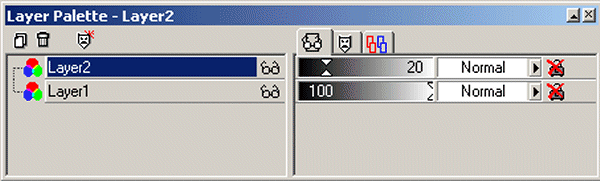
Click on layer 2 and lower the Opacity to about 20


Add a new layer, go to your tubes and find the

Sparkle white tube, change the scale to 60.

Place the sparkles anywhere on the outline of the image.  

Click on the glasses on layer 3 to hide it.

Right click on layer 1 or 2 merge visible.

Duplicate that layer, and the white sparkle layer. Layer 3

Hide the duplicate layers of the image and the sparkles.

click on the other sparkle layer

and using your lasso tool.  circle every other sparkle

 around the image.

Keeping the shift button down.

Go to Colors/Adjust and change the brightness to

Brightness 248 and contrast to 100

Merge visible.

Click on your duplicate image and your duplicate sparkle layer

Make your sparkle layer active. 

click on your lasso tool and circle the other sparkles

then go up to Colors/brigtness make the brightness

the same as above.

Merge visible.

You can either save each layer in psp

 and bring it to Animation Shop

through the wizard there or you can Copy each layer. 

Right click on the image copy then go to animation shop

and right click on the screen and paste as new animation.

go back to PSP and click on the other layer. 

right click on the image

go to copy.  go back to AS.

Right click on the first frame

 and go to paste after current frame. 

   

you can check the animation

then Save as gif if you like the results.

you can also add a border before you

 duplicate the image layer in psp.

or add Text  on the image layer.

Hope you enjoyed this Tut.

Thank you Teri

02/27/2011